


Digital Tickets


All Mets tickets will be delivered digitally via the MLB Ballpark app. We encourage you to review your account and ensure all tickets appear as expected within the app before you arrive at Citi Field.
To avoid any delay entering the ballpark, fans should proactively reset their password before arriving at the game. For the best experience, use the latest version of the Ballpark app when accessing your tickets and ensure you log out of all MLB applications and log back in with your updated password. Remember that screenshots of your tickets will not be accepted.
While reviewing your account, if you are unable to see or access your tickets in the app, please contact us at ticket_services@nymets.com.
Login and Verification
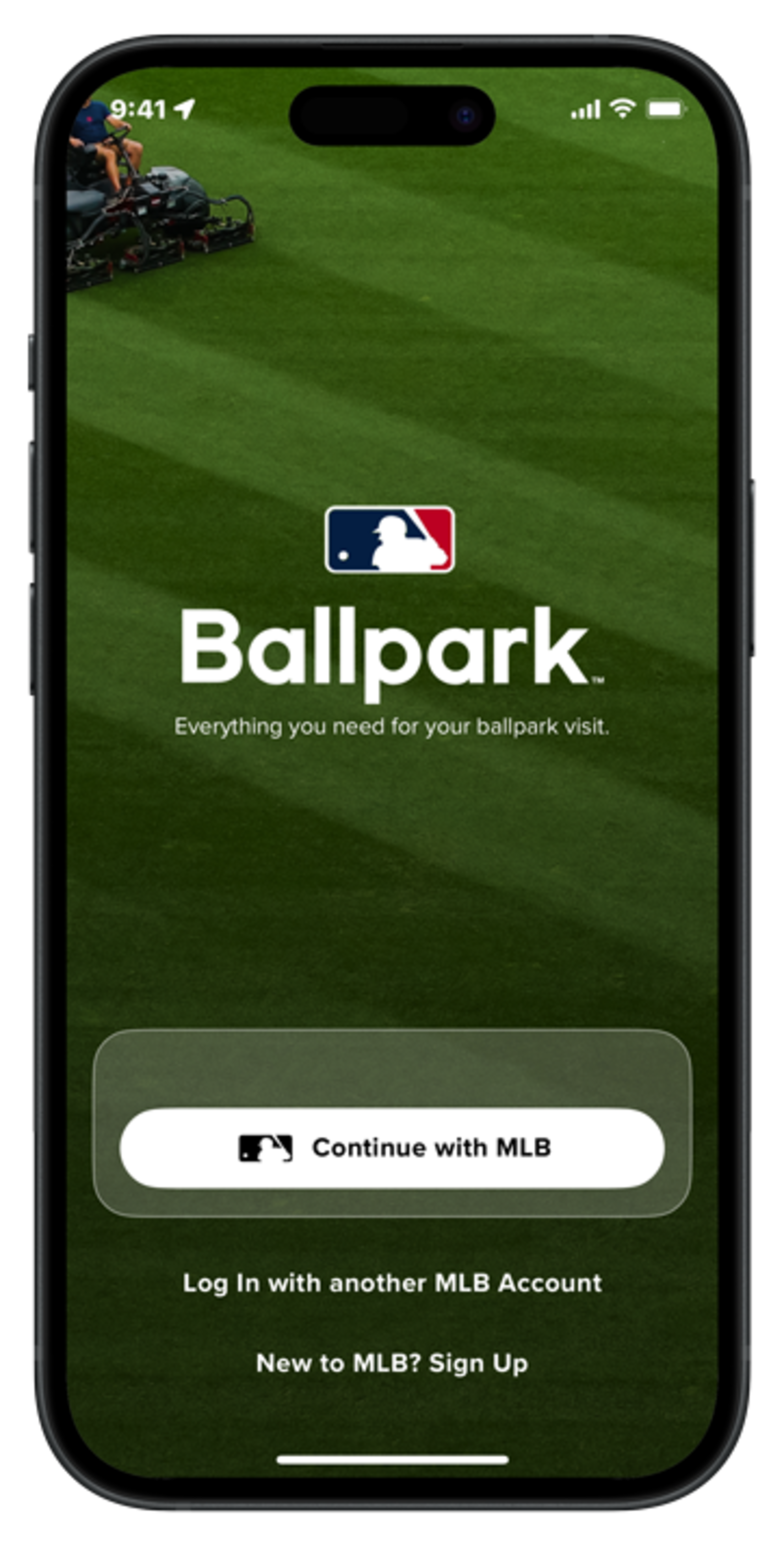
Step 1 - If you have an existing MLB account, log in with your email and password. If you don’t have an MLB account, please Sign Up
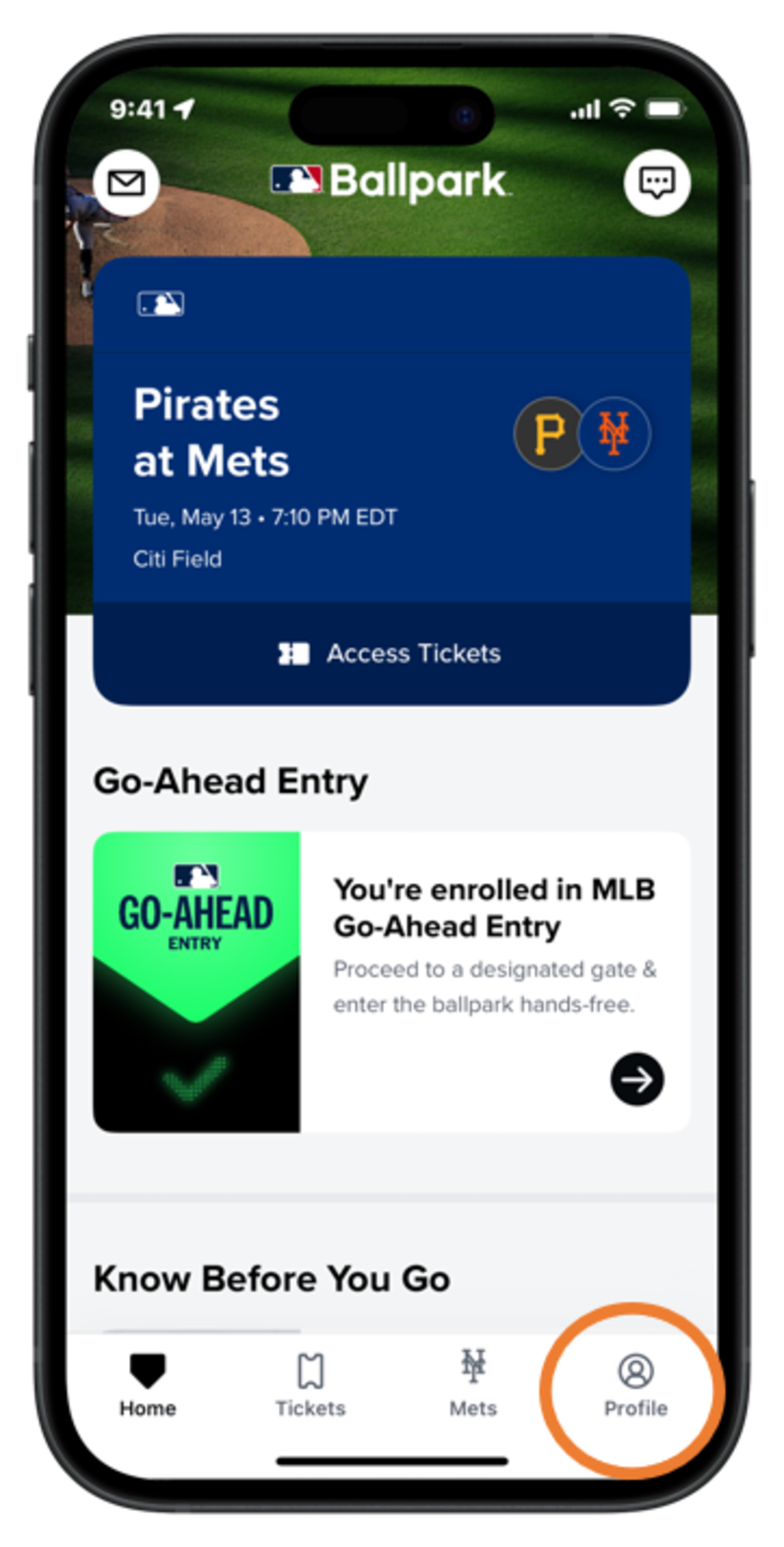
Step 2 - After you are logged in, tap the “Profile” tab
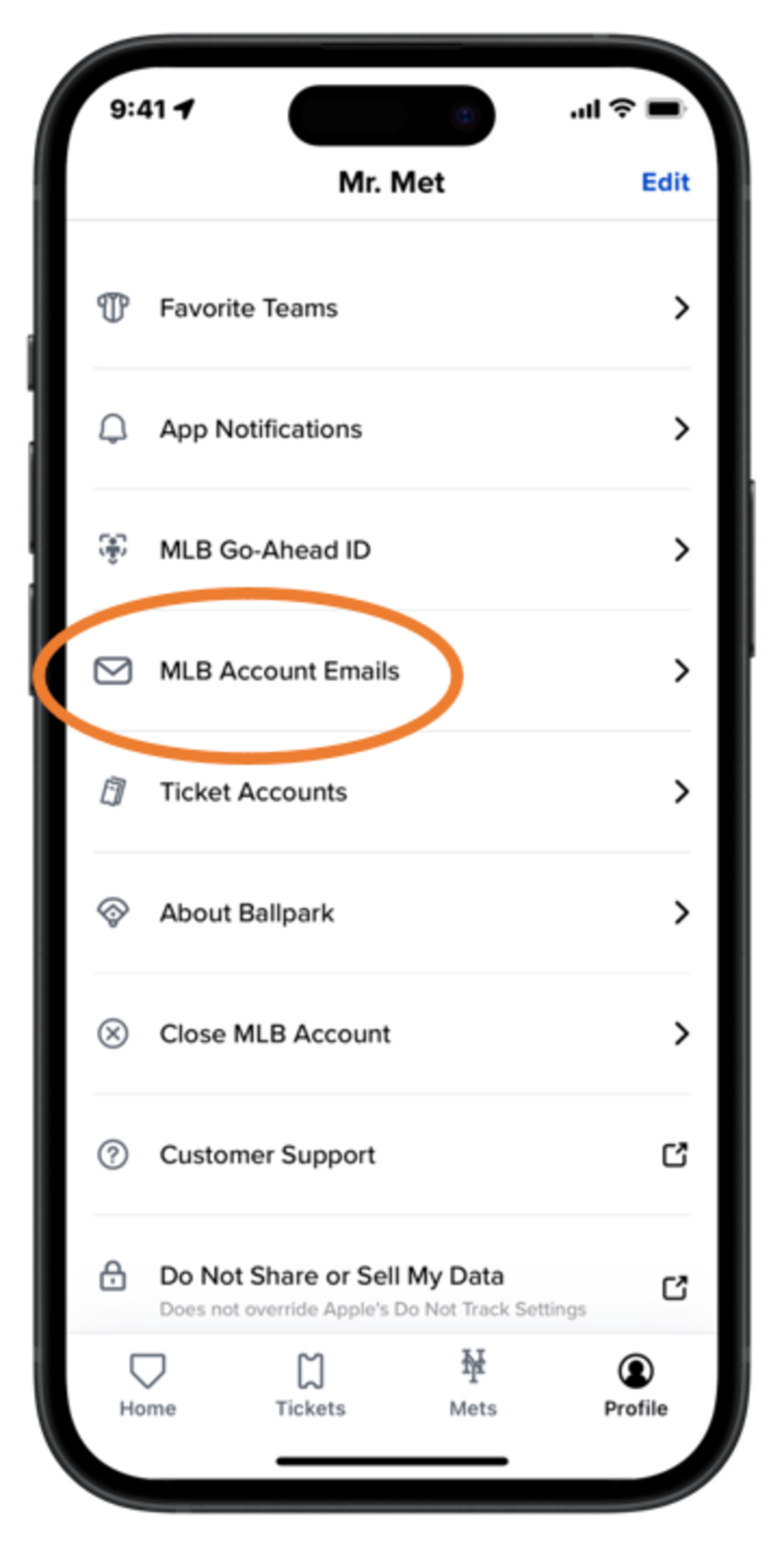
Step 3 - Tap “MLB Account Emails” and make sure your email is verified for ticket access
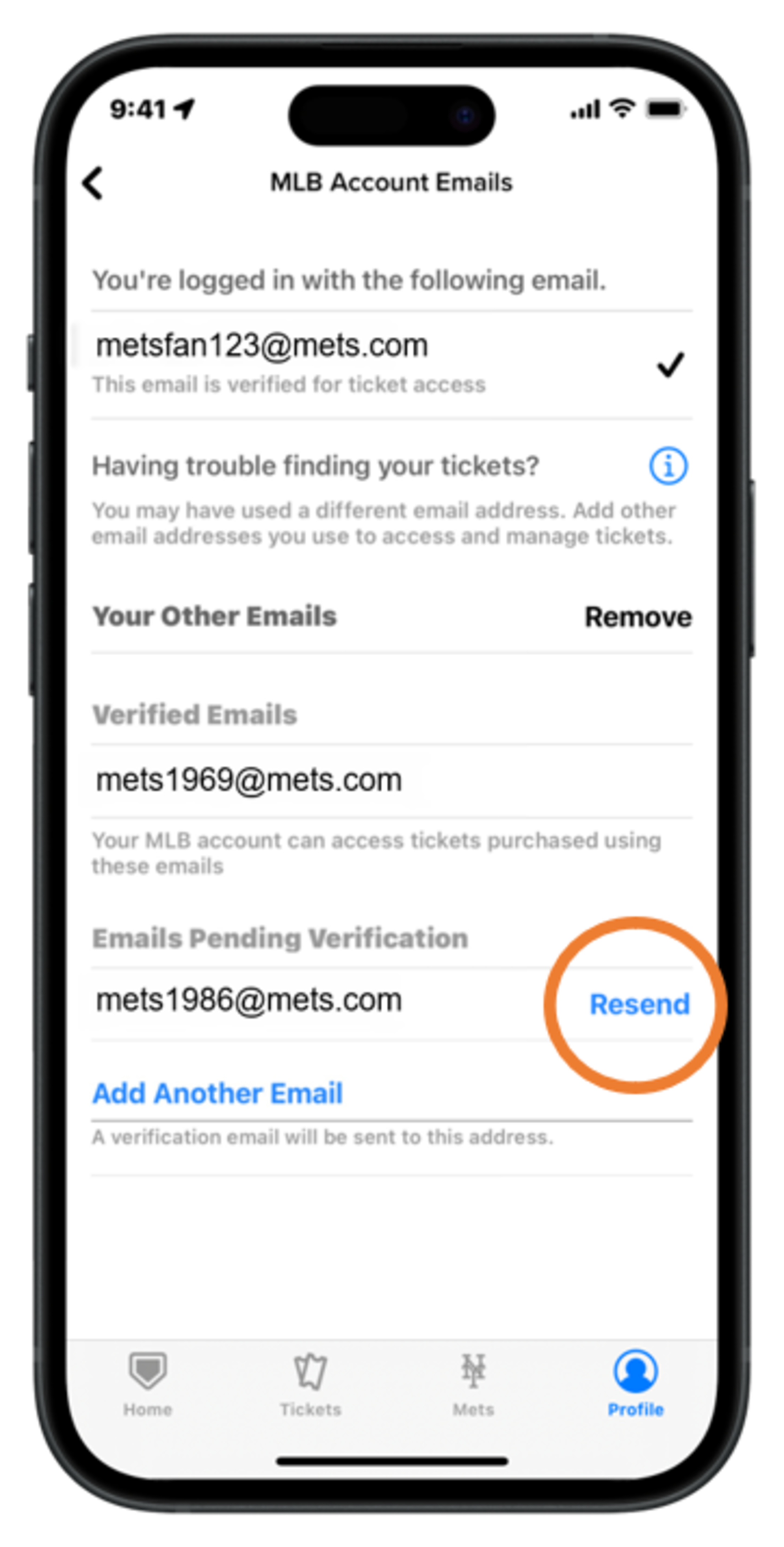
Step 4 - Add other Emails if needed. If you have not received the verification email, tap “Resend”
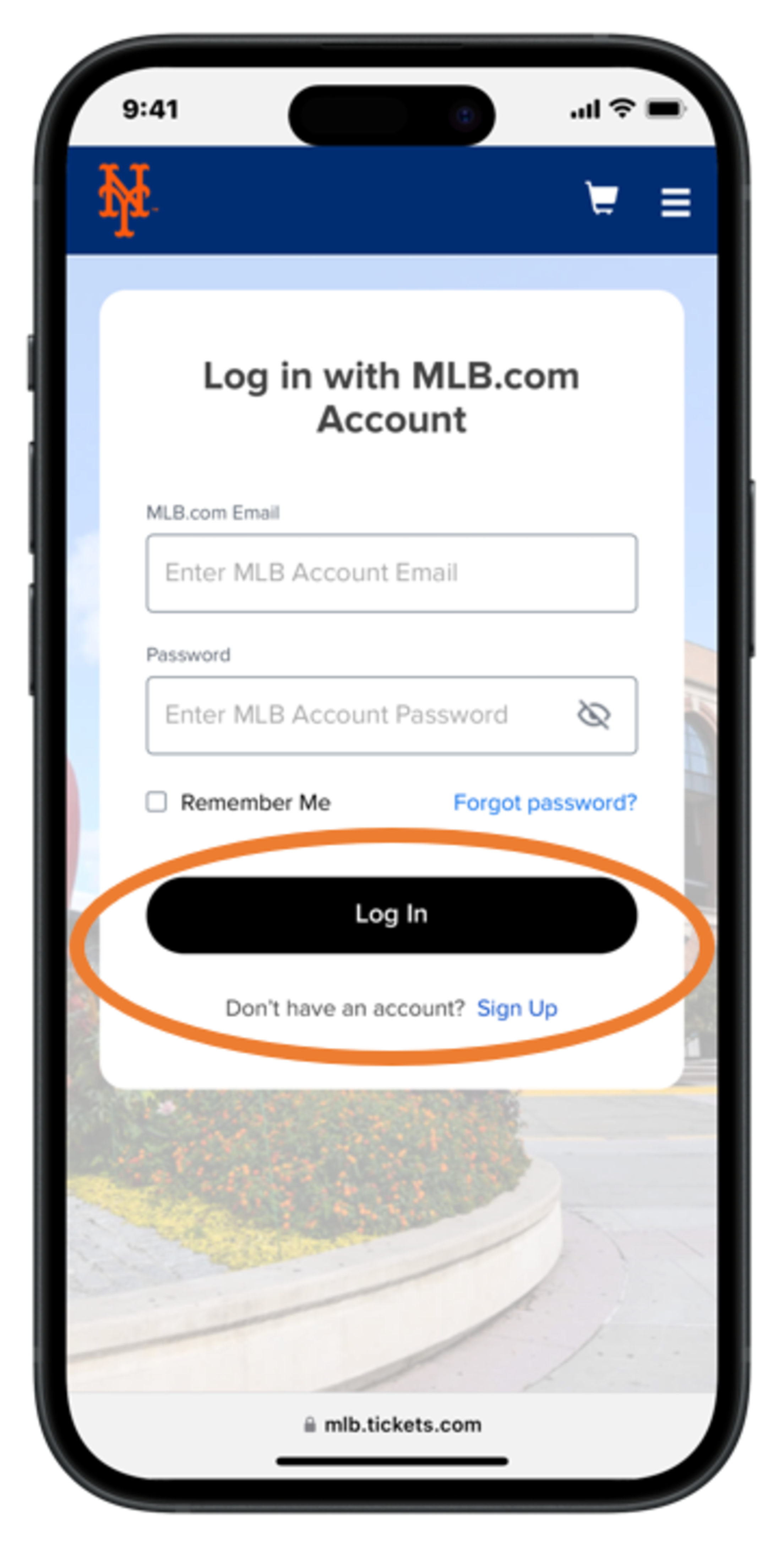
Step 1 - To log in with your existing MLB account, enter your email and password, then tap “Log In”. To create a new account, tap “Sign Up”
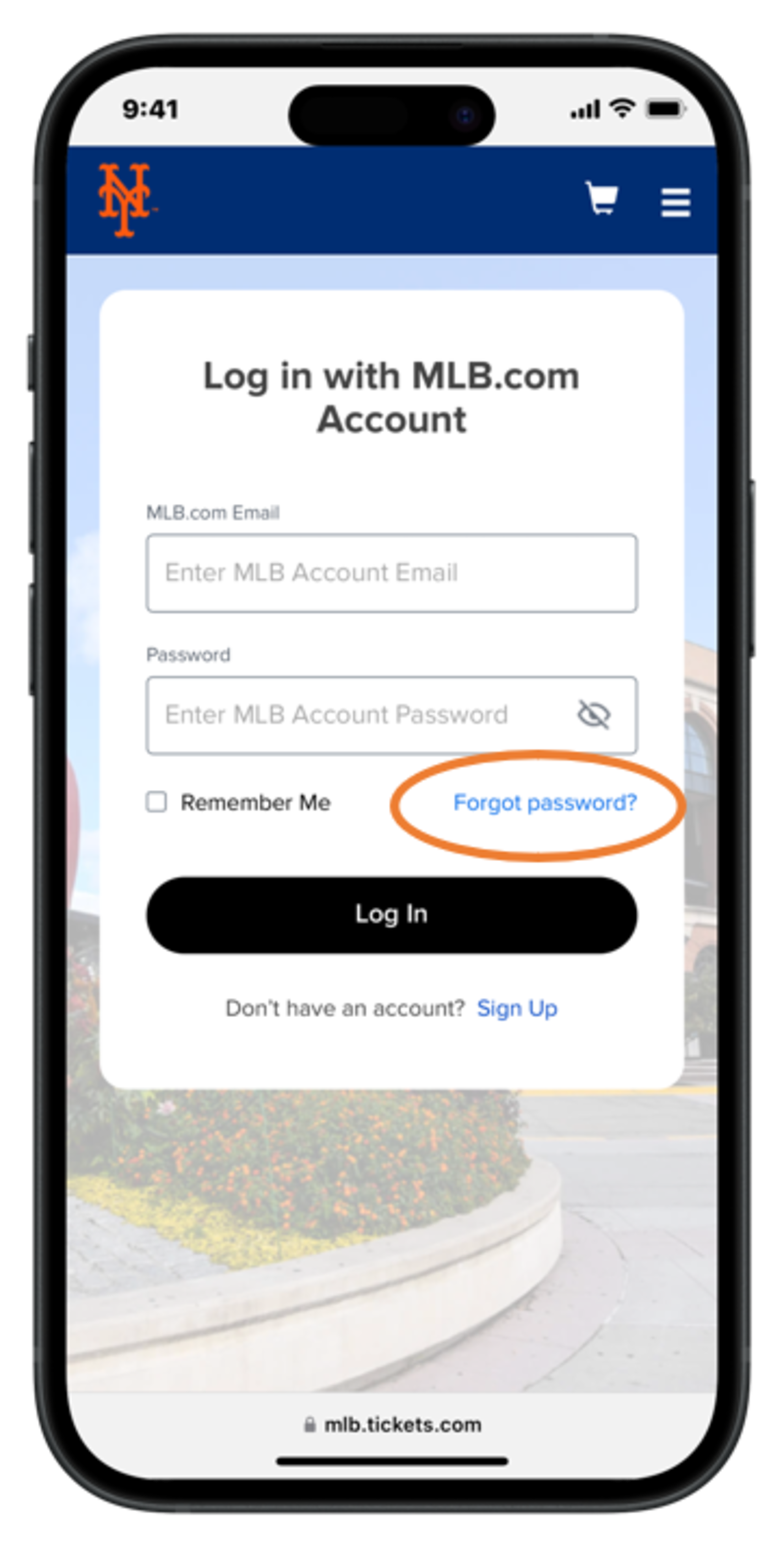
Step 2 - If you need to reset your MLB account password, tap “Forgot Password?” and enter the email associated with your MLB account
Accessing and Buying Tickets
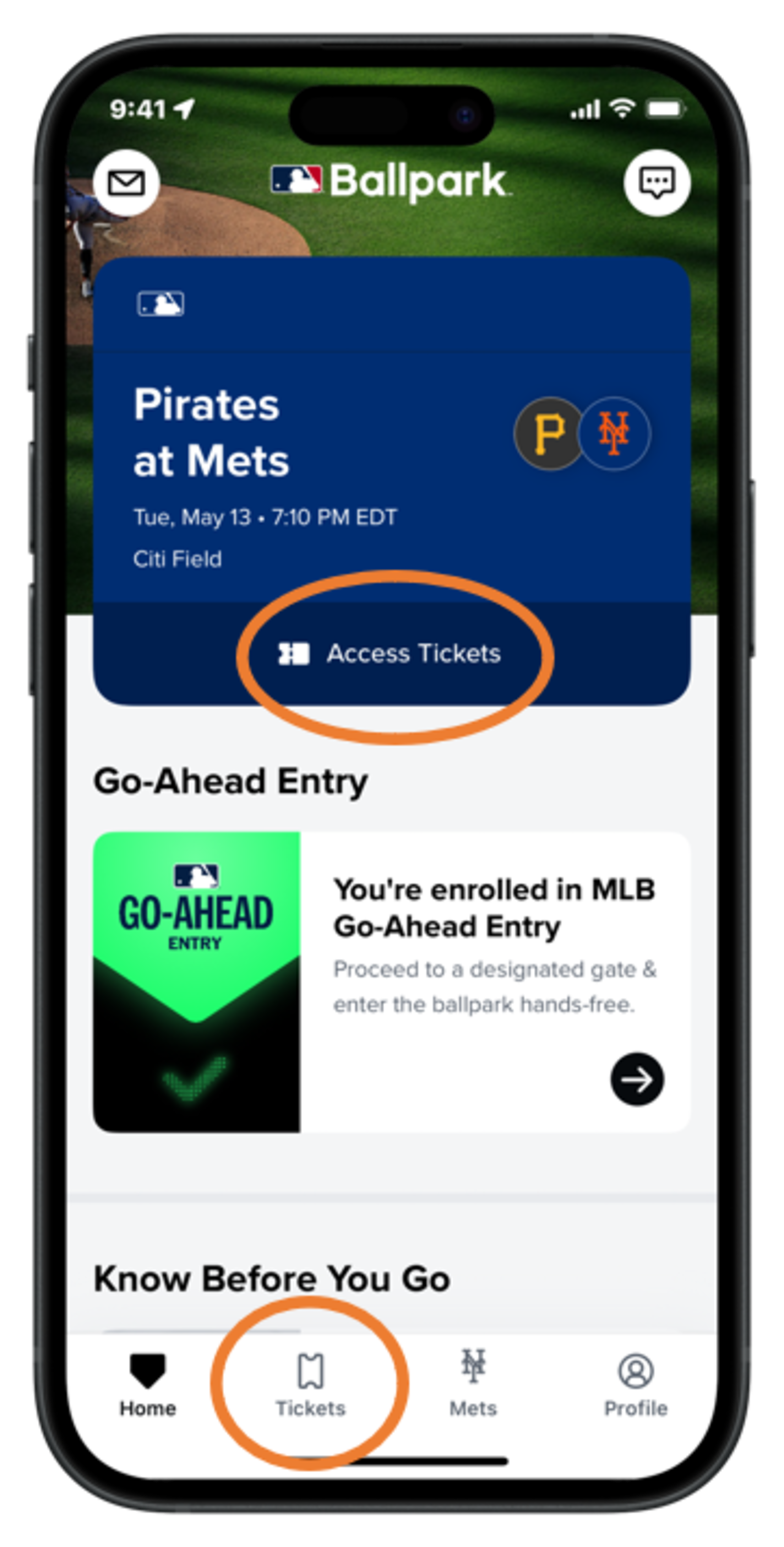
Step 1 - Tap “Access Tickets” from the Home Screen or the “Tickets” tab to view and access your tickets
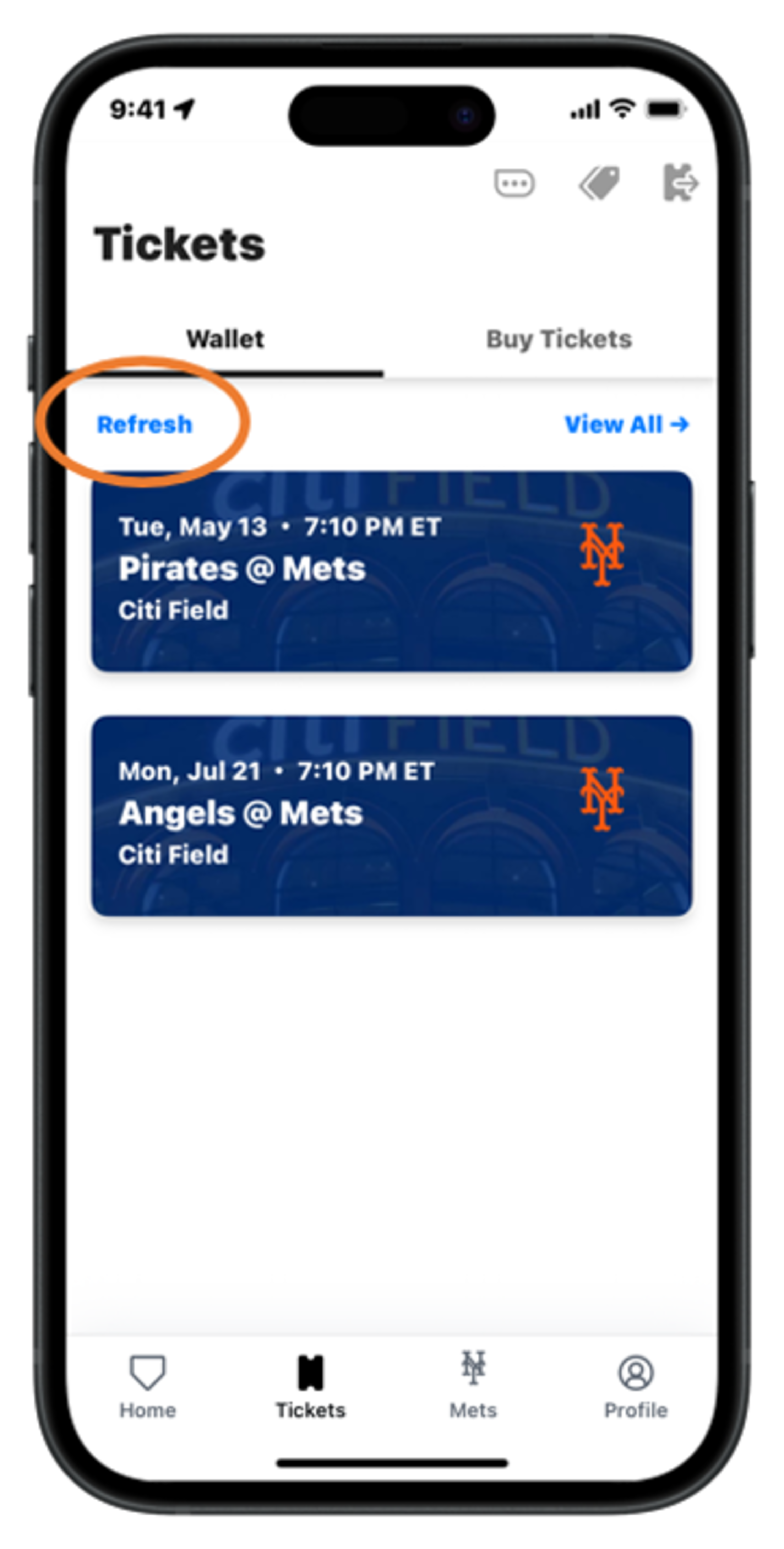
Step 2 - If you are not seeing them, tap “Refresh”, “Refresh My Tickets” or tap and drag your finger down on the screen to manually refresh
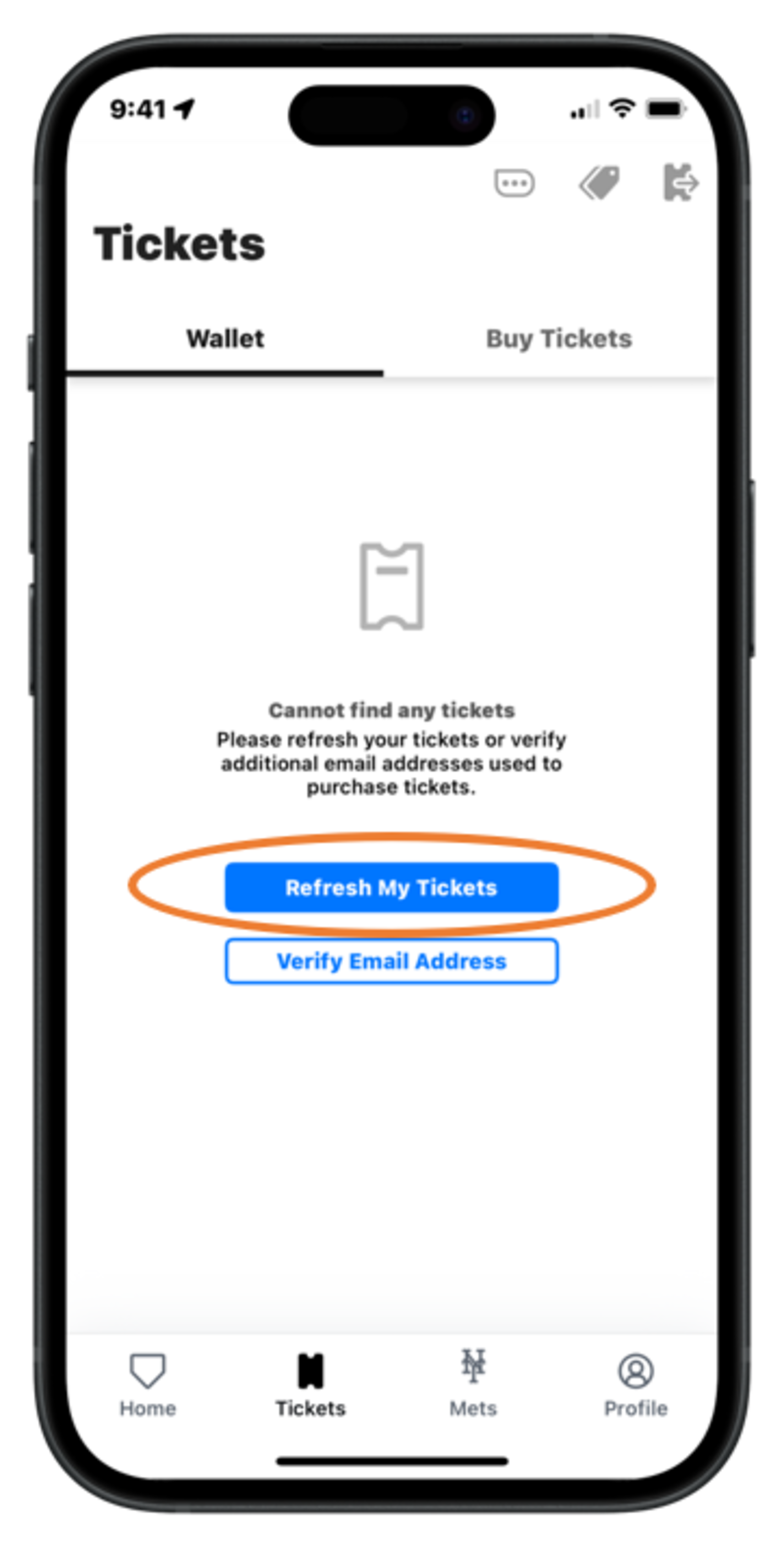
Step 2a - If you are not seeing them, tap “Refresh”, “Refresh My Tickets” or tap and drag your finger down on the screen to manually refresh
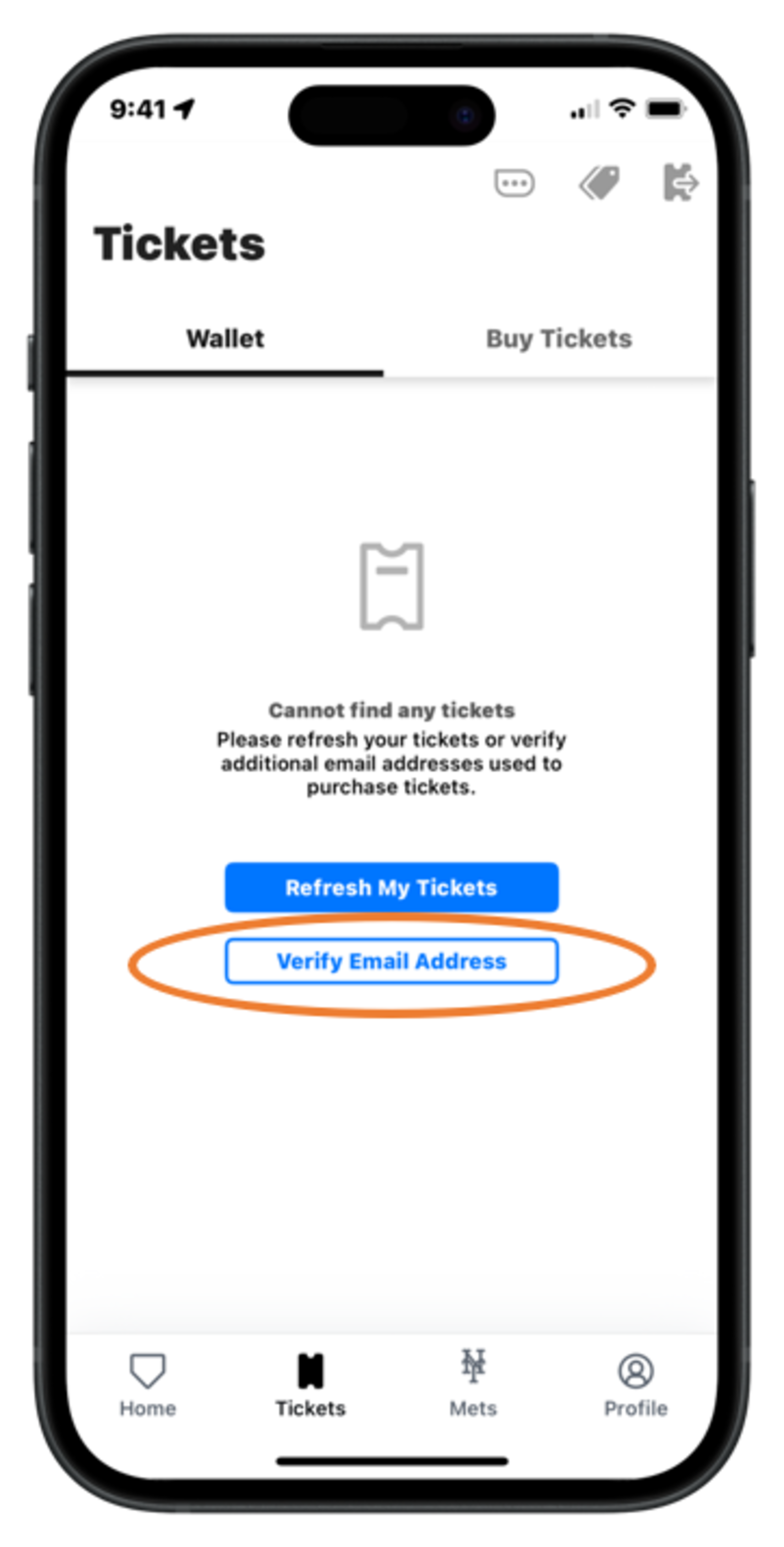
Step 3 - If you are still not seeing your tickets after taking the above actions, please tap “Verify Email Address” to verify your email for ticket access
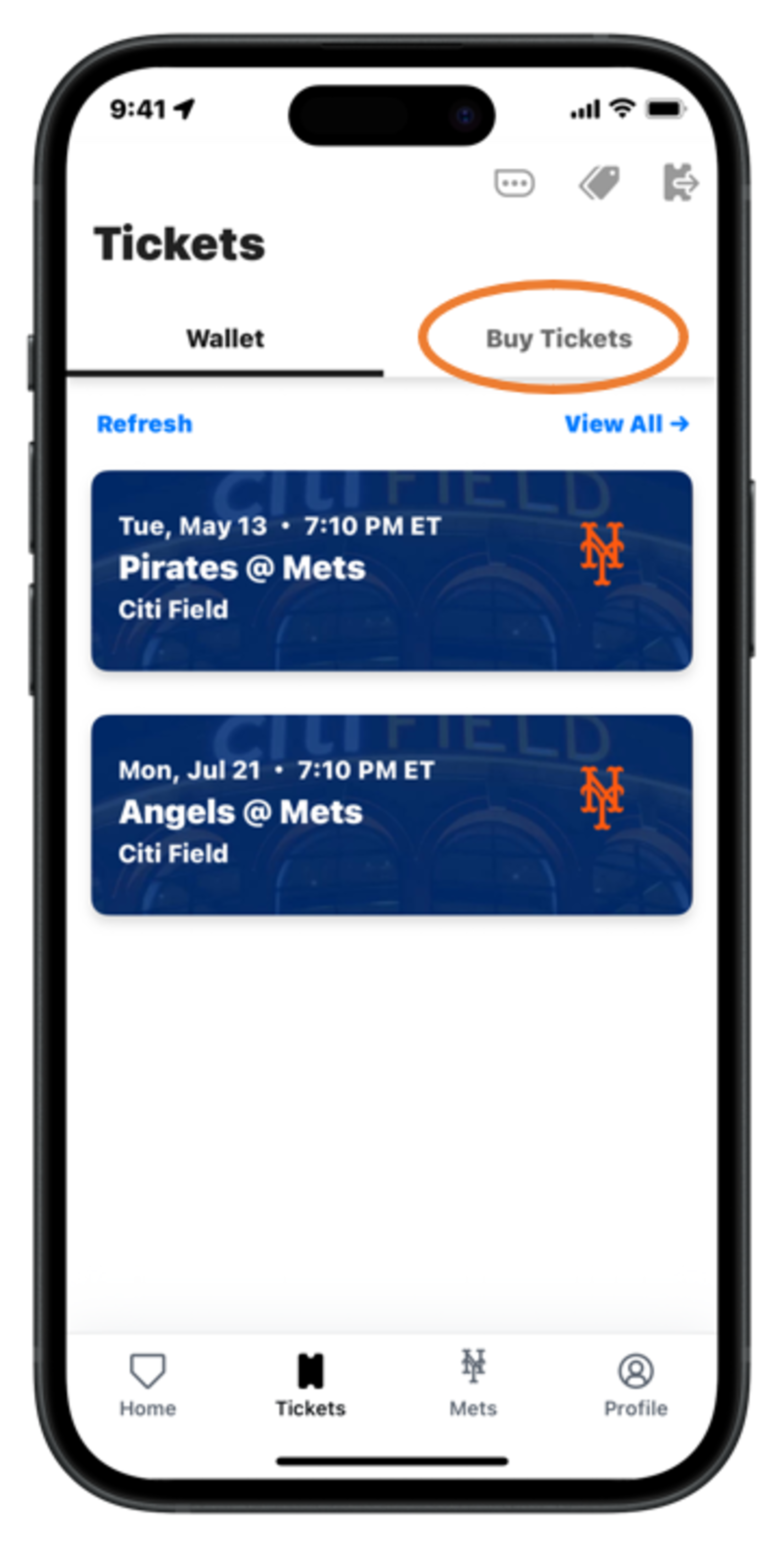
Step 4 - To buy tickets, tap “Buy Tickets” next to “Wallet”
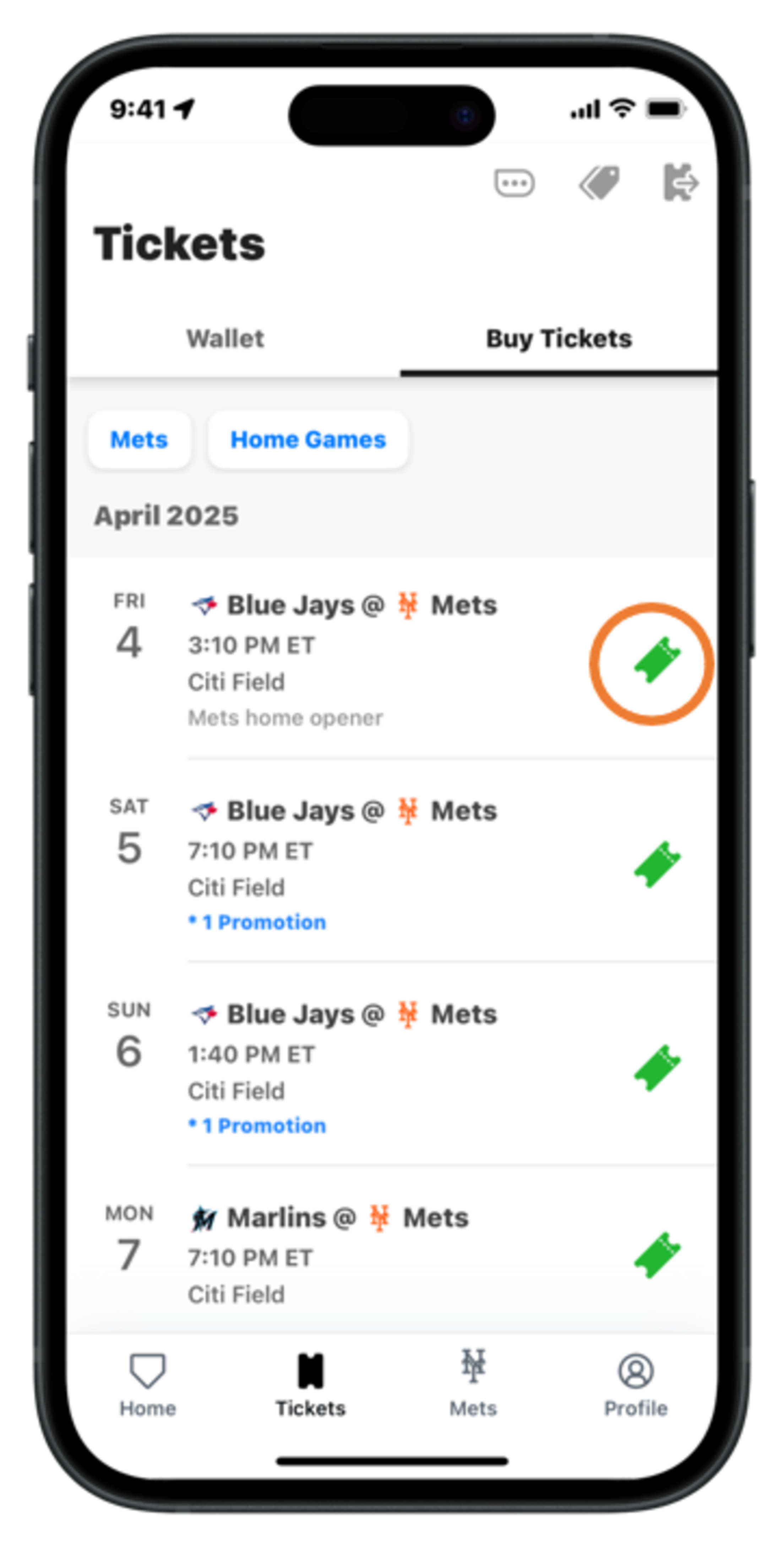
Step 5 - Scroll through the list of scheduled games and tap the green ticket icon to begin the buying process
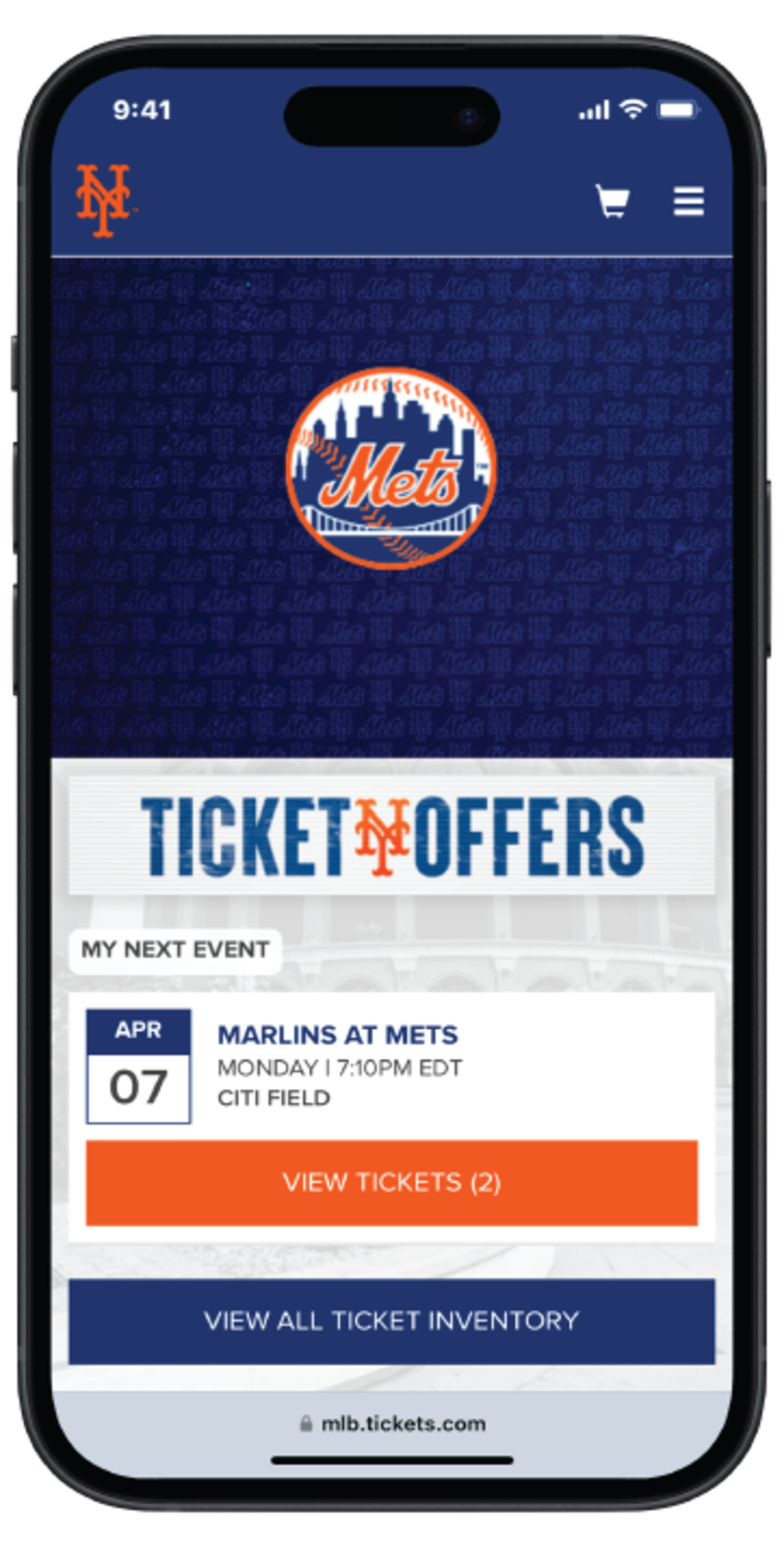
Step 1 - After logging into your My Mets Tickets account on Mets.com/MyTickets, the ticket inventory for your next game will be displayed
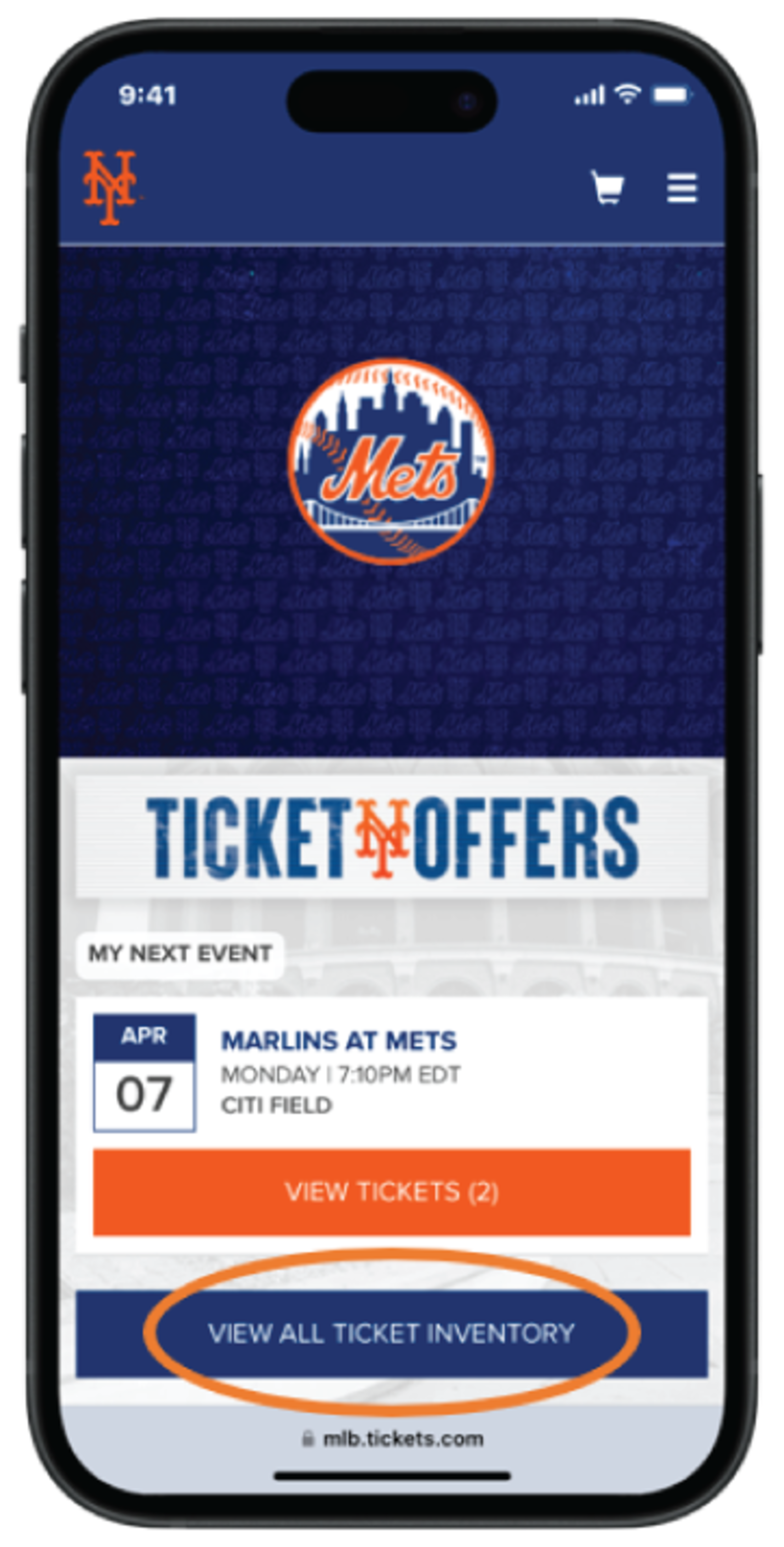
Step 2 - You can also tap “View All Ticket Inventory” to view any other games you have tickets for
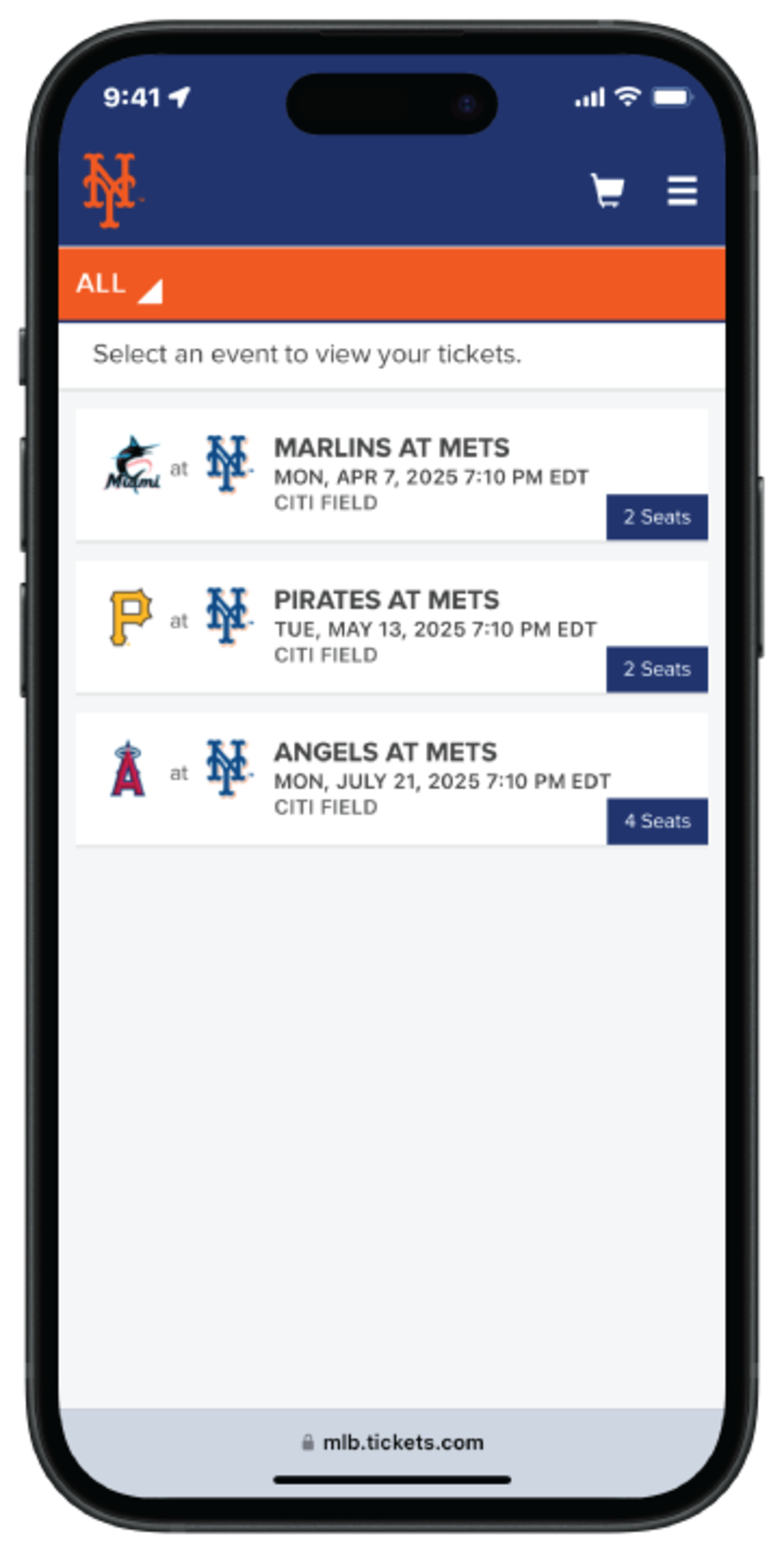
Step 3 - Tap on the game you would like to view
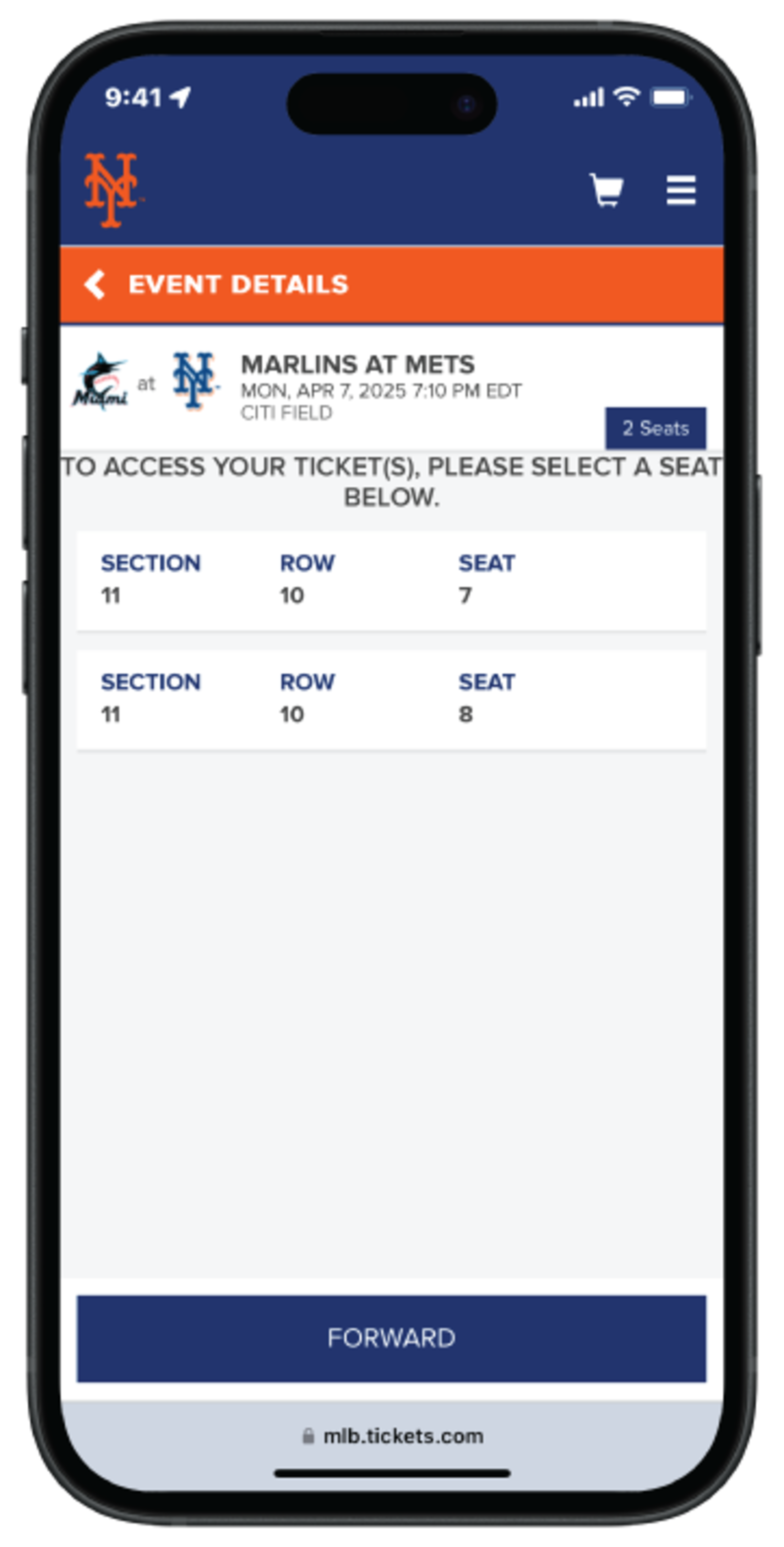
Step 4 - Tap on each ticket to view the barcode
Forwarding Tickets
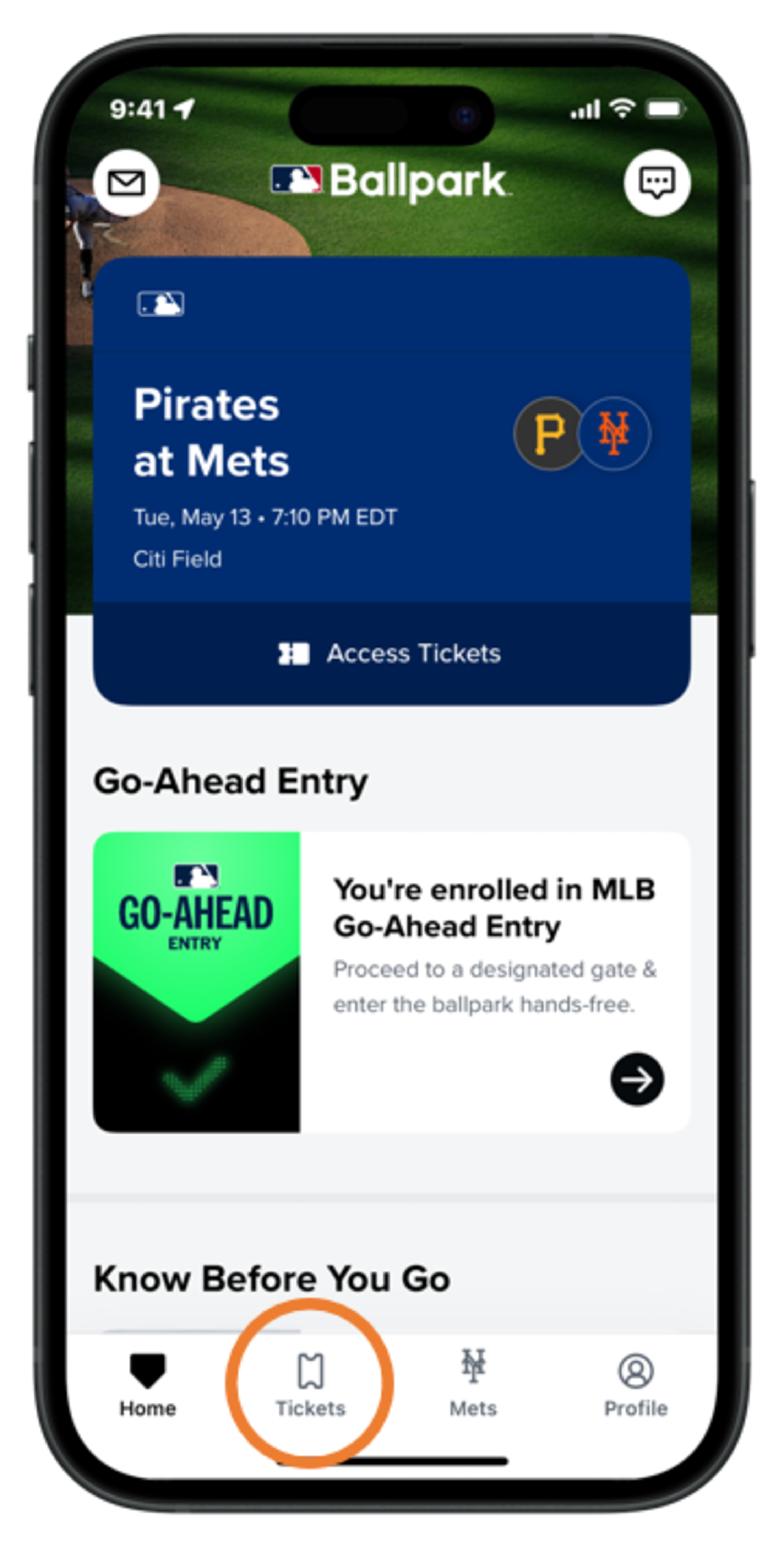
Step 1 - Tap the “Tickets” tab
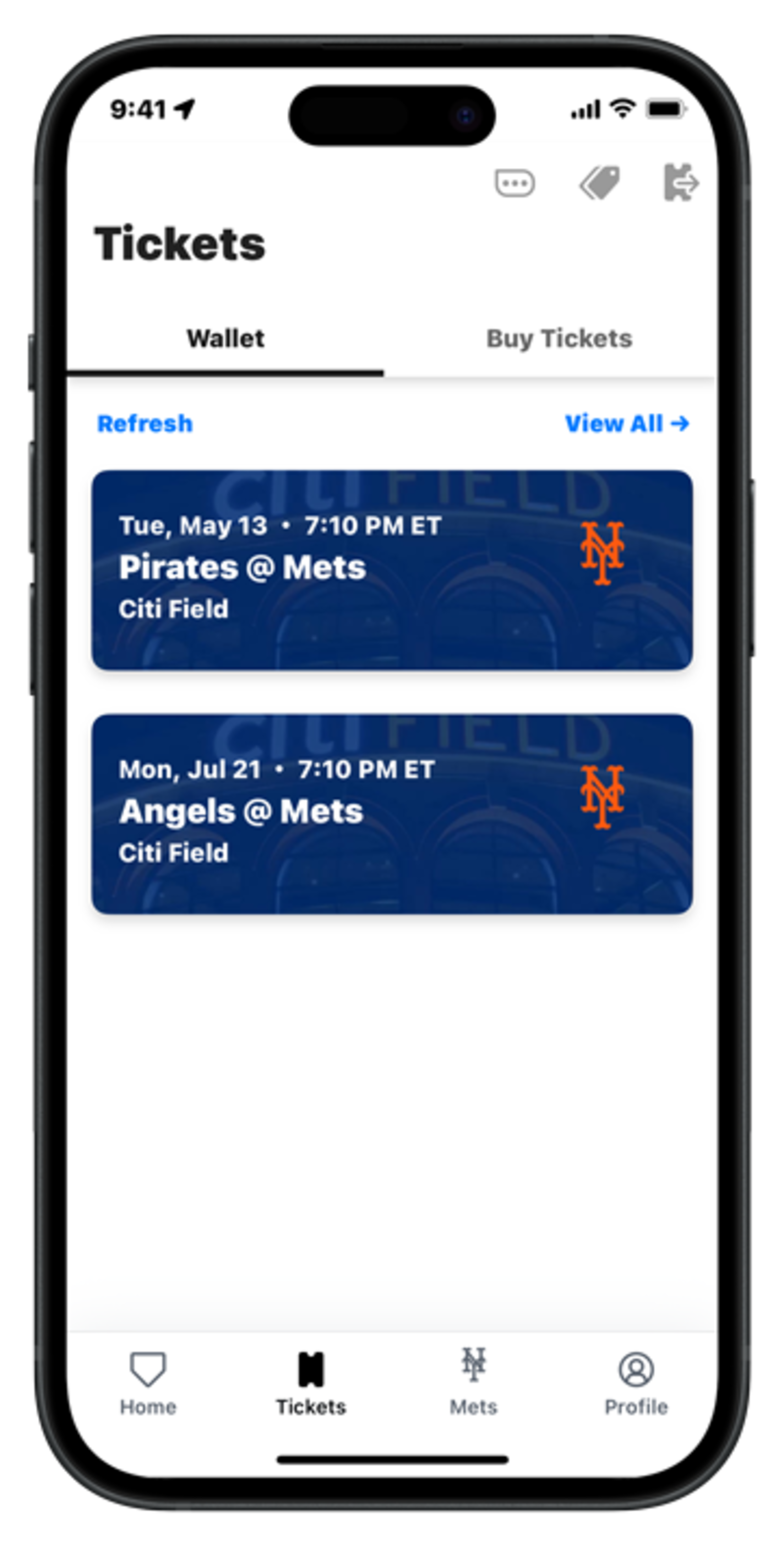
Step 2 - Select the game you would like to forward tickets from
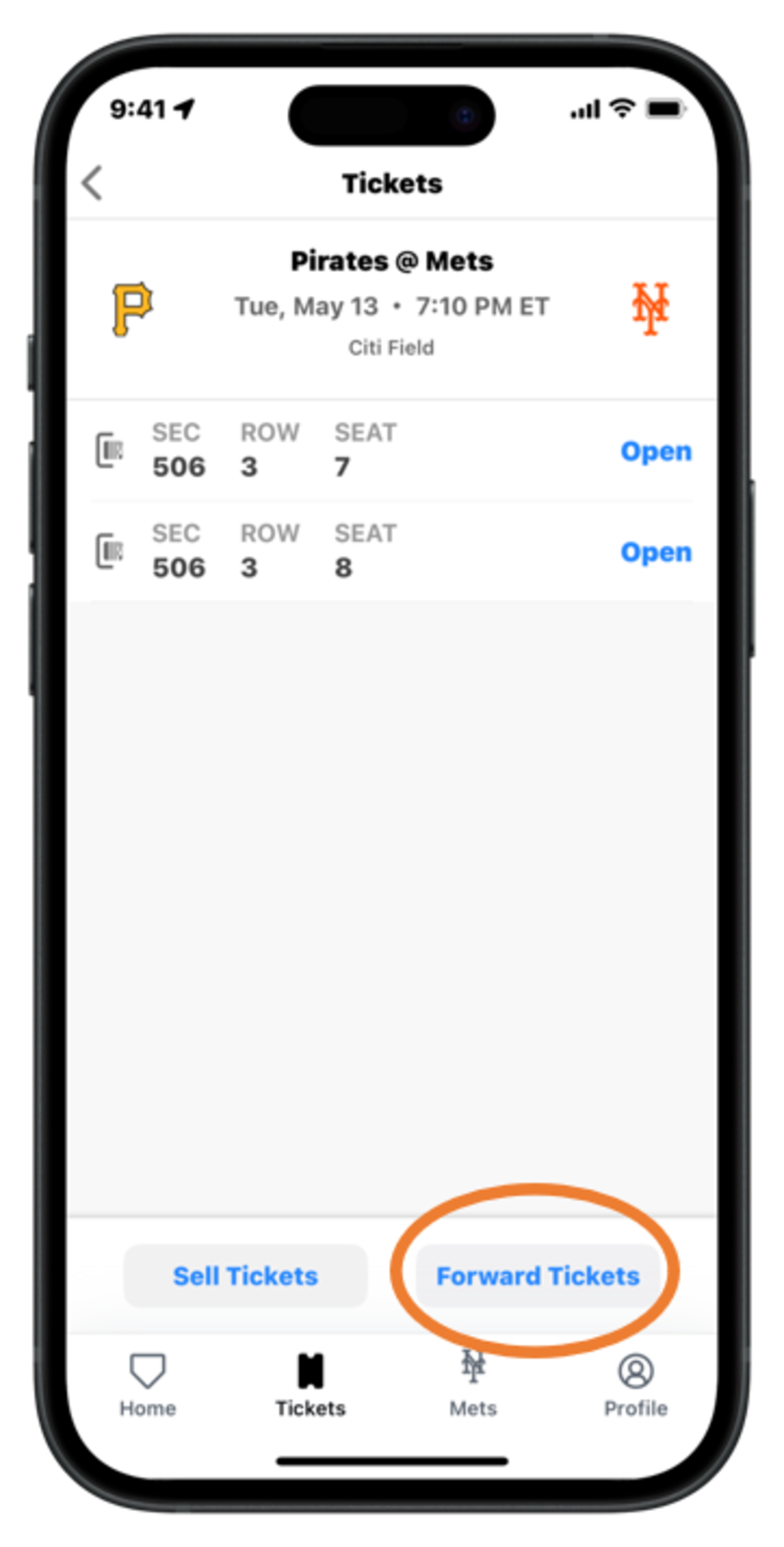
Step 3 - Tap “Forward Tickets”
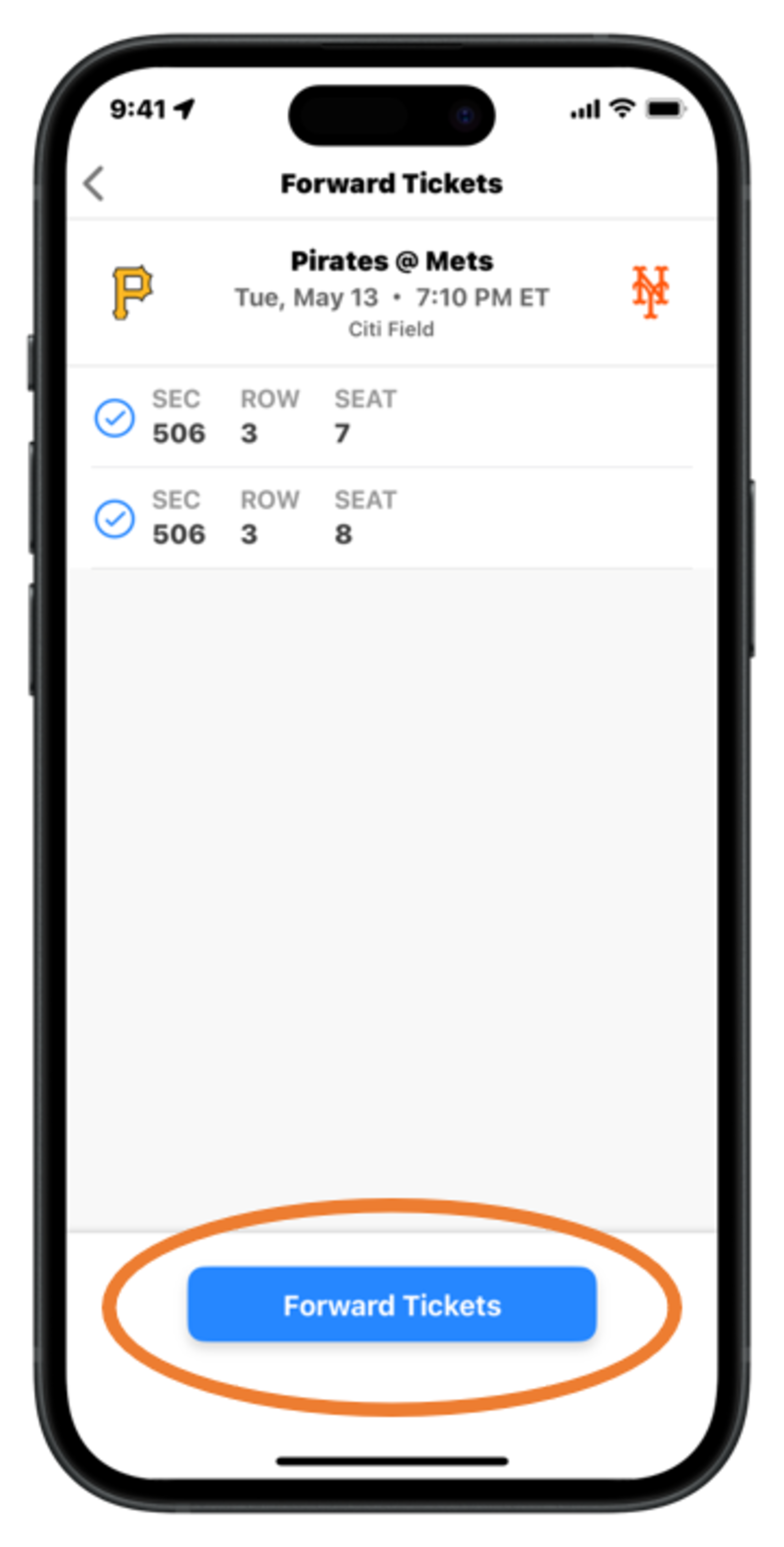
Step 4 - Select the ticket(s) you would like to forward and tap “Forward Tickets”
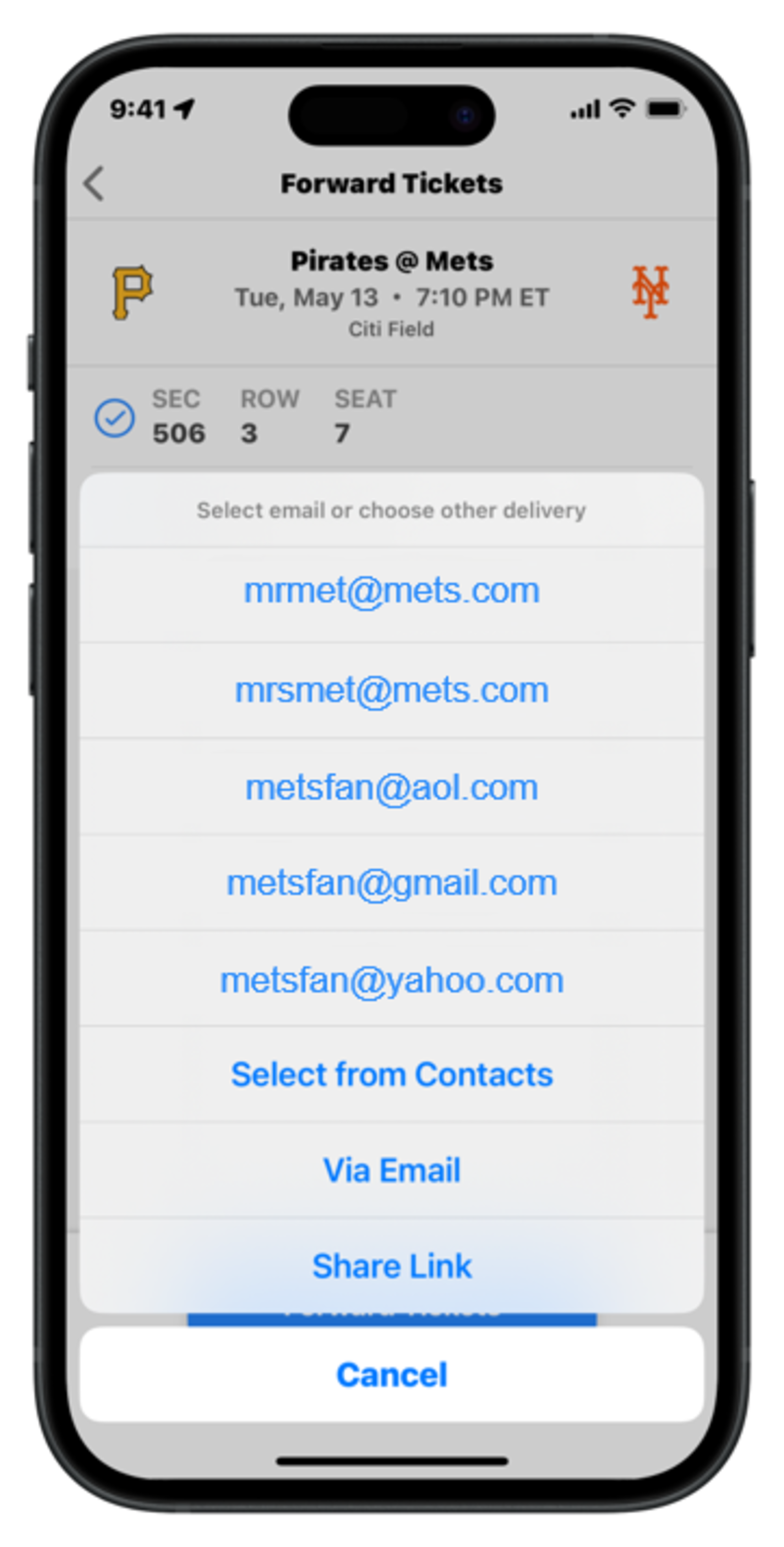
Step 5 - Choose to deliver the tickets to a previous recipient’s email, Select from Contacts, Send via Email, or Share Link
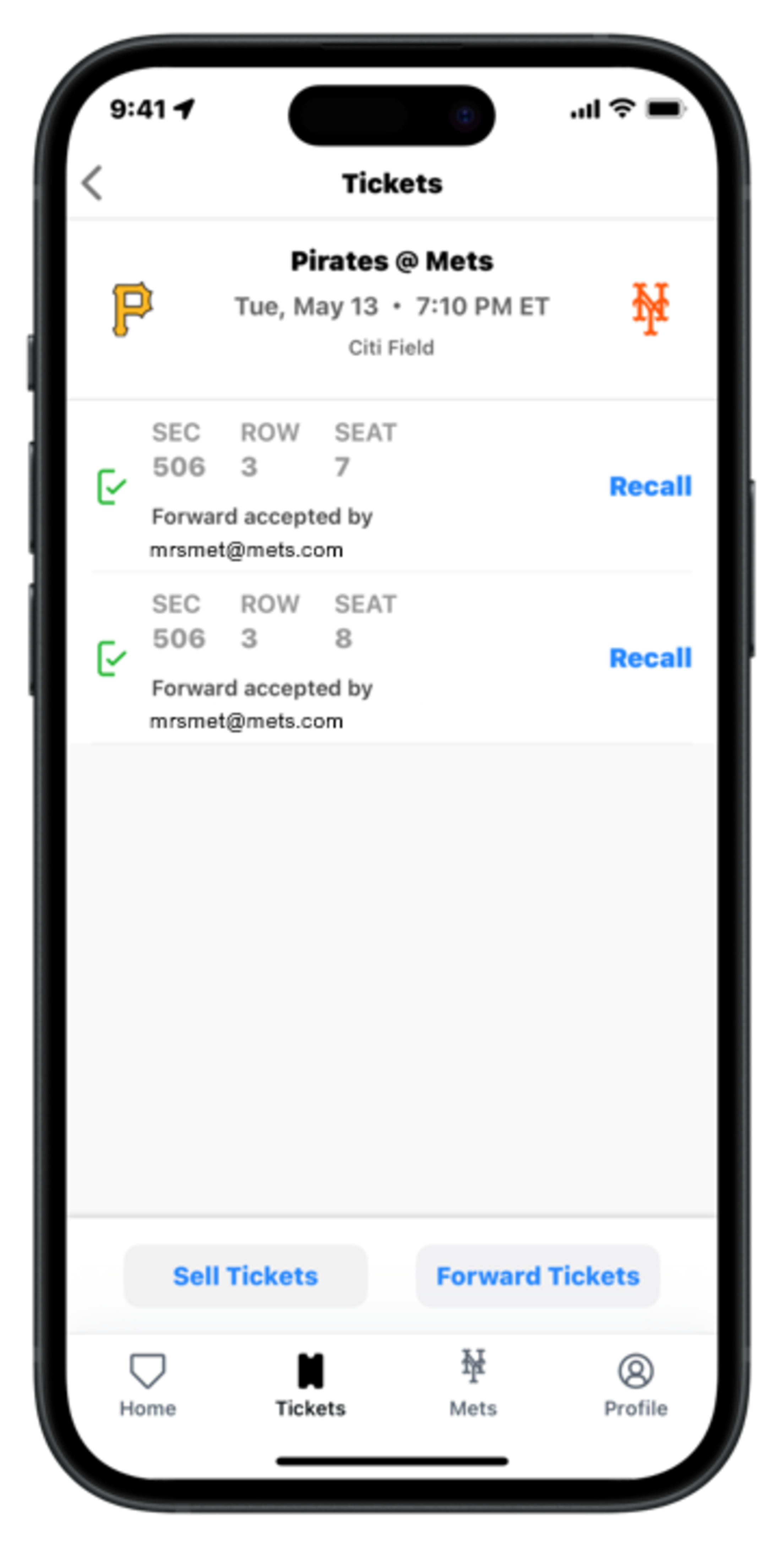
Step 6 - Once accepted, you will see a green check mark next to each ticket
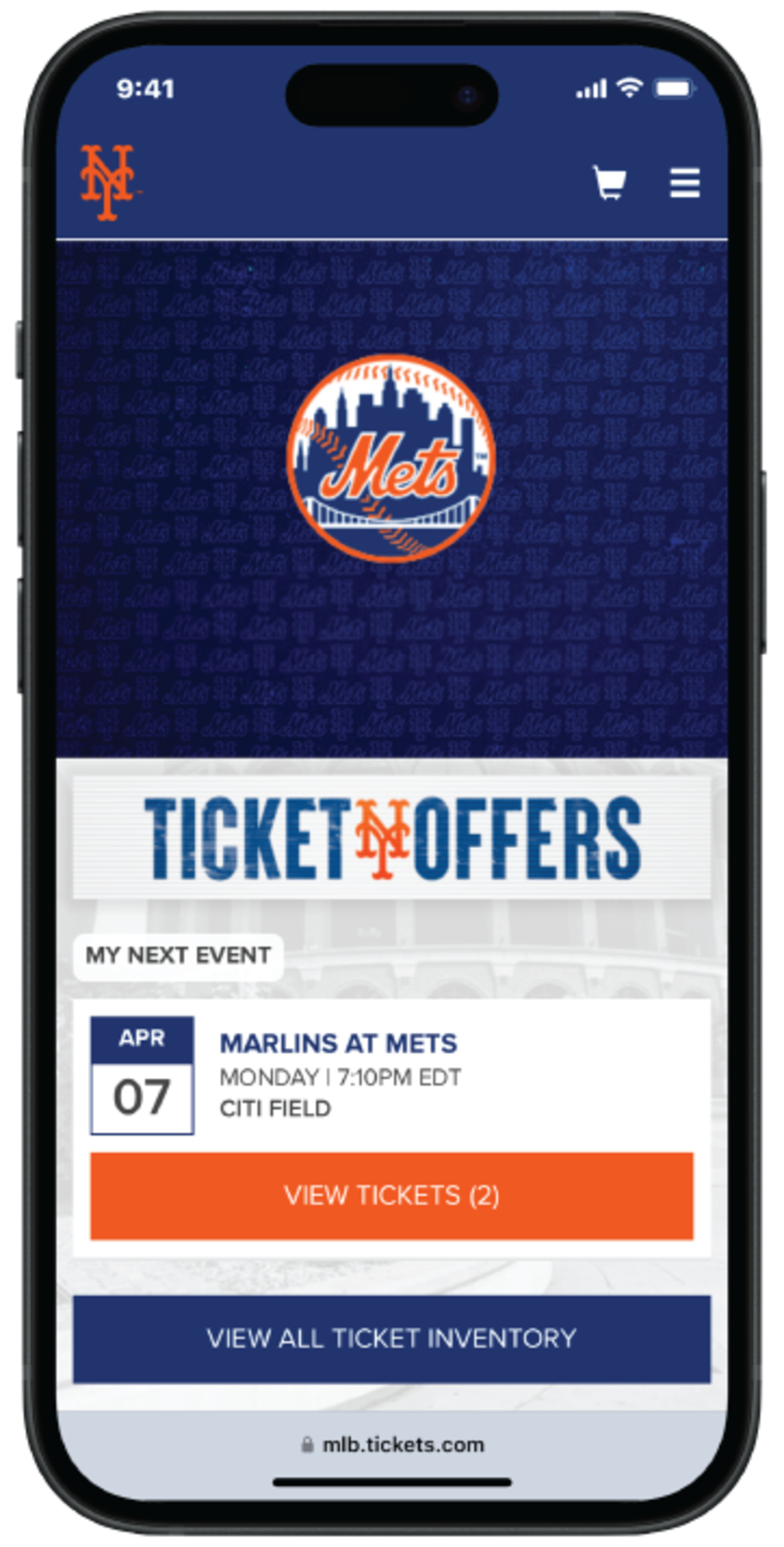
Step 1 - After logging into your My Mets Tickets account on Mets.com/MyTickets, select the game you would like to forward tickets from
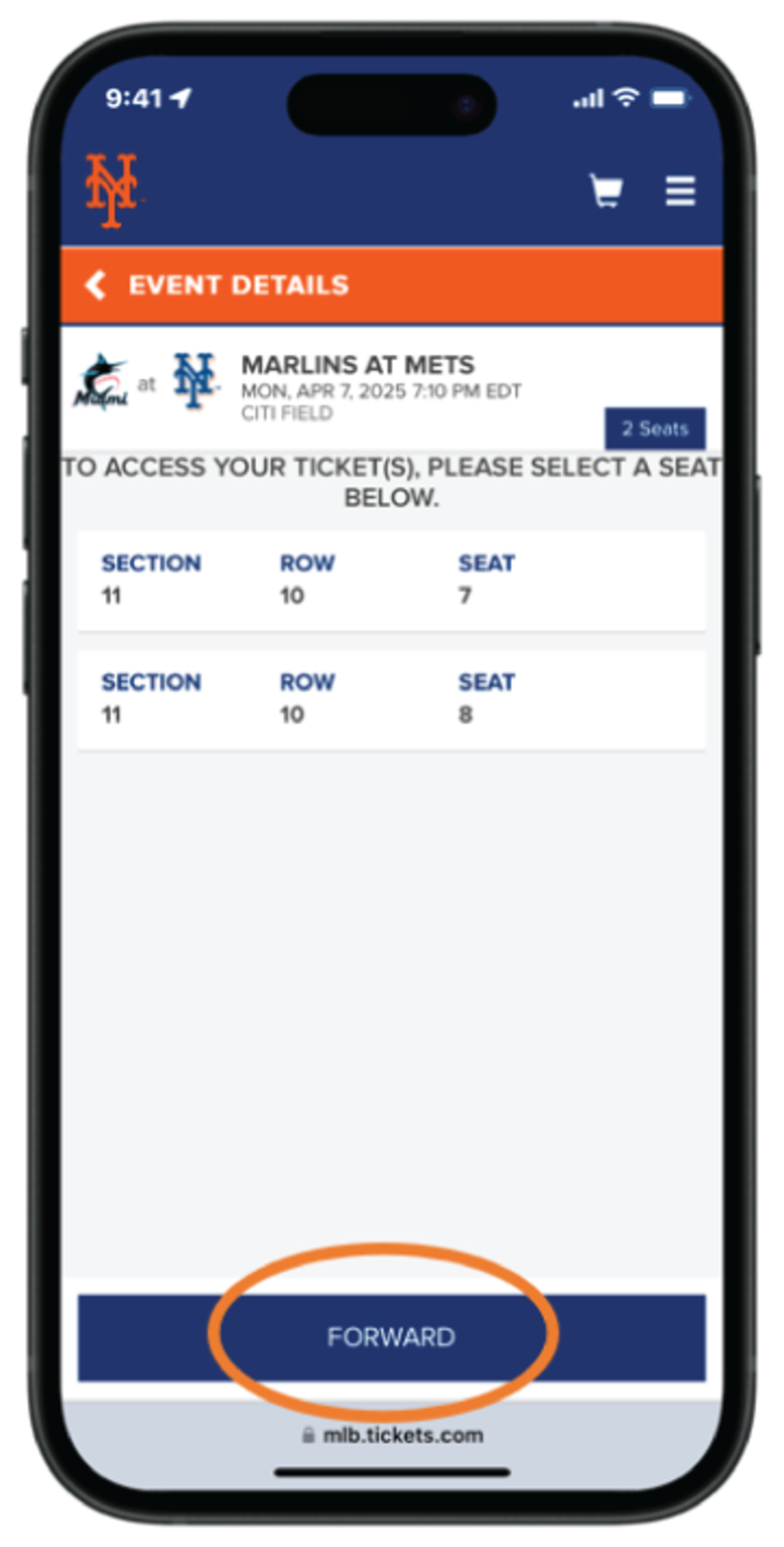
Step 2 - Tap “Forward”
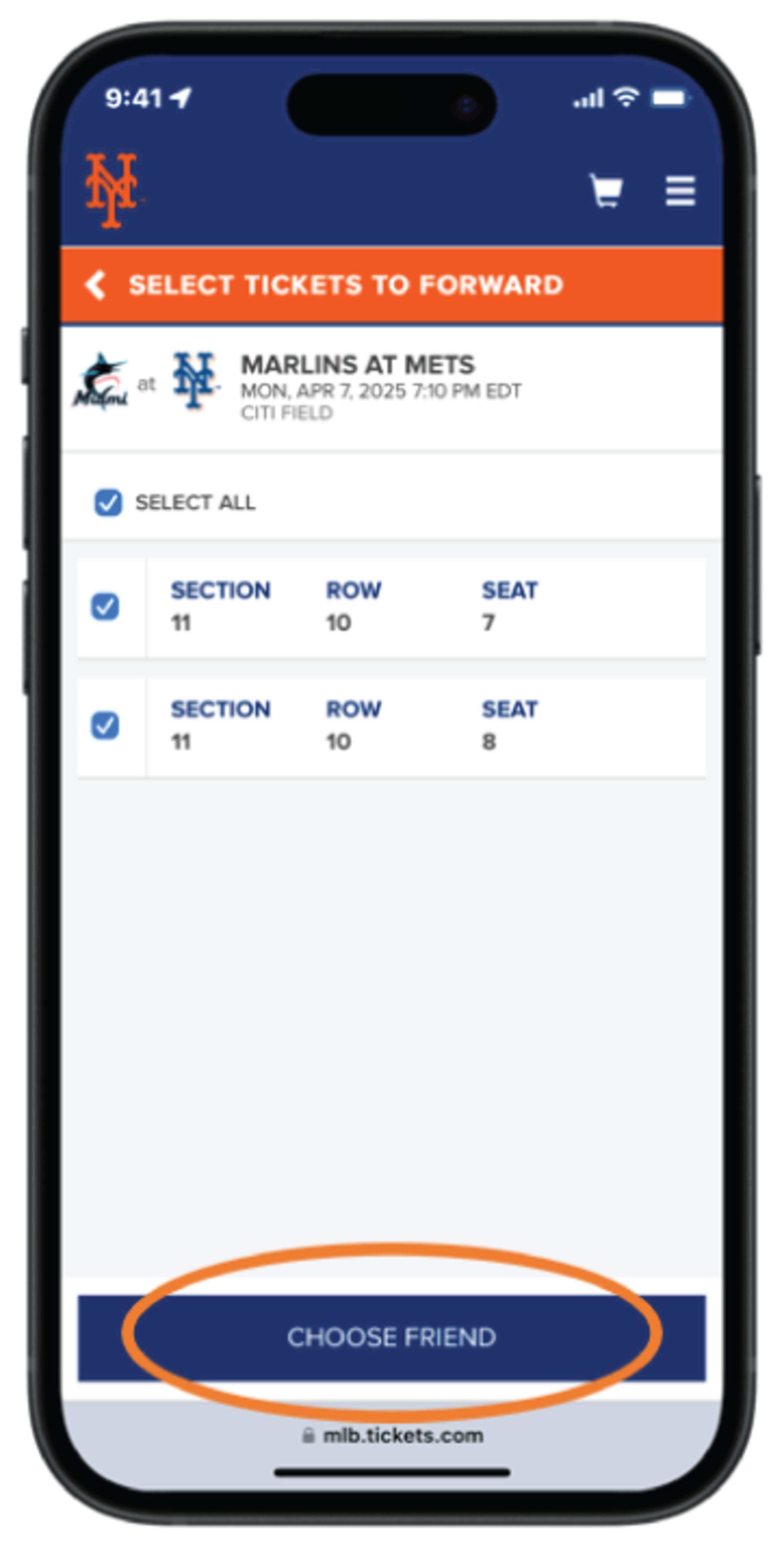
Step 3 - Tap “Select All” or tap each ticket you would like to forward, then tap “Choose Friend”
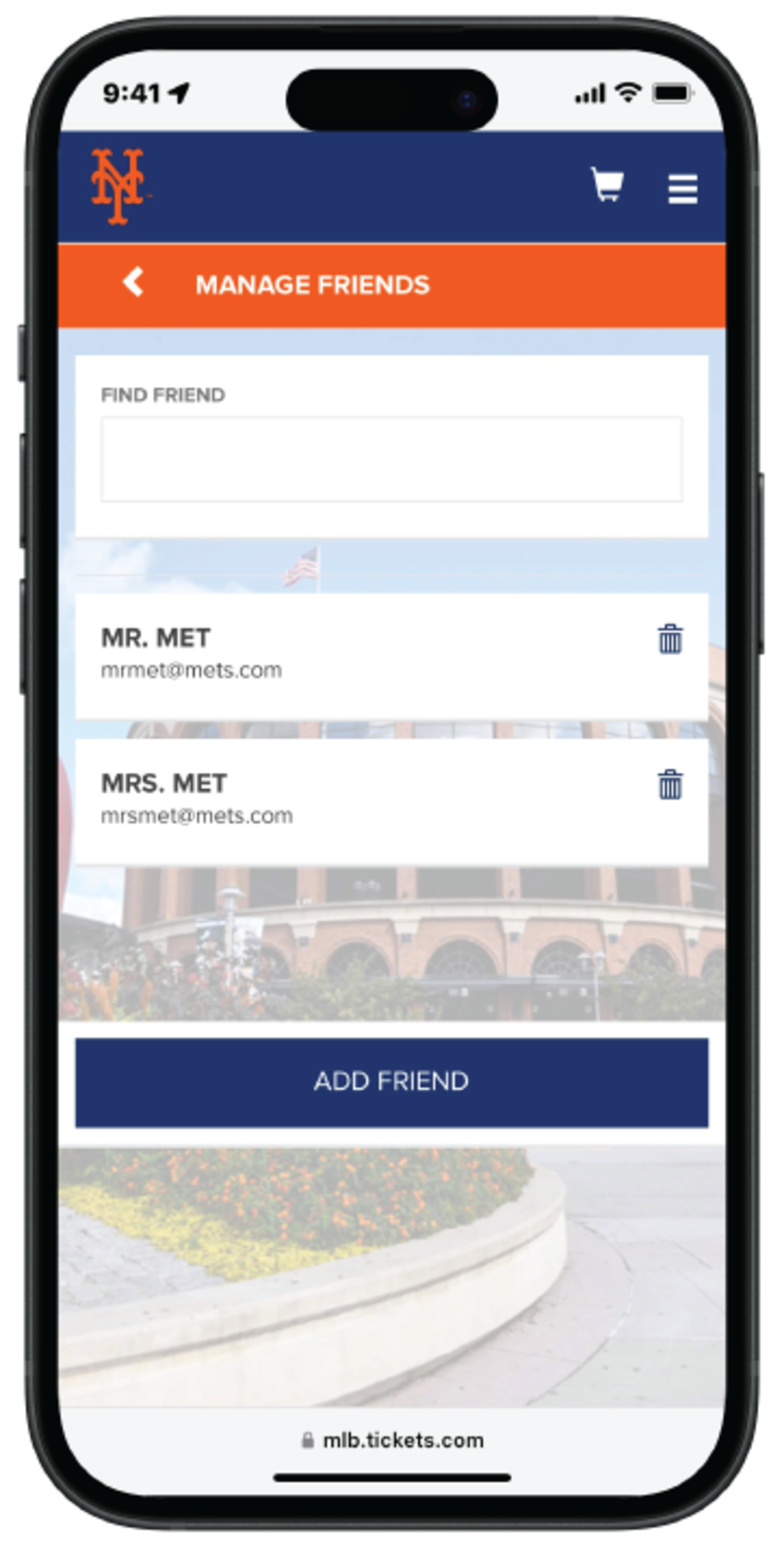
Step 4 - Select a previous recipient’s email or tap “Add Friend”
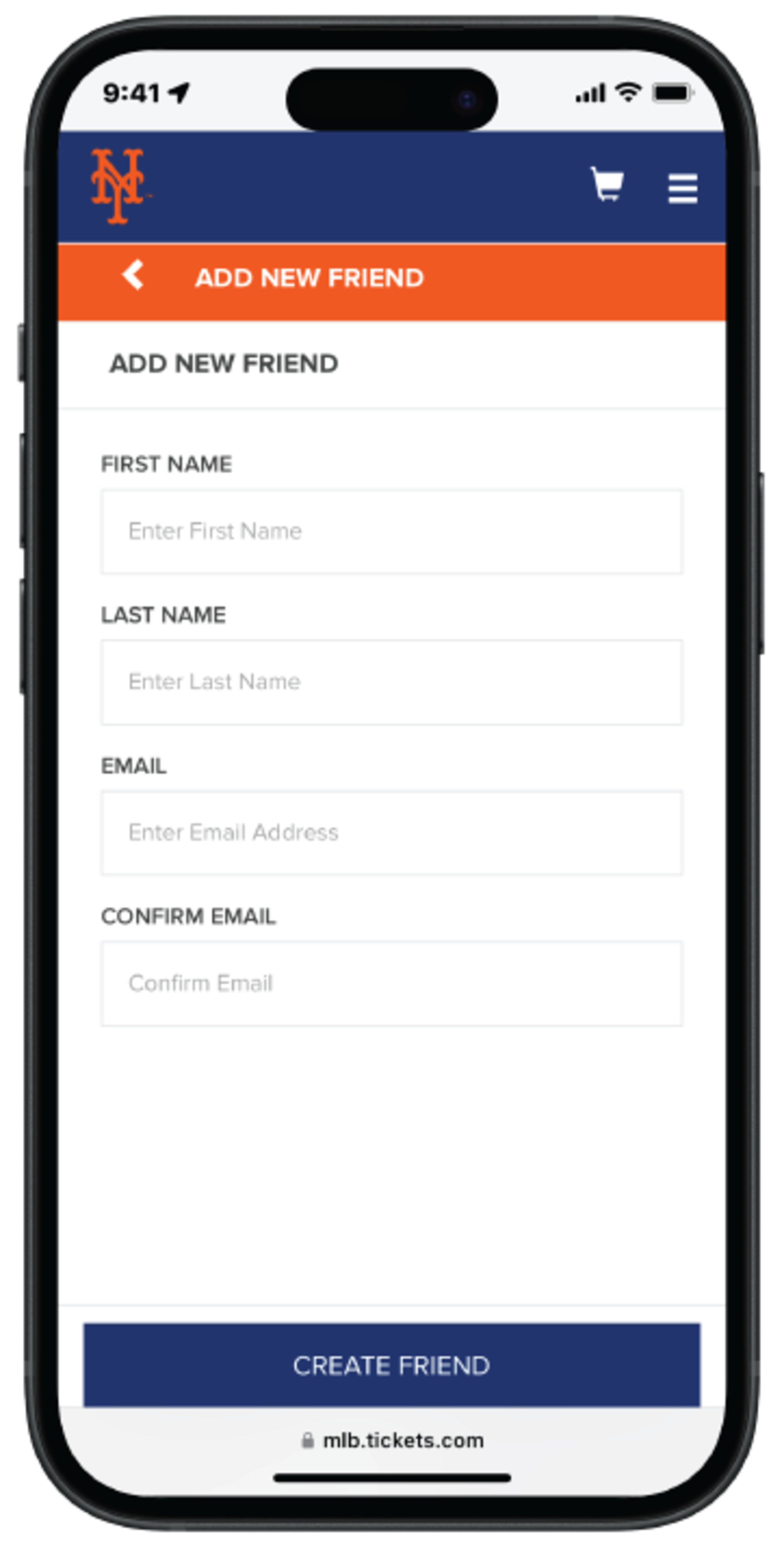
Step 5 - Fill in all fields and tap “Create Friend”
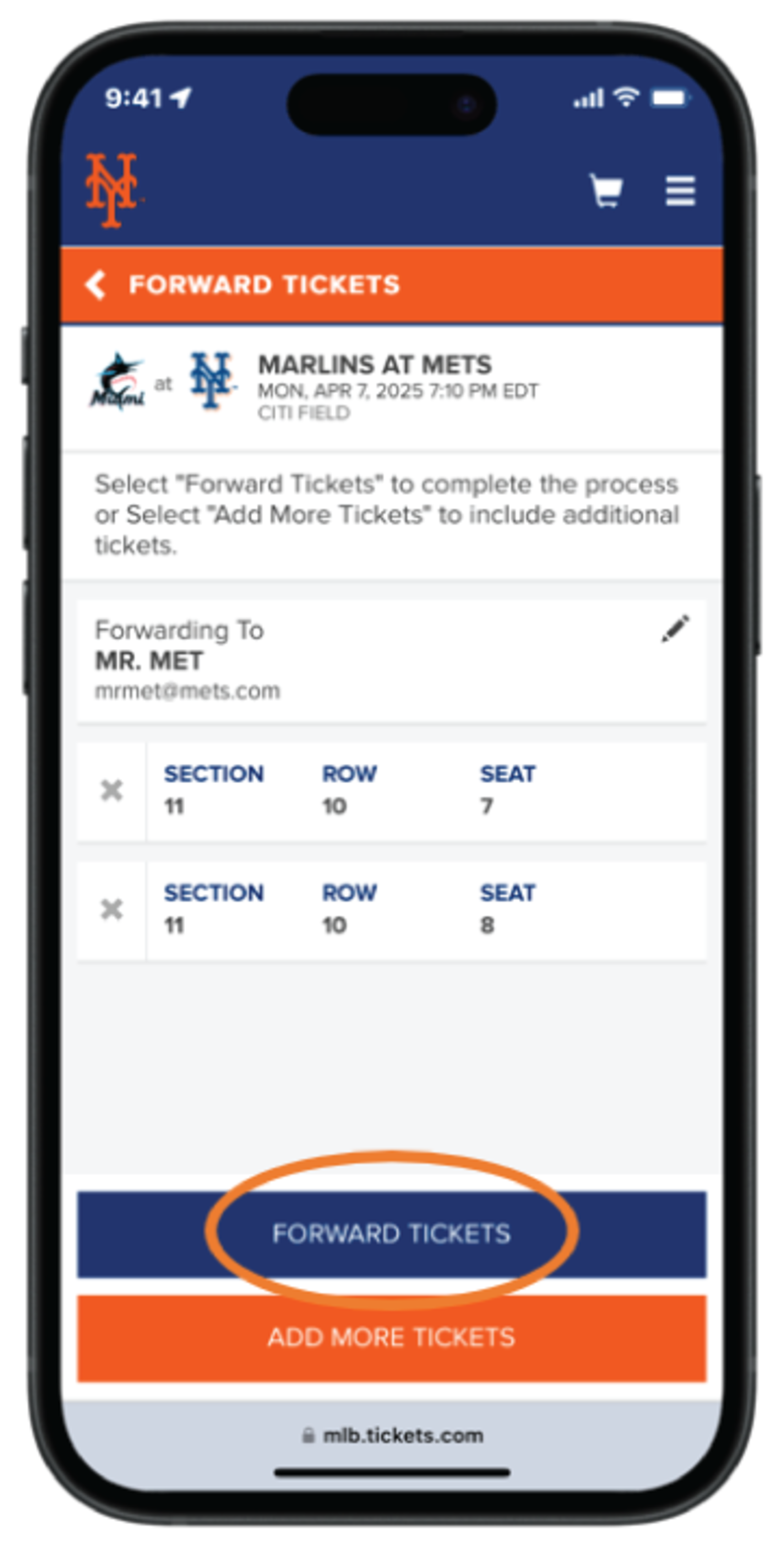
Step 6 - Review your previously selected recipient and ticket info, then tap “Forward Tickets”
Recalling Tickets
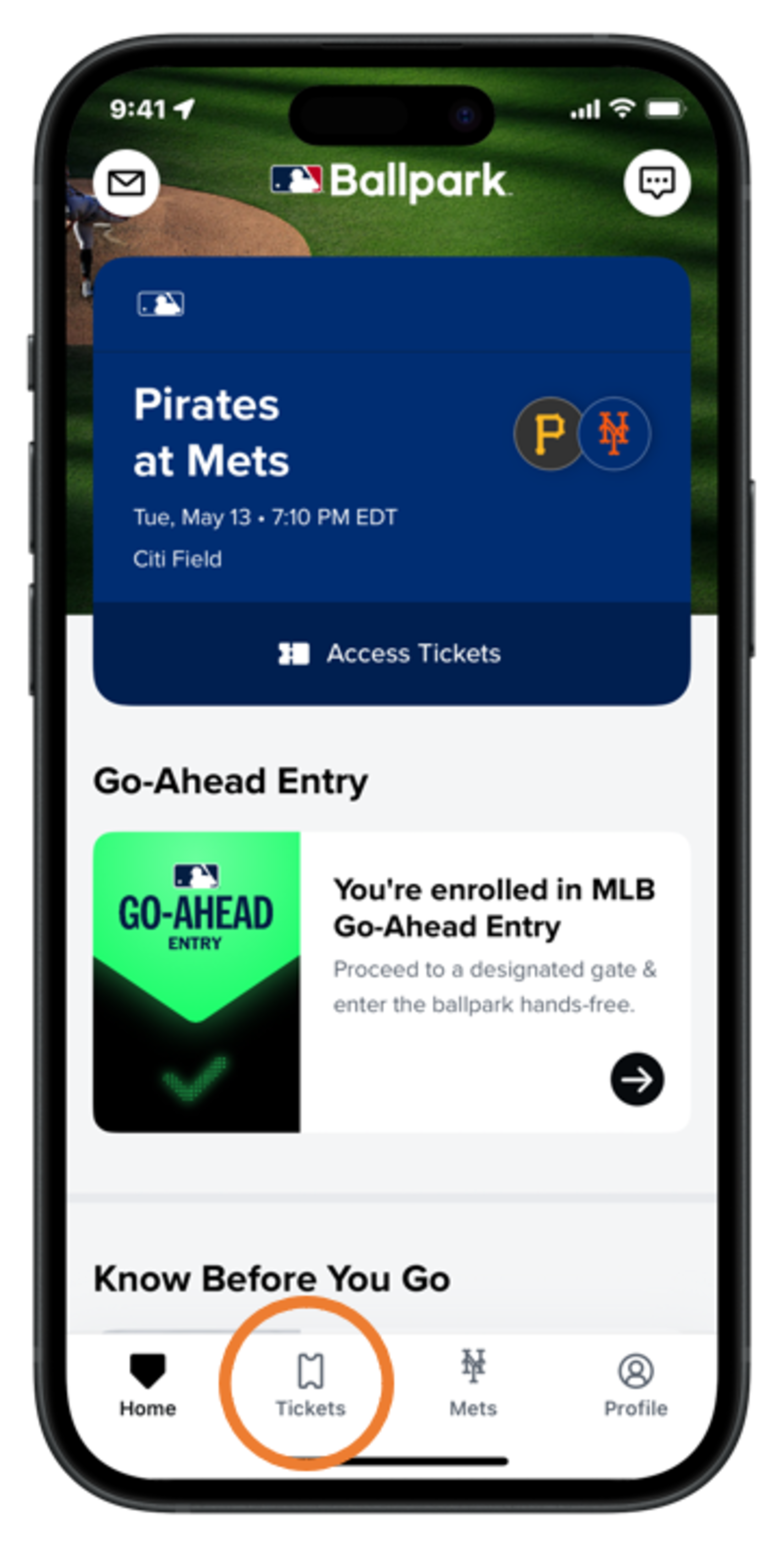
Step 1 - Tap the “Tickets” tab
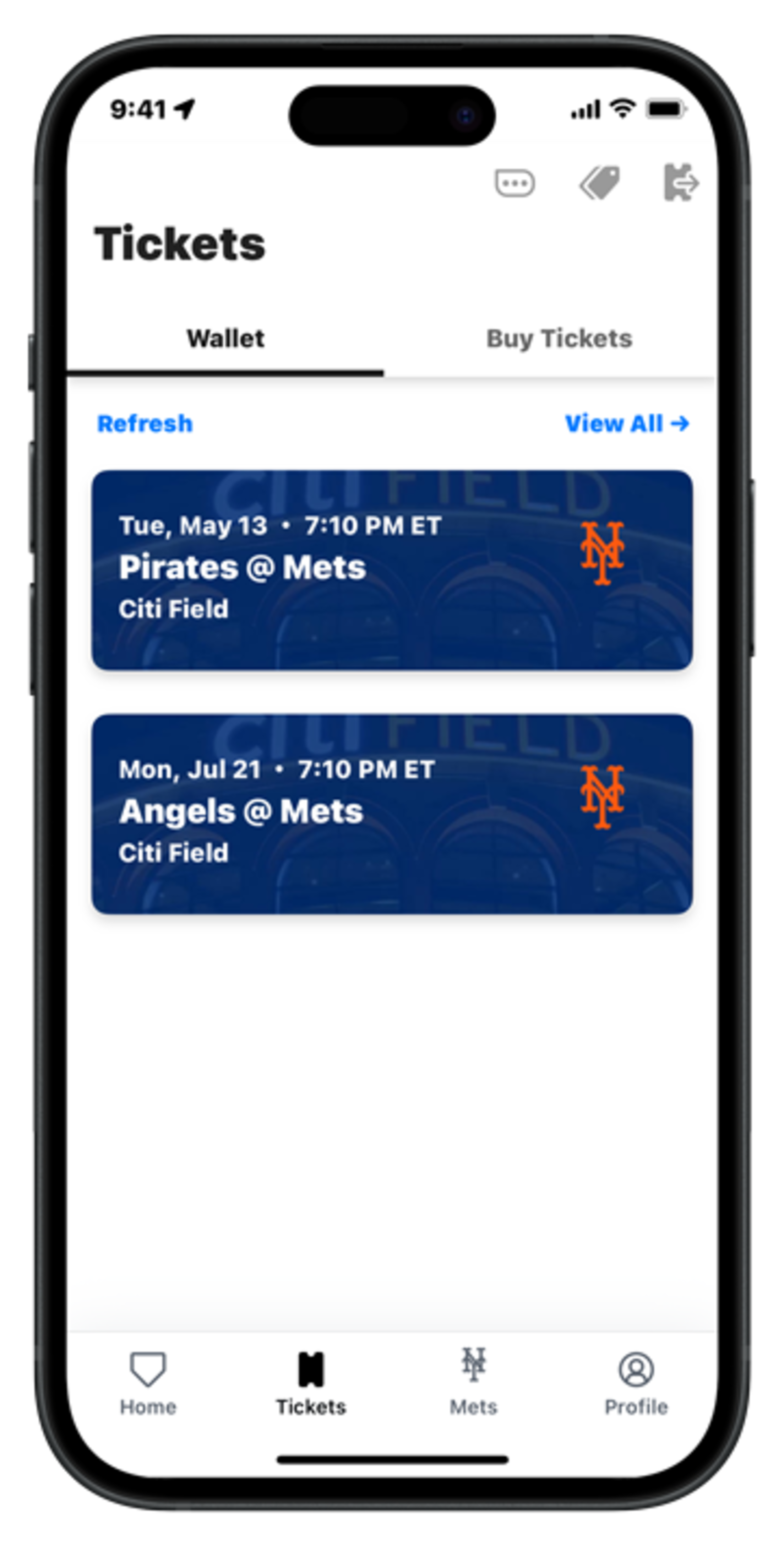
Step 2 - Select the game you would like to recall tickets from
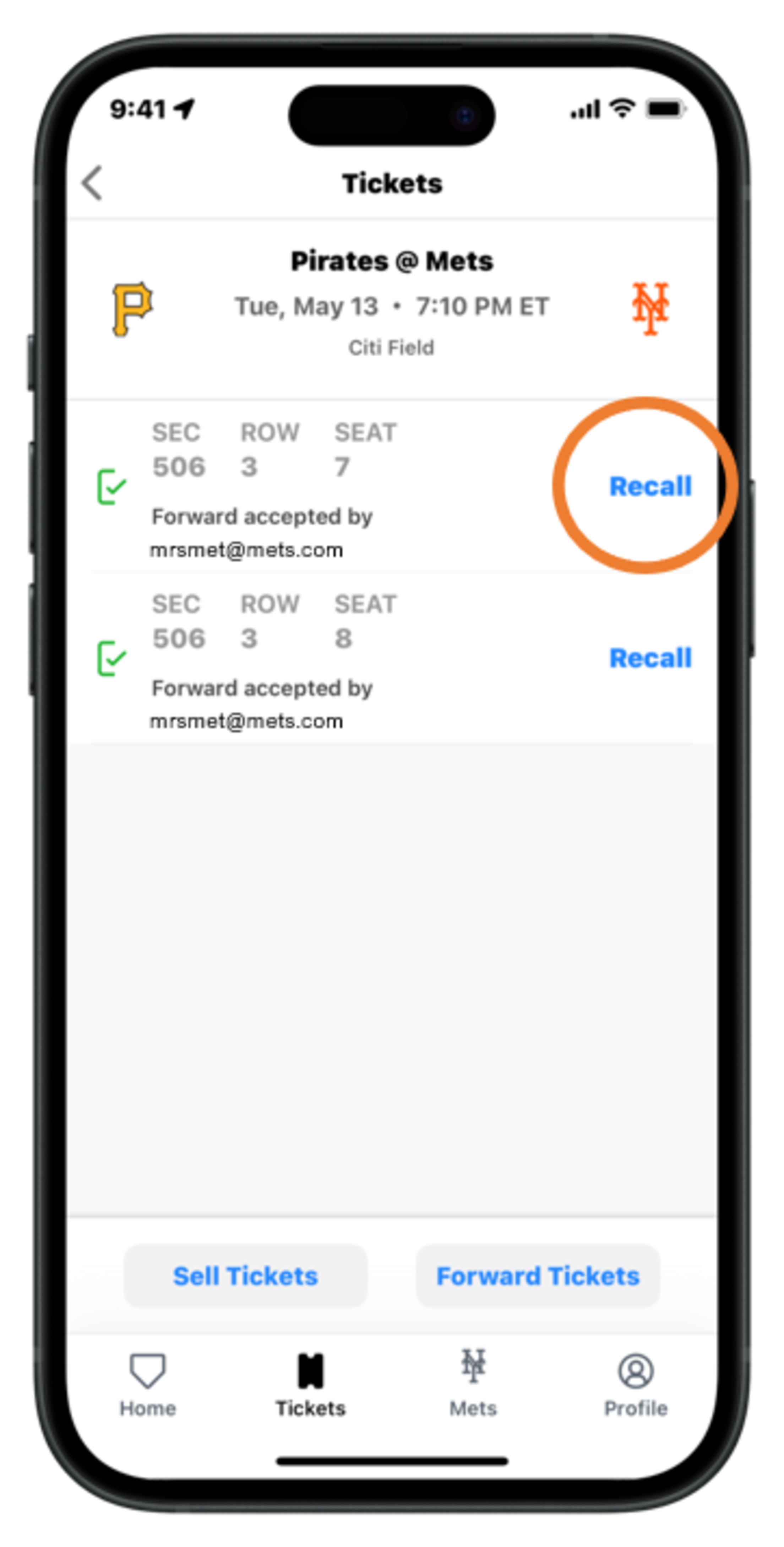
Step 3 - Tap “Recall” next to each ticket you would like to recall
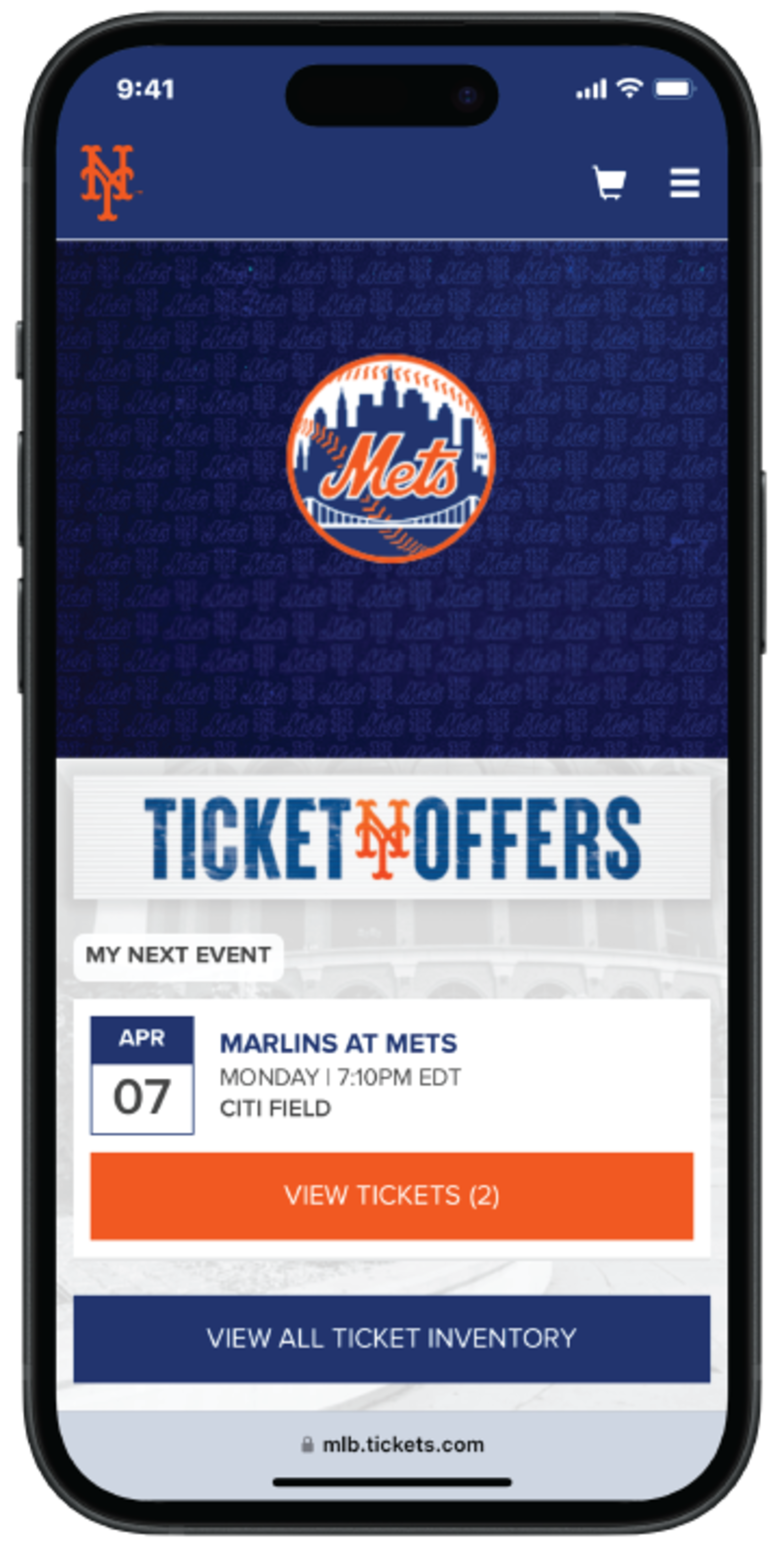
Step 1 - After logging into your My Mets Tickets account on Mets.com/MyTickets, select the game you would like to recall tickets from
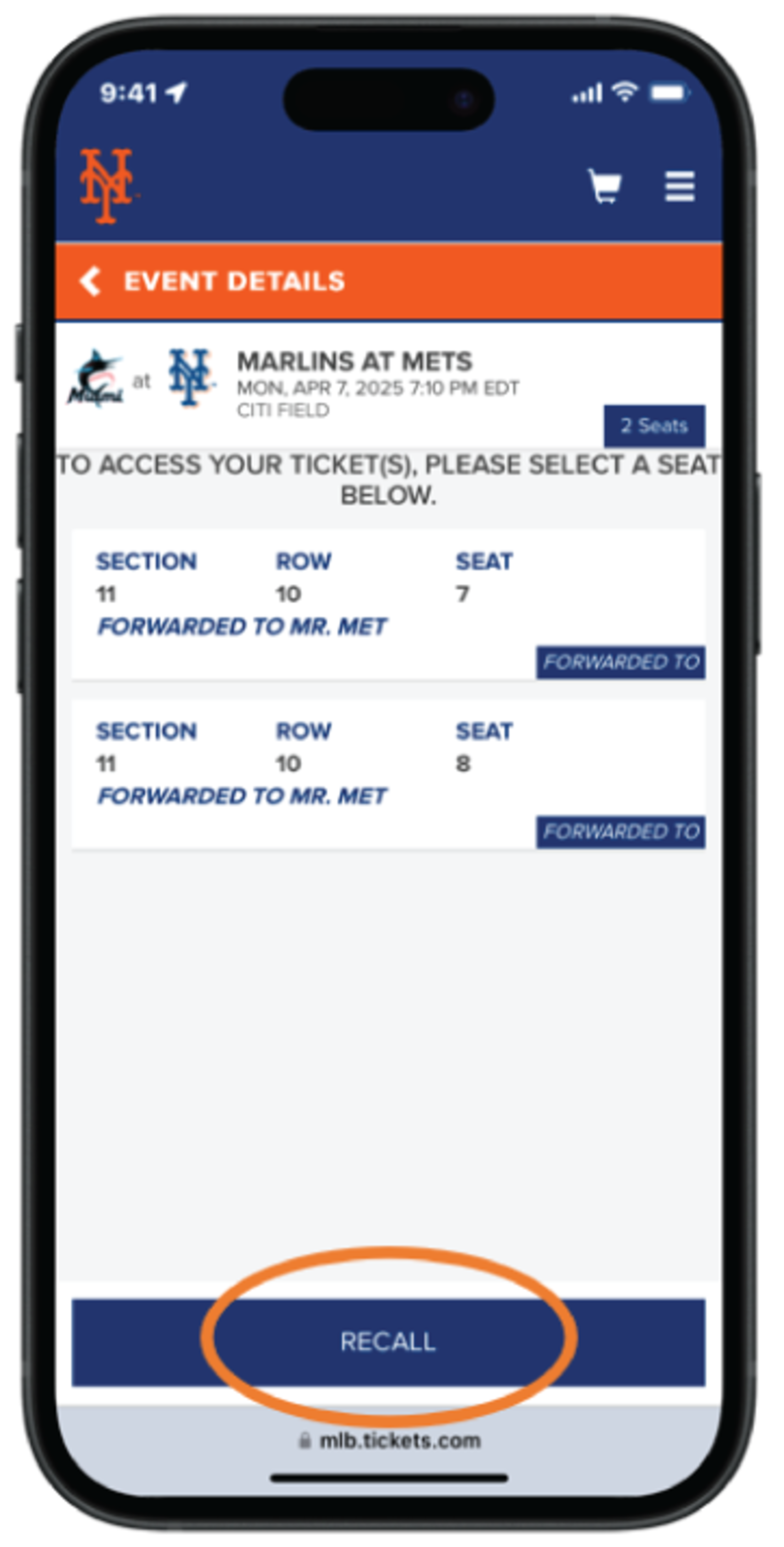
Step 2 - Tap “Recall”
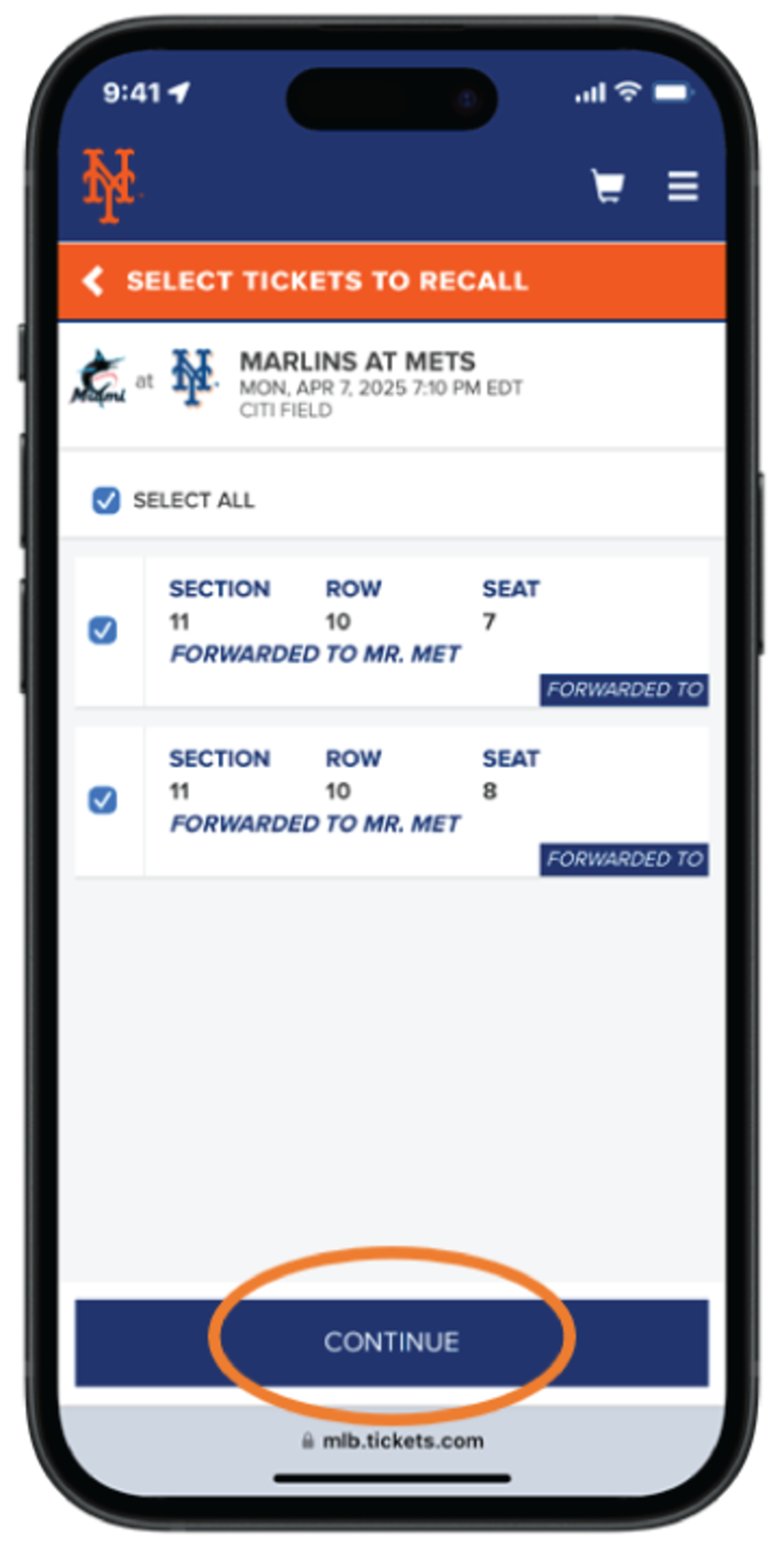
Step 3 - Tap “Select All” or tap each ticket you would like to recall, then tap “Continue”
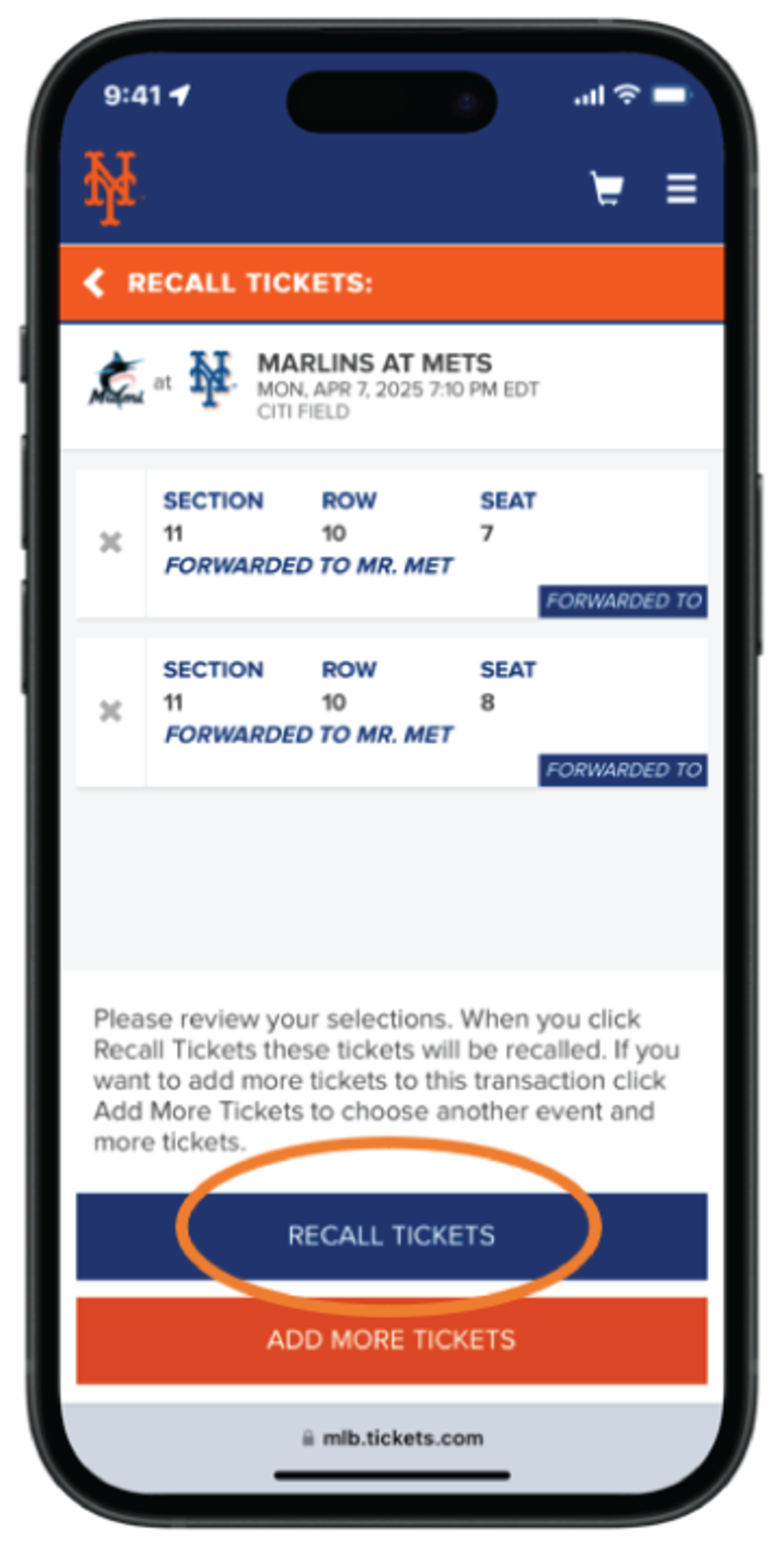
Step 4 - Review your previous forward and ticket info, then tap “Recall Tickets”
Voucher Redemption
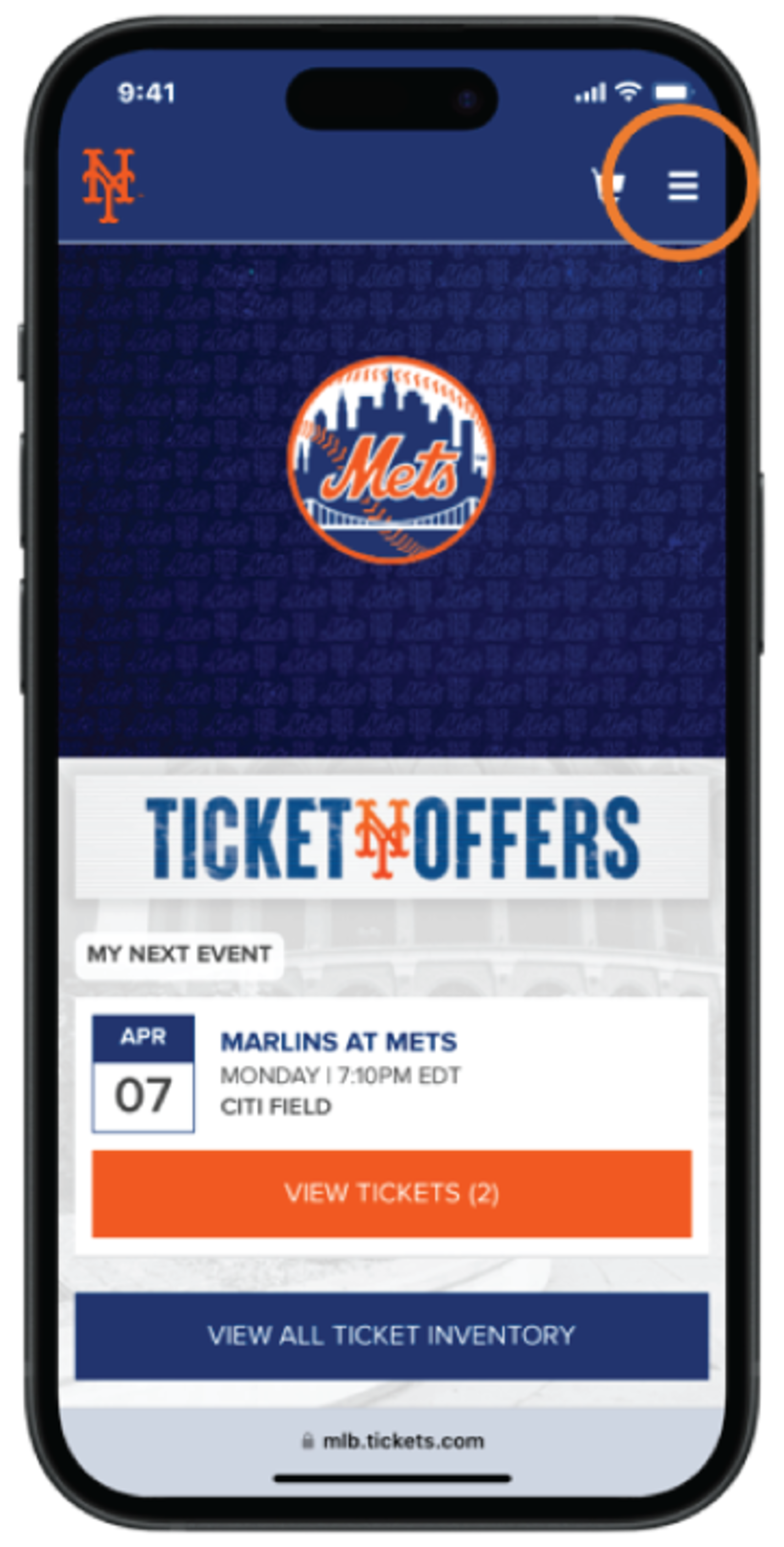
Step 1 - Tap the “Menu” icon, then the “My Mets Tickets” dropdown
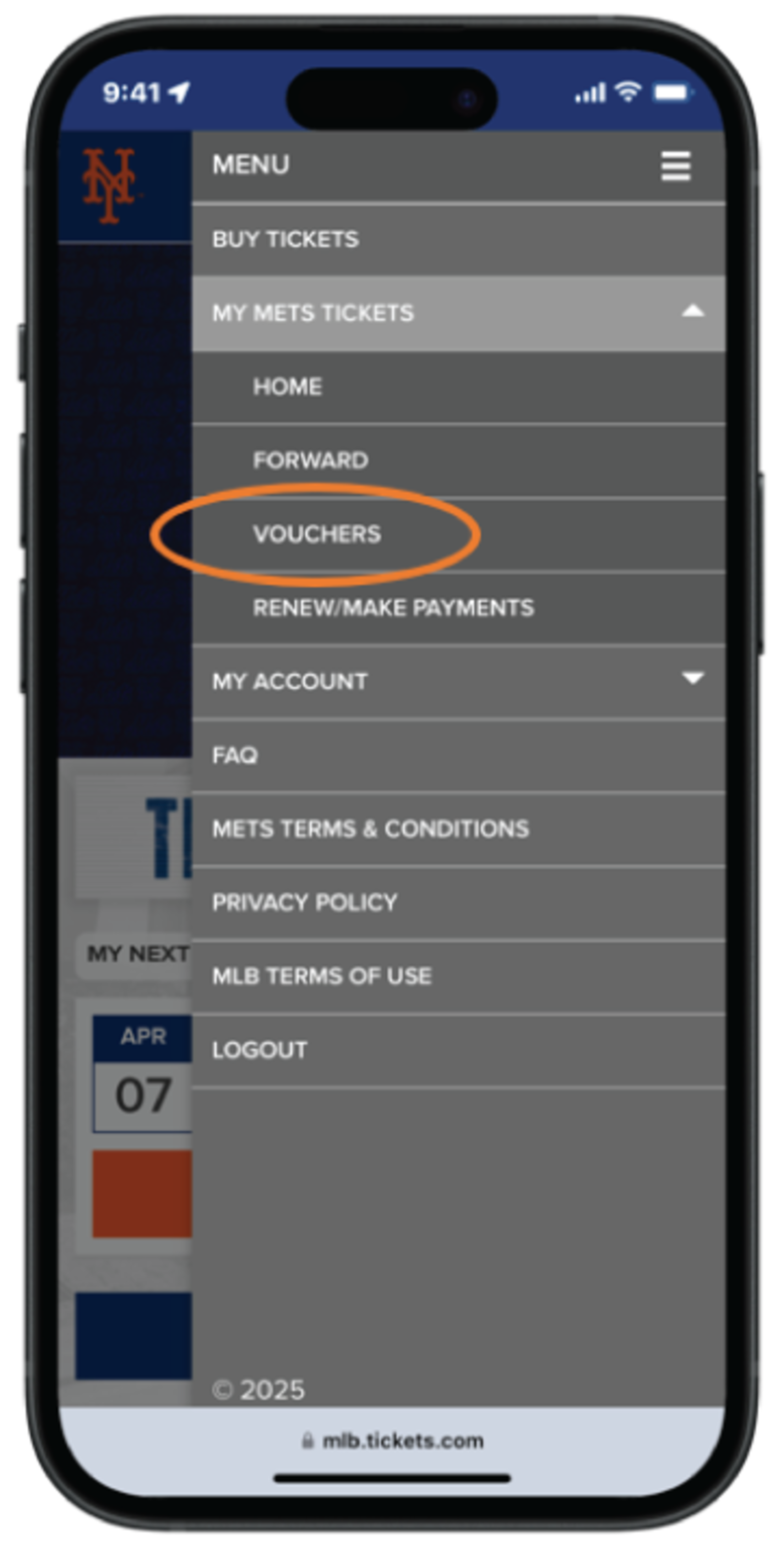
Step 2 - Tap “Vouchers” to view or add voucher codes
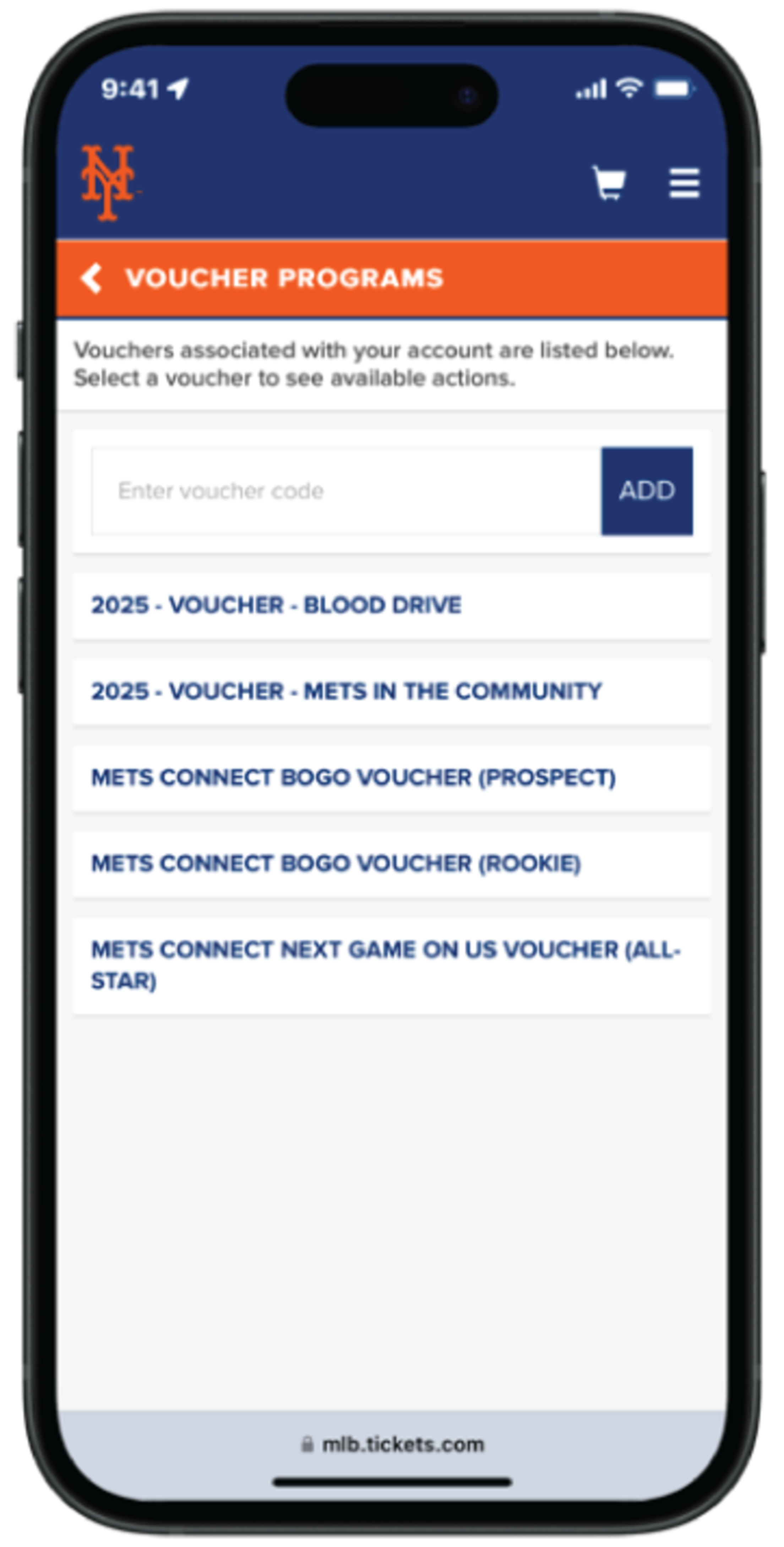
Step 3 - Enter your voucher code then tap “Add” or tap the name of the voucher you are looking to redeem
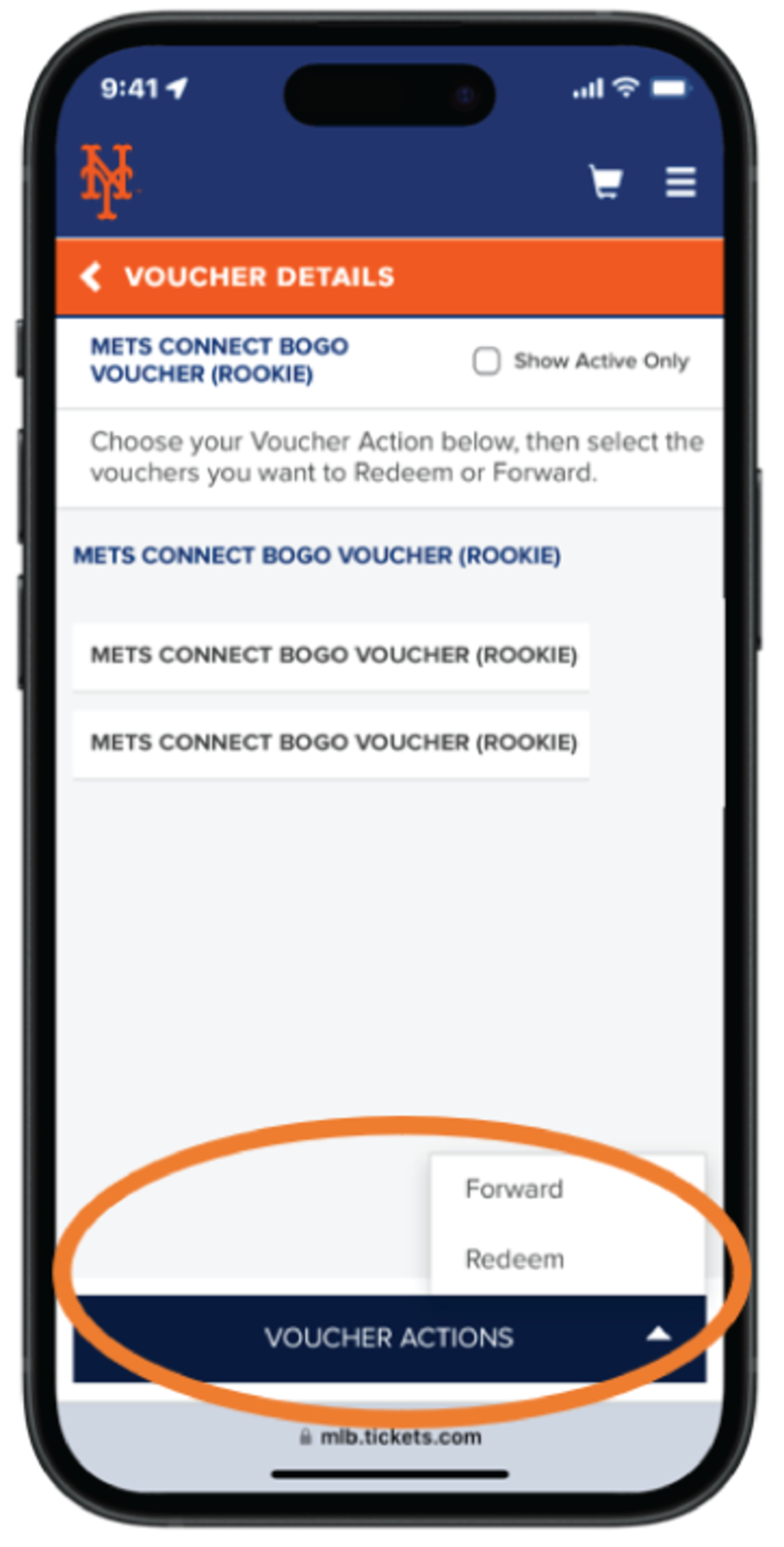
Step 4 - Tap “Voucher Actions”, then tap “Redeem”
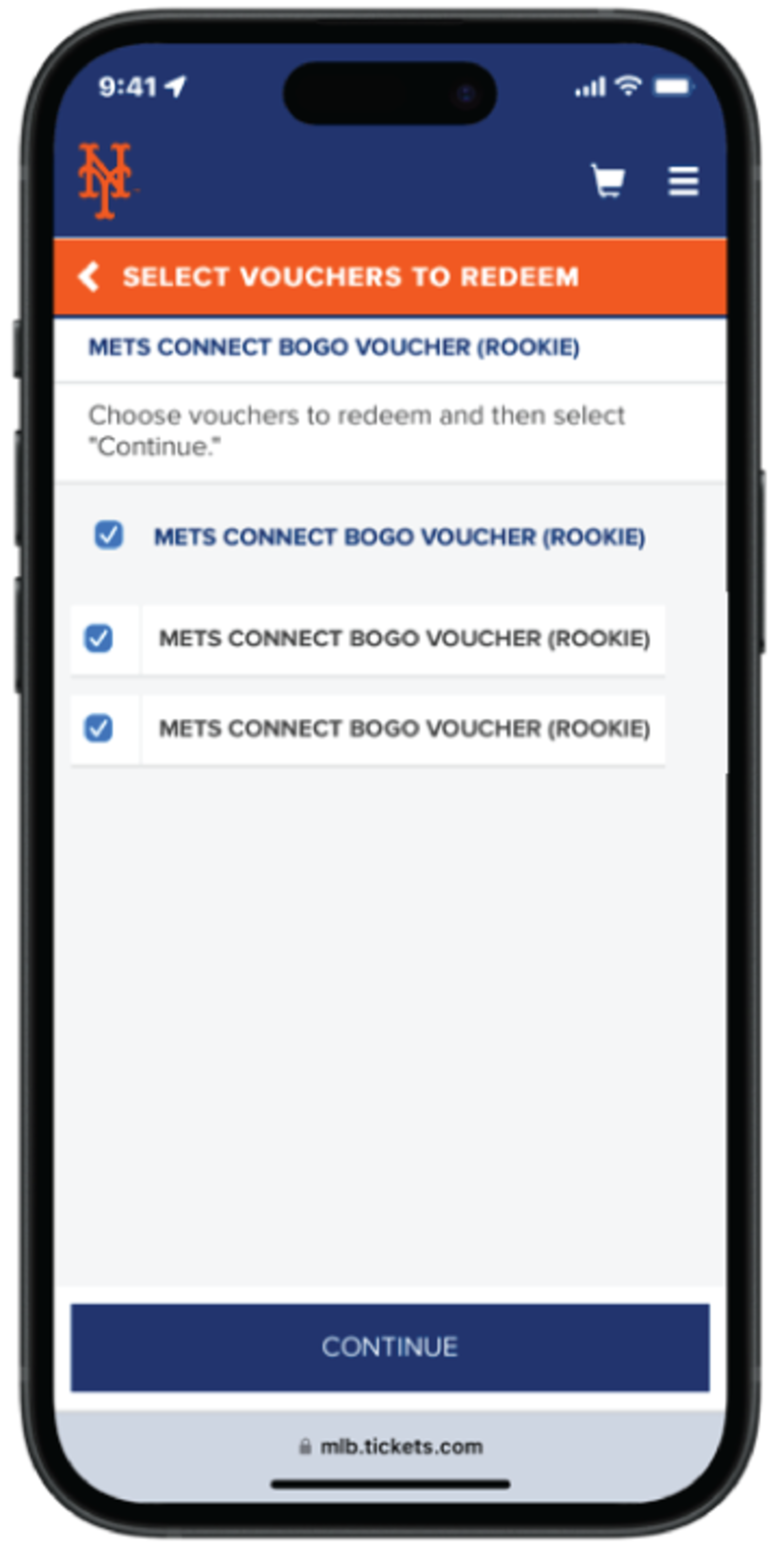
Step 5 - Tap each voucher you would like to redeem