

Target Field

Ticket Tutorials

Please use the navigation below to find step-by-step photo instructions for various digital ticketing tutorials.

Logging In

Utilize your online My Twins Tickets Account and the mobile MLB Ballpark app to easily manage your tickets!

My Twins Tickets

  • Renew season ticket orders
  • Forward tickets
  • Sell your tickets via SeatGeek
  • Access exclusive ticket presales
  1. Visit www.twins.com/mytickets

  2. Login using your email affiliated with your Twins Account

    If you have never accessed your account online, tap "Sign Up" and complete your profile using the same email address affiliated with your Twins Account.

    If you do not remember your password, tap "Forgot Password?" to reset via email.

MLB Ballpark app

  • Access your tickets on your mobile device
  • Scan tickets for contactless entry
  • Forward tickets to friends & family any time, any where
  1. Download the MLB Ballpark app on your mobile smartphone
  2. Login with your MLB.com credentials
  3. This is the same email address & password used to set-up your My Twins Tickets account.
  4. If you do not remember your password, please tap “Forgot Password?” and follow the steps to reset via email
  5. Verify your email address by tapping “Go to your MLB Account”
  6. View and manage your tickets in the Tickets tab

If you have any issues logging into your account, please contact your Spring Training representative or email boxoffice@twins.com.

Ballpark app Forwarding

Step 1
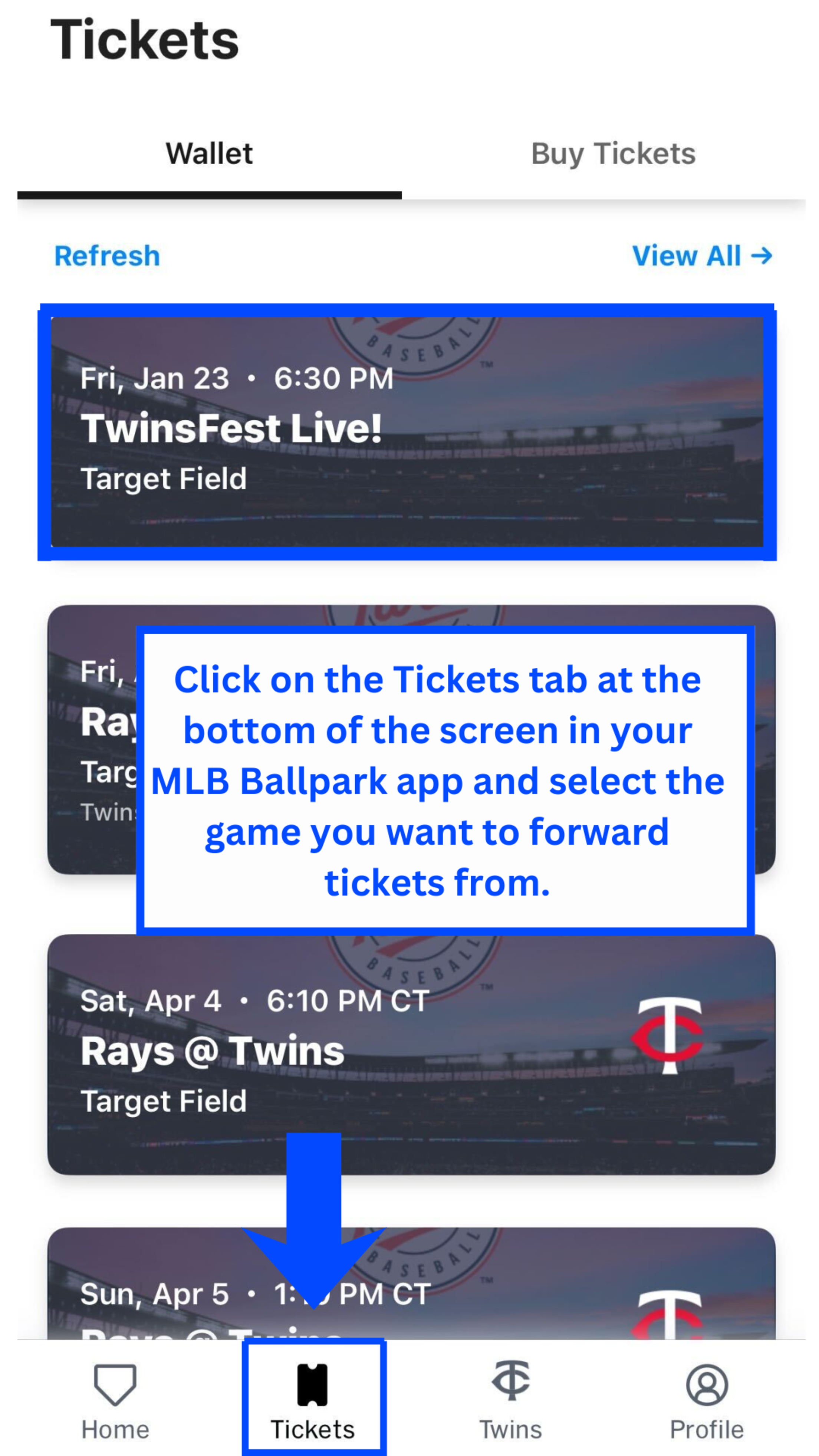
Click on the Tickets tab at the bottom of the screen and then select the game you are looking to forward tickets from

Step 2

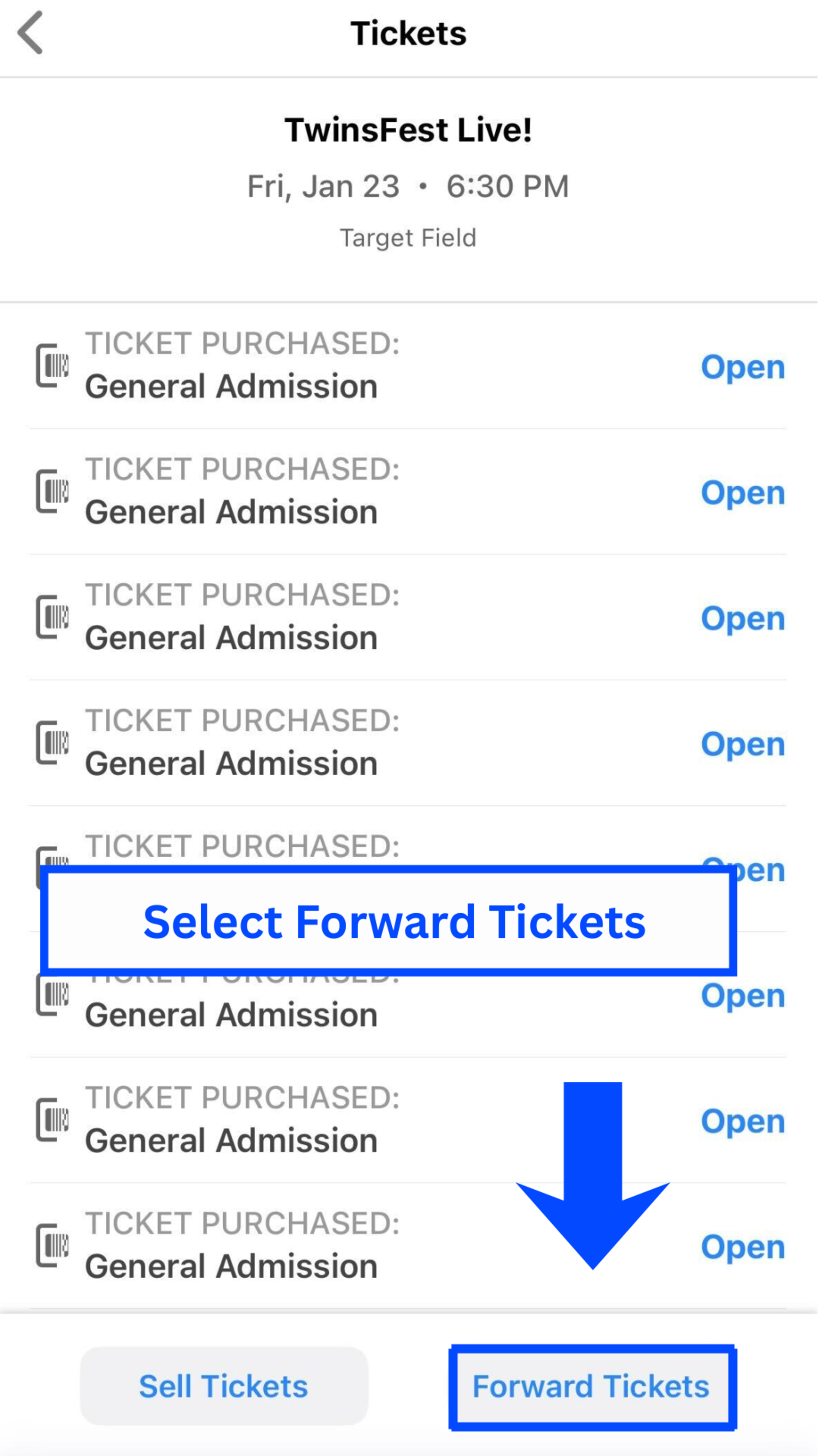
Select Forward Tickets

Step 3

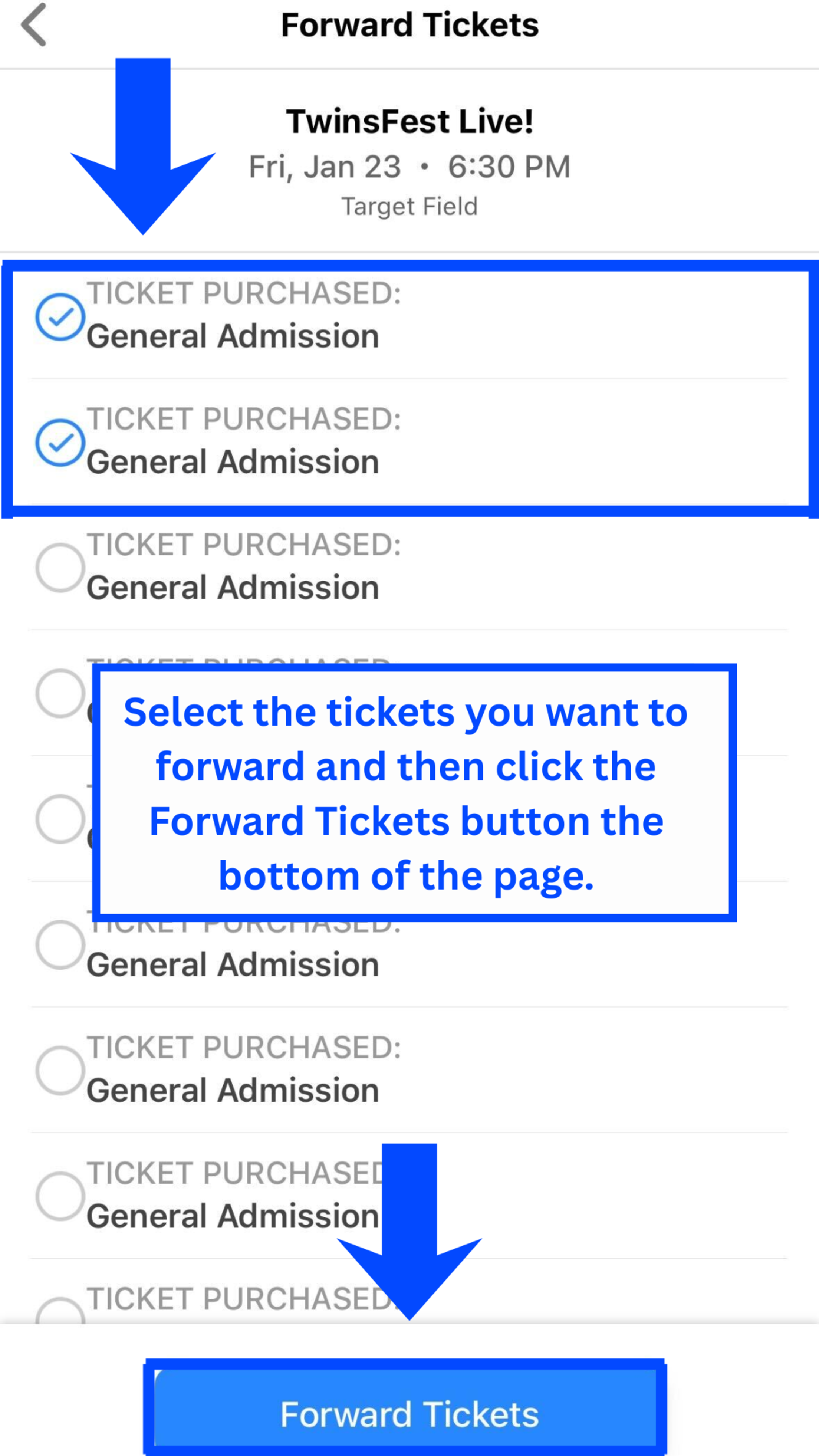
Select the tickets you want to forward and then click the Forward Tickets button at the bottom of the page

Step 4

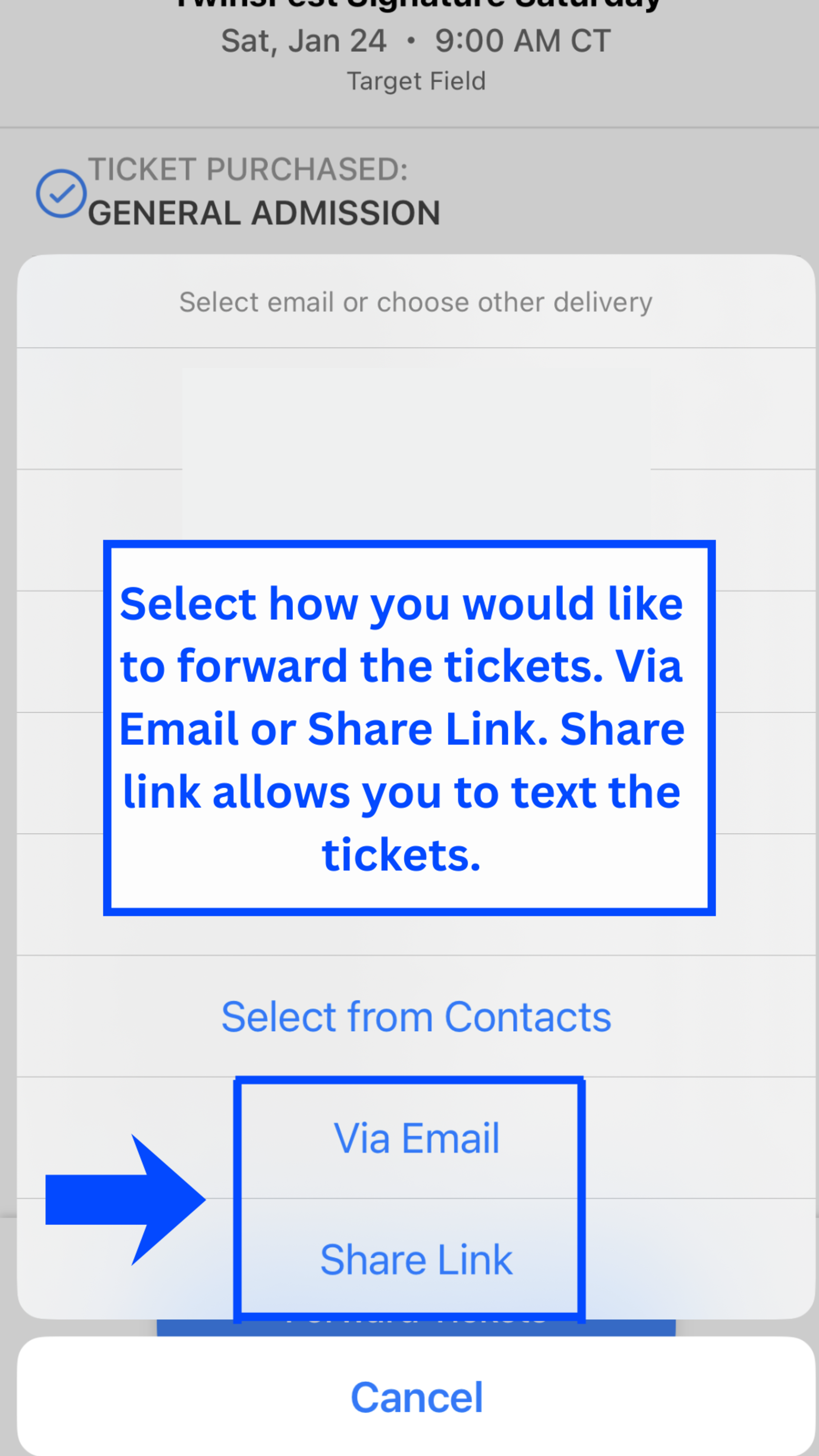
Select how you would like to forward the tickets. Via Email or Share Link. Share link allows you to text the tickets.

Step 5

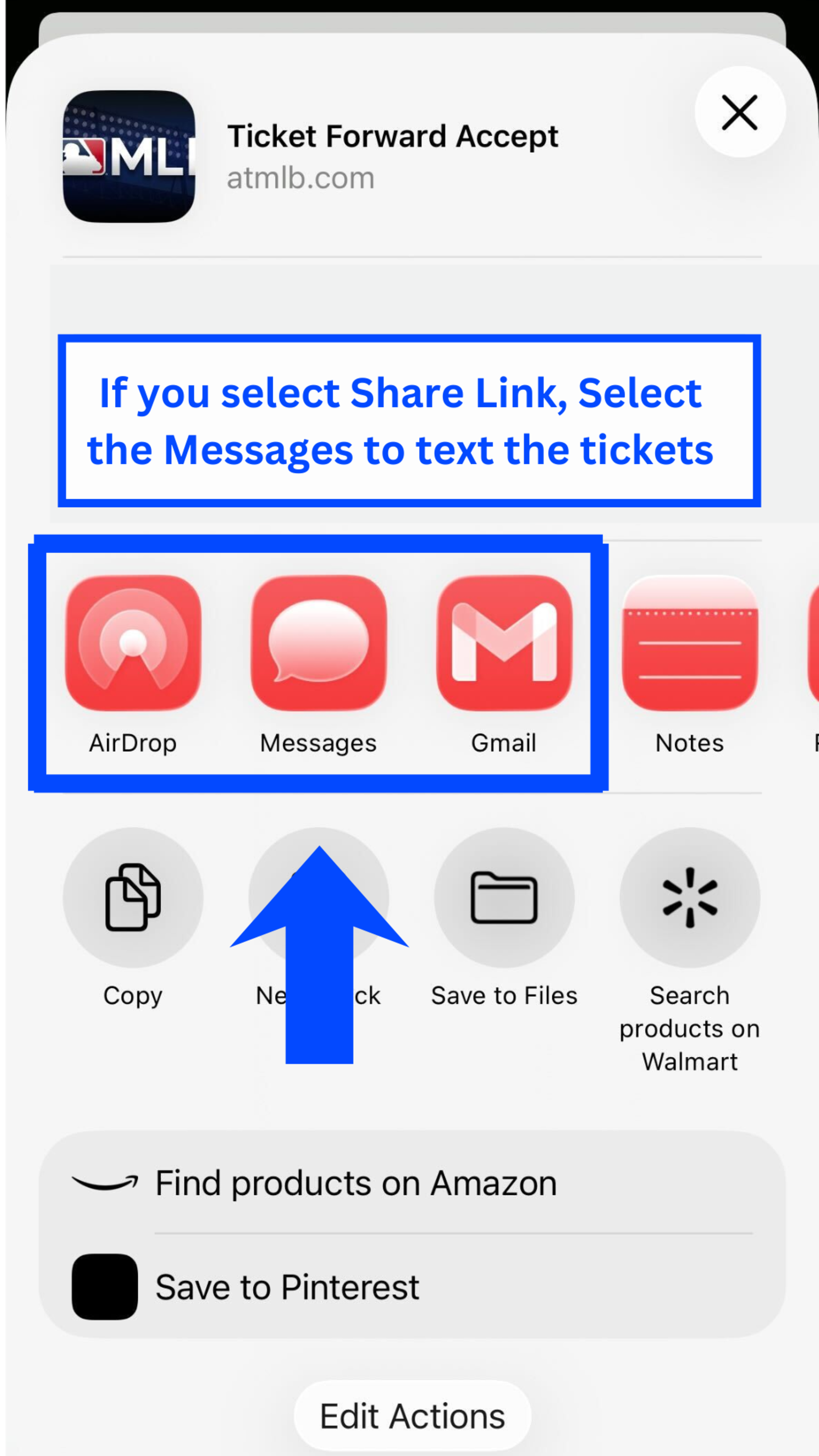
If you select Share Link, Select Messages to text the tickets

Step 6

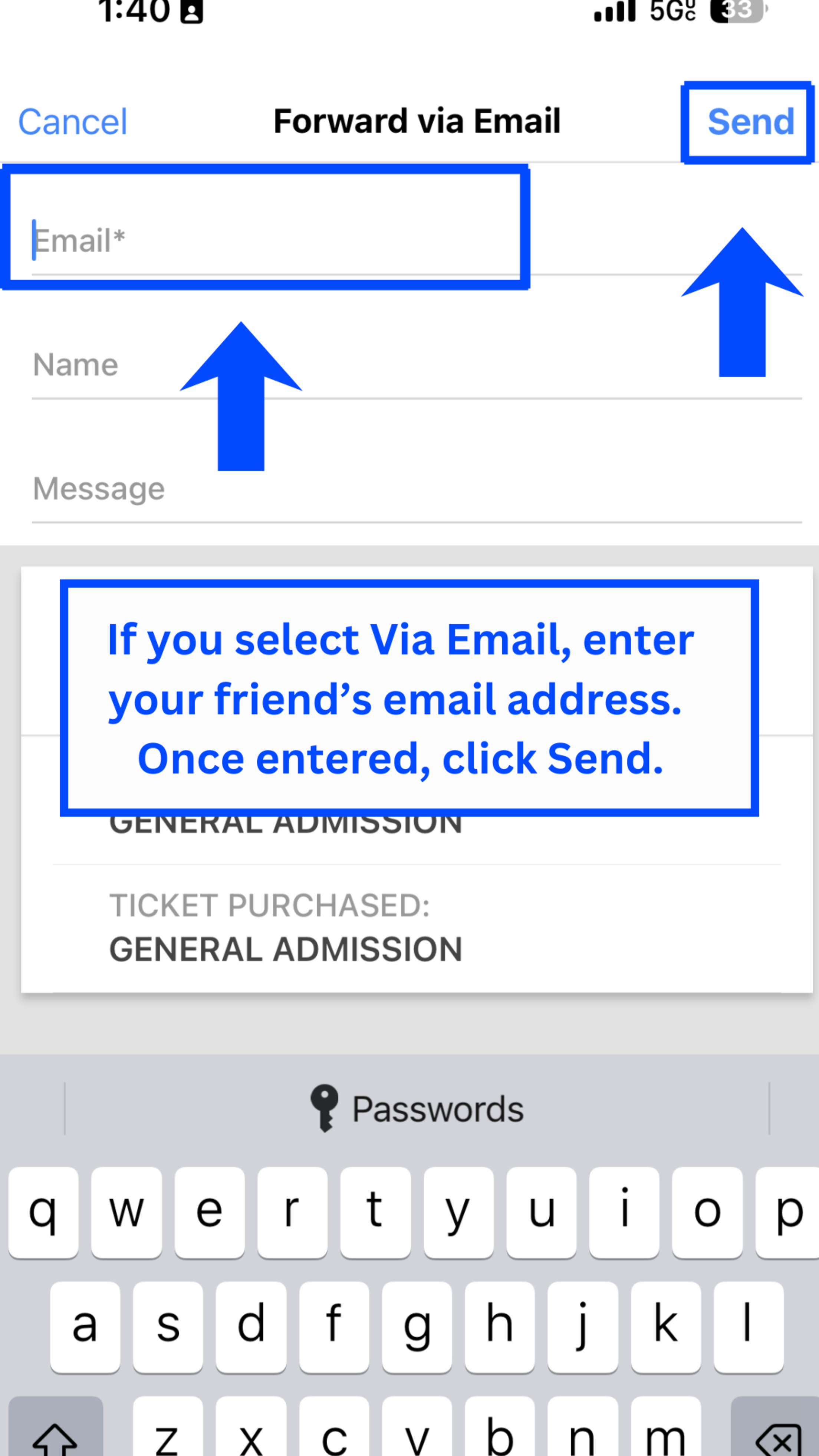
If you select Via Email, enter your friend's email address. Once entered, click Send.

Desktop Forwarding

Step 1

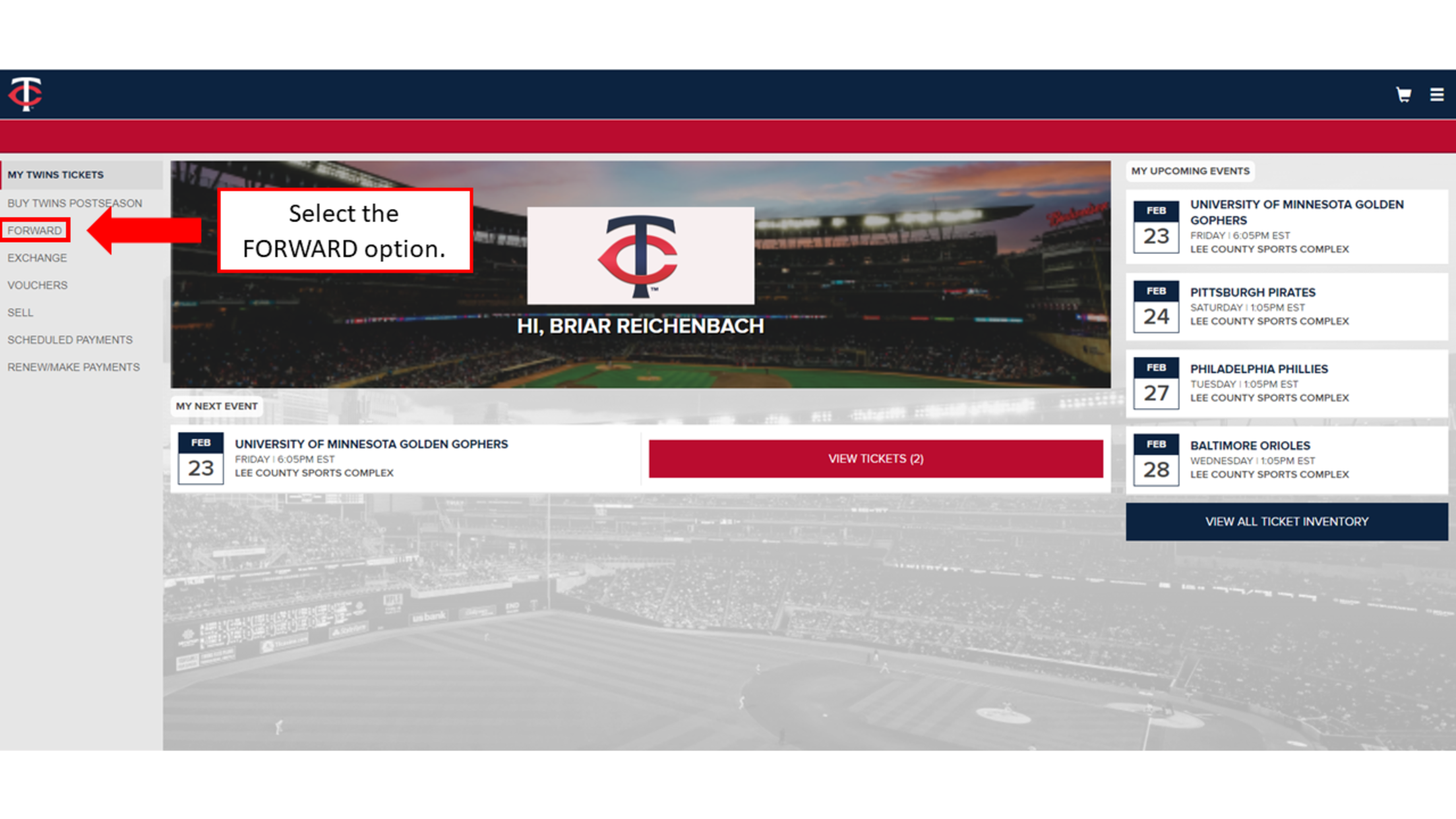
Select the FORWARD option on the left side.

Step 2

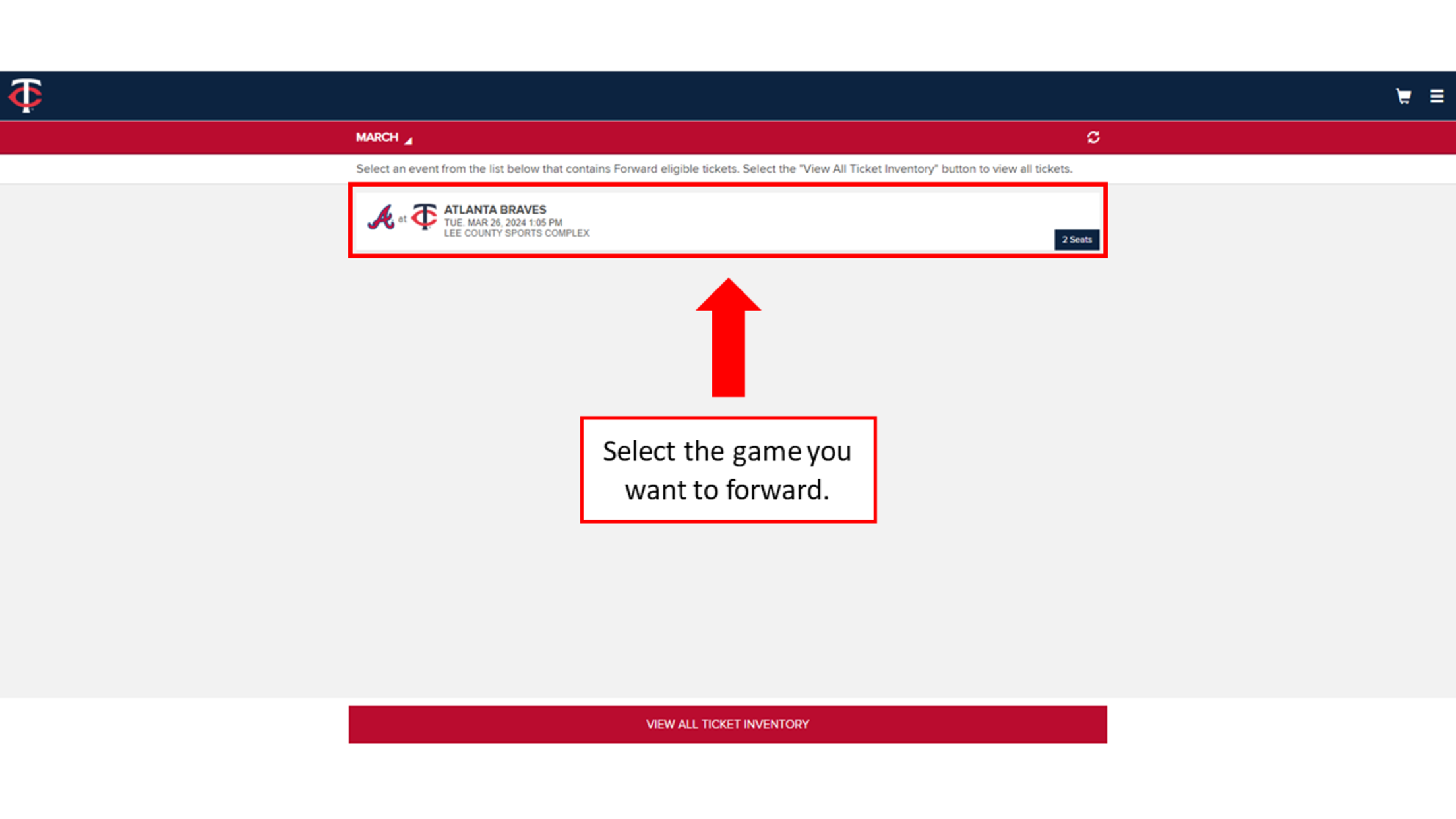
Select the game you want to forward.

Step 3

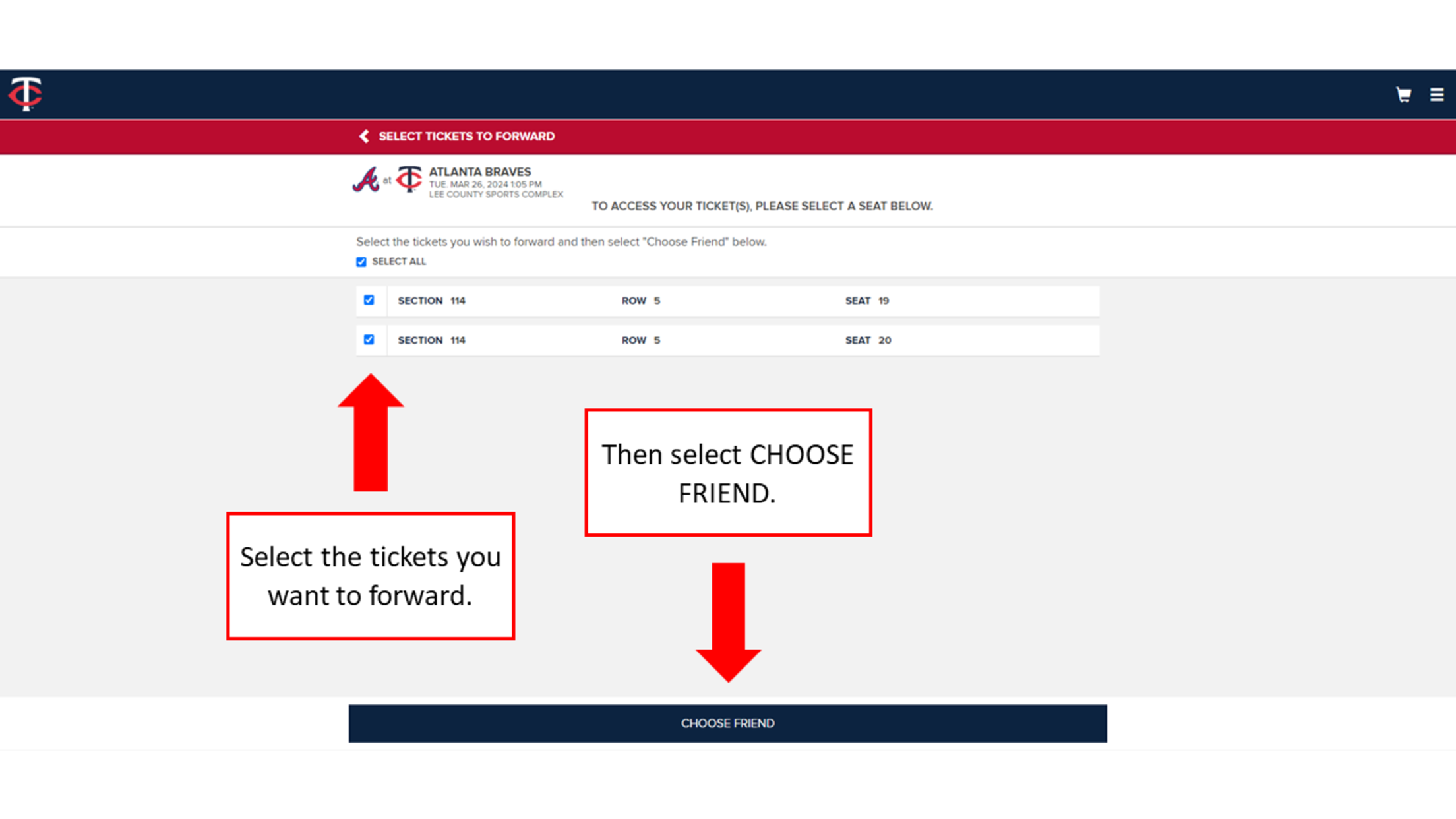
Select the tickets you want to forward. Then select CHOOSE FRIEND.

Step 4

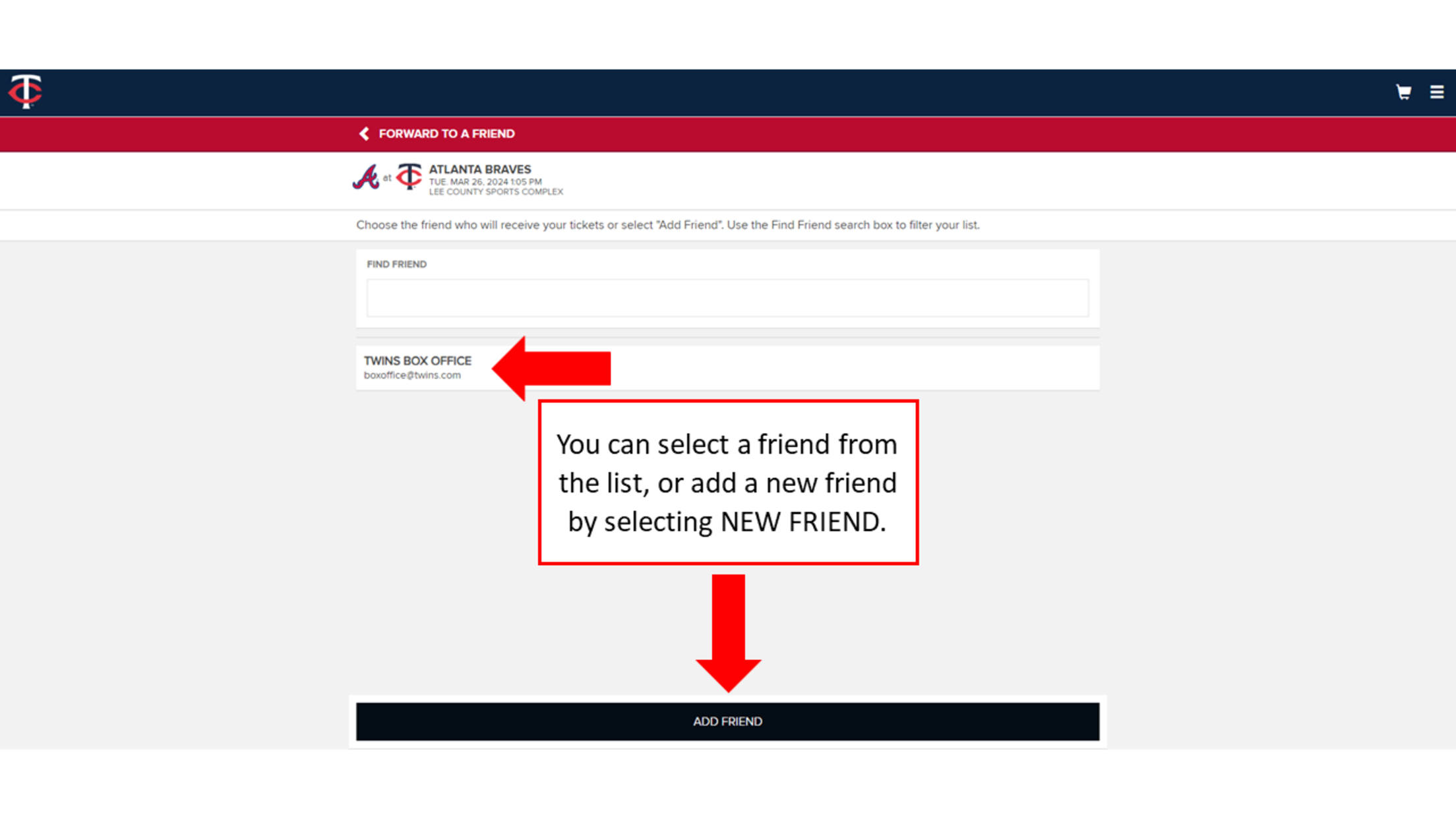
You can select a friend from the list, or add a new friend by selecting ADD FRIEND.

Step 5

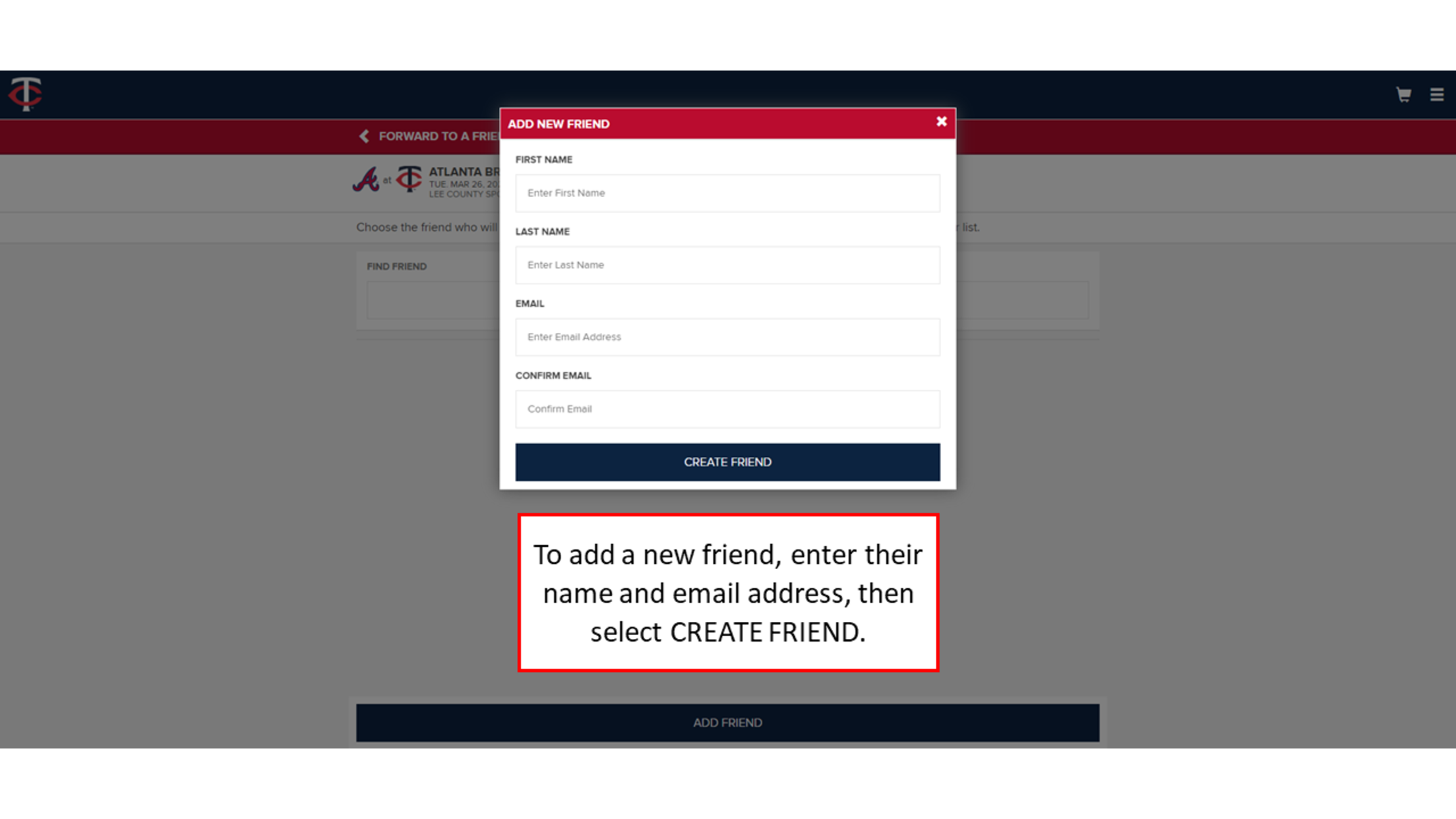
To add a new friend, enter their name and email address, then select CREATE FRIEND.

Step 6

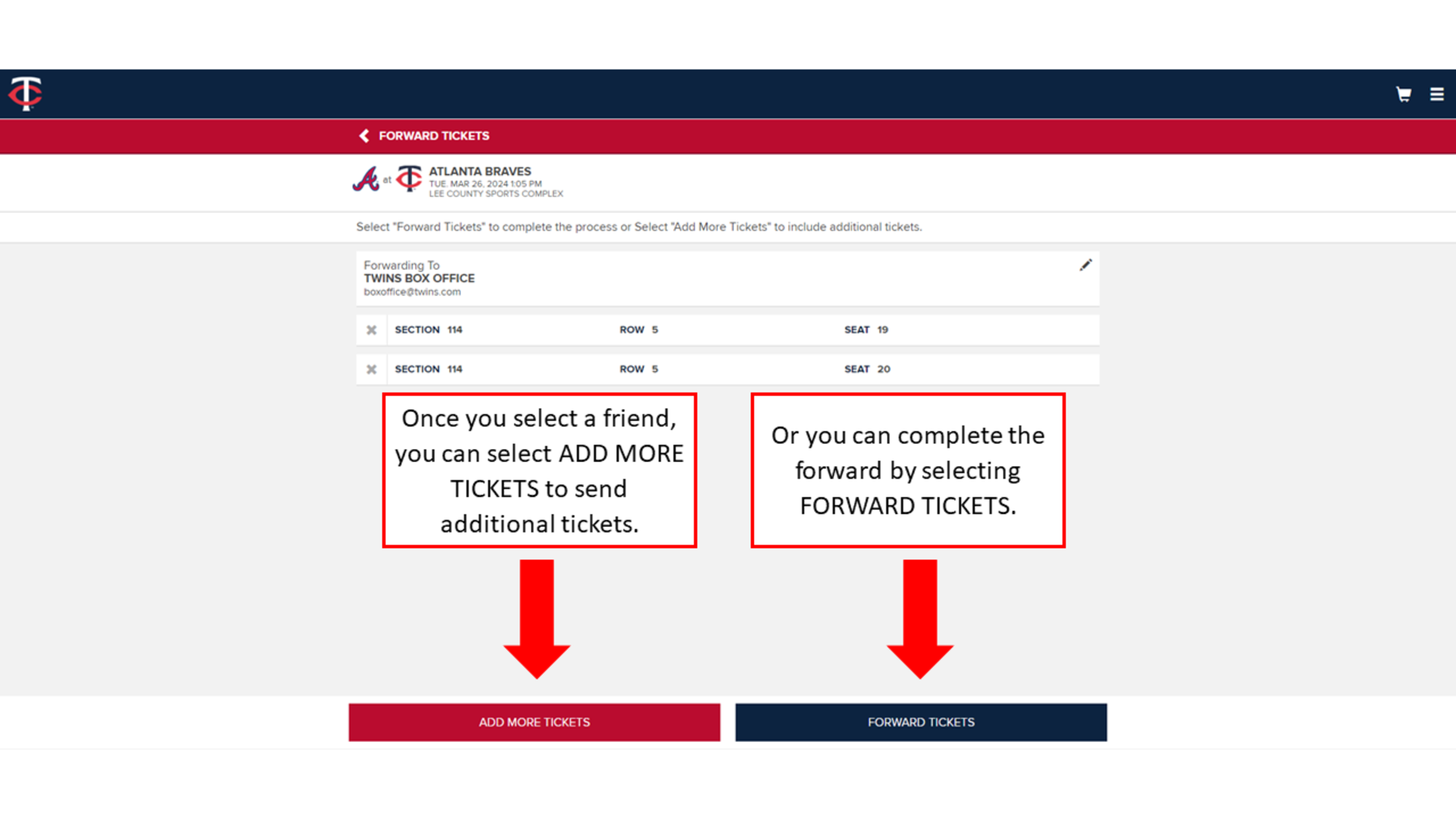
Once you select a friend, you can select ADD MORE TICKETS to send additional tickets. Or you can complete the forward by selecting FORWARD TICKETS.

Desktop Recalling

Step 1

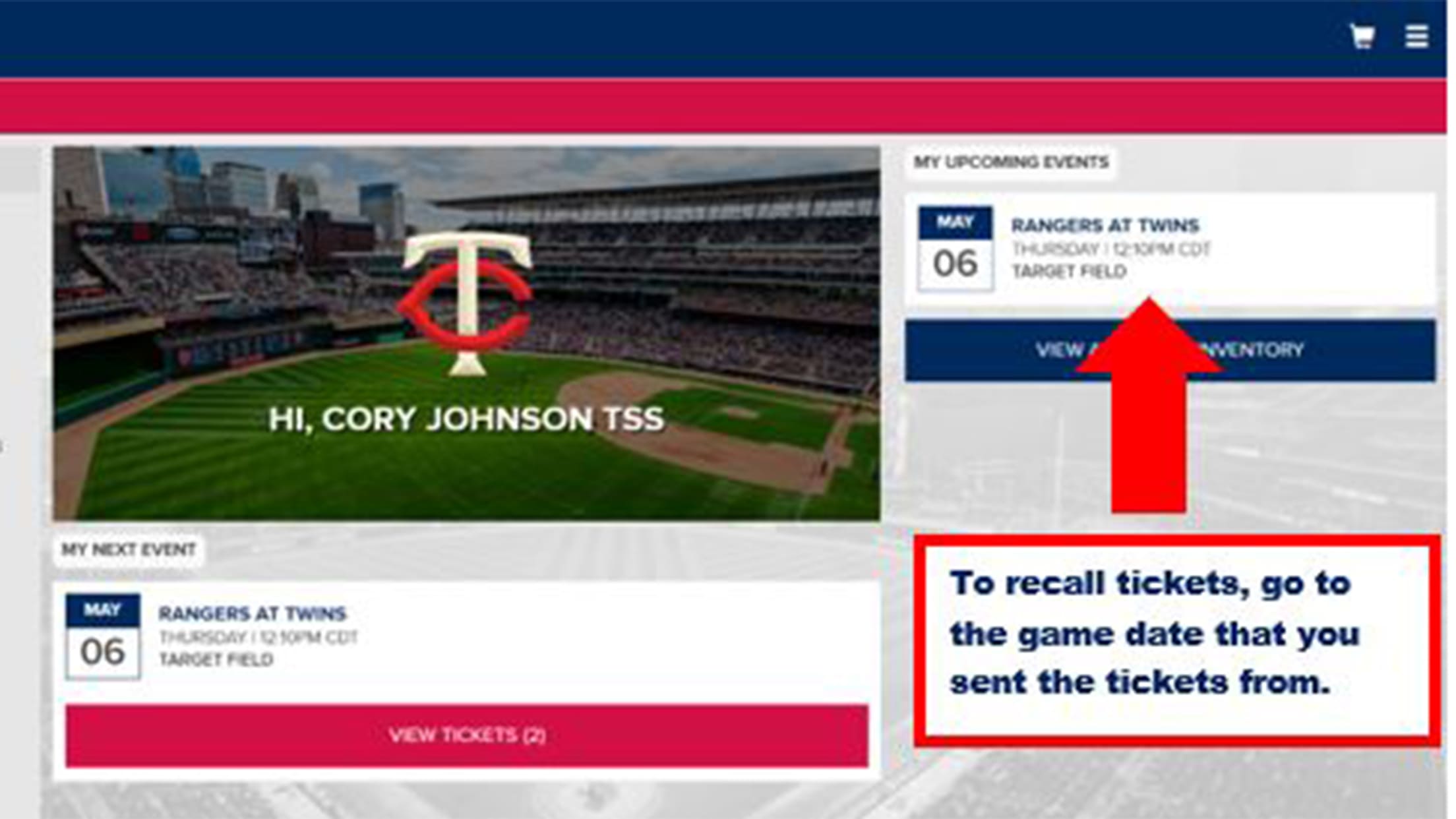
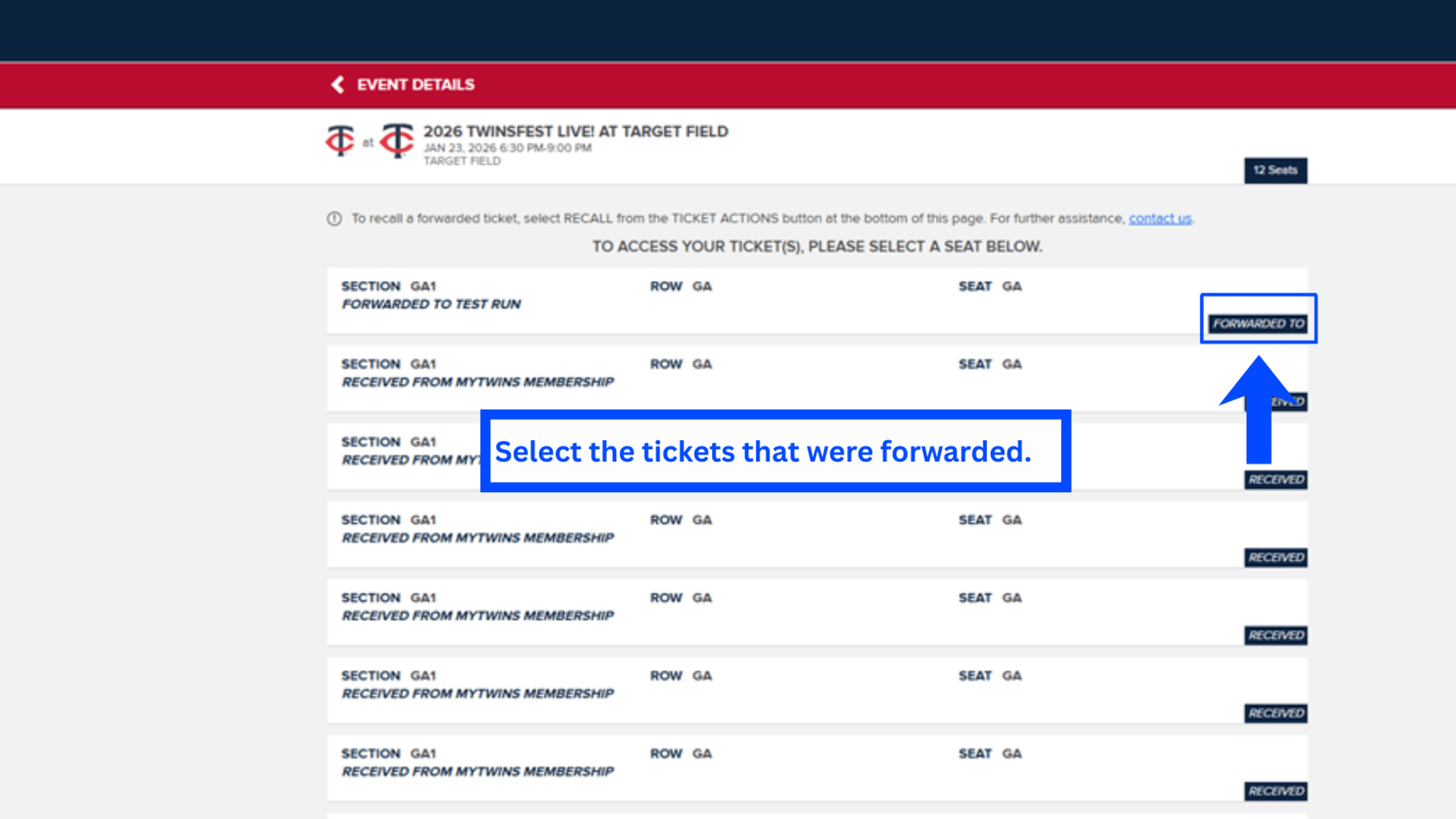
To recall tickets, go to the game date that you sent tickets from.

Step 2

To recall tickets, go to the game date you sent the tickets from

Step 3

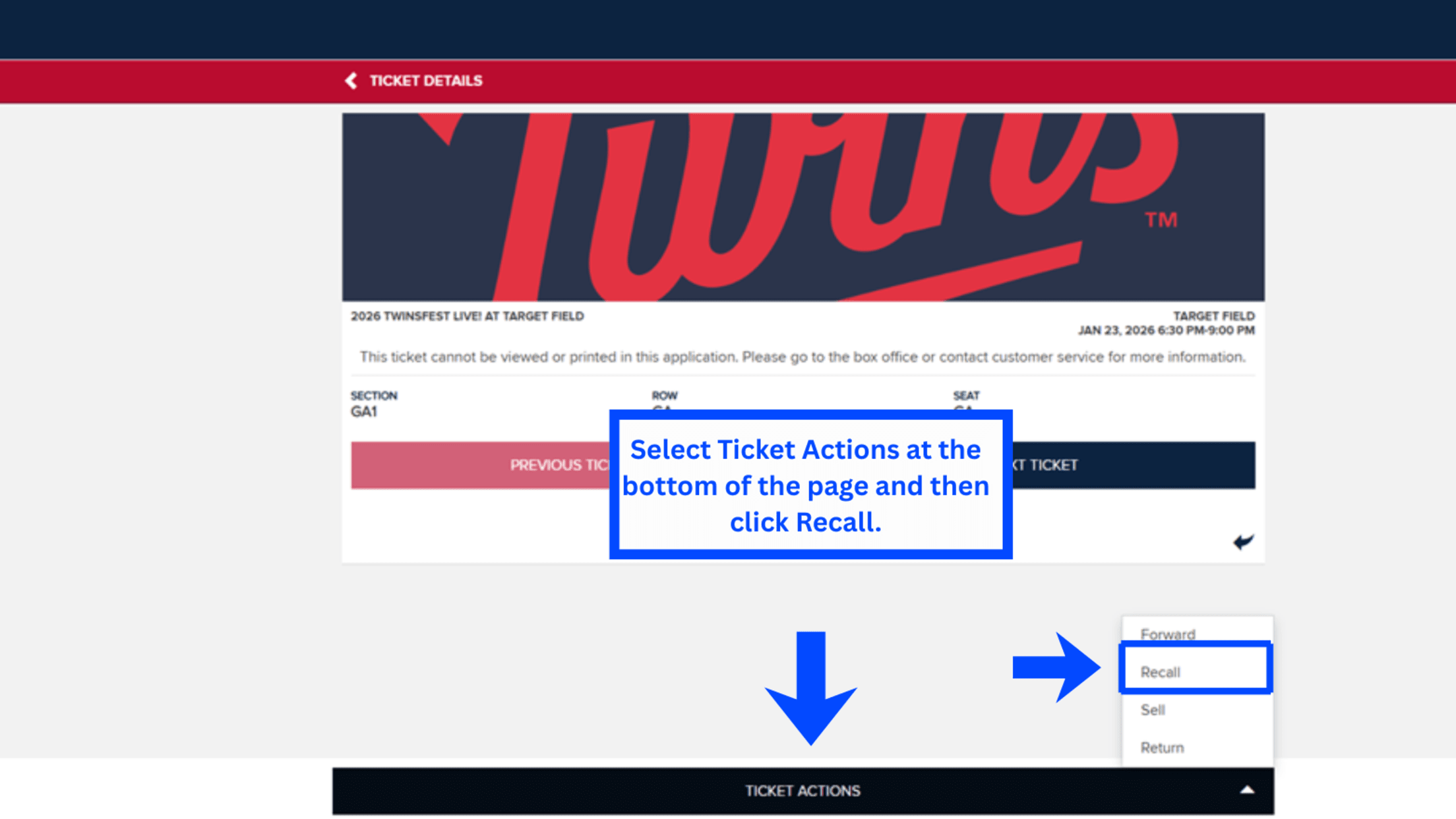
Select Ticket Actions at the bottom of the page and then click Recall

Step 4

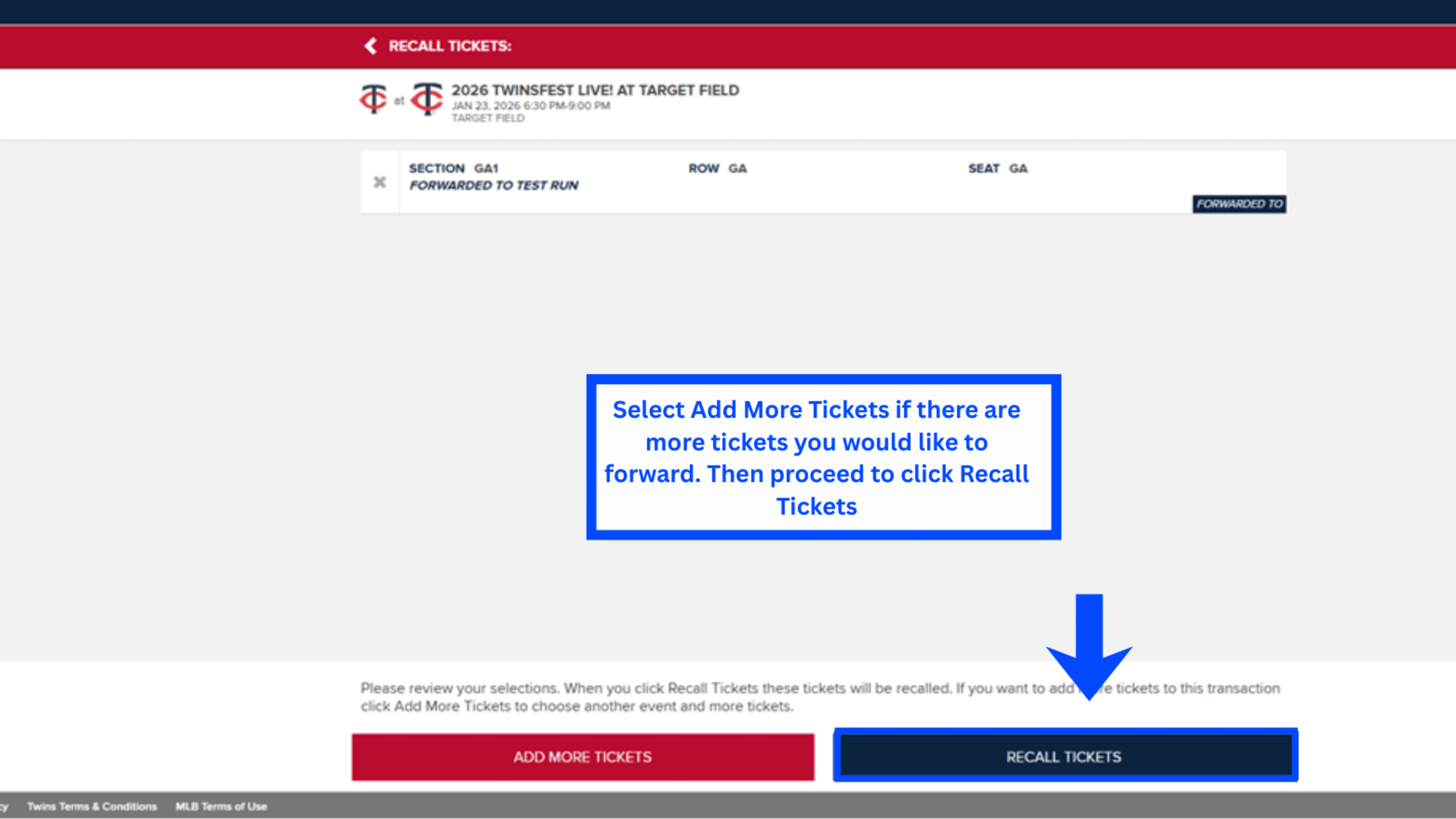
Select the ticket(s) you want to recall, and press continue

Step 5

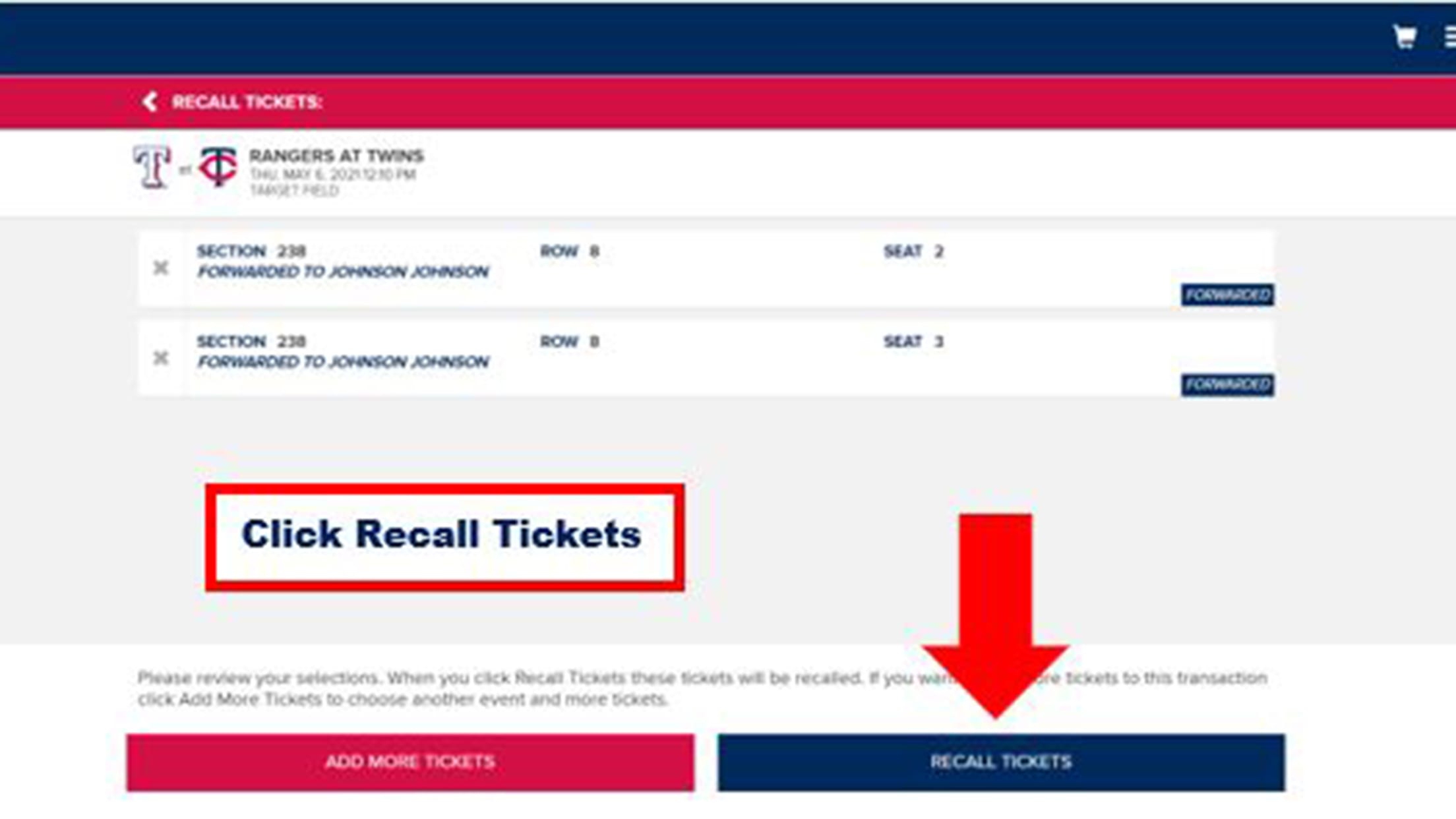
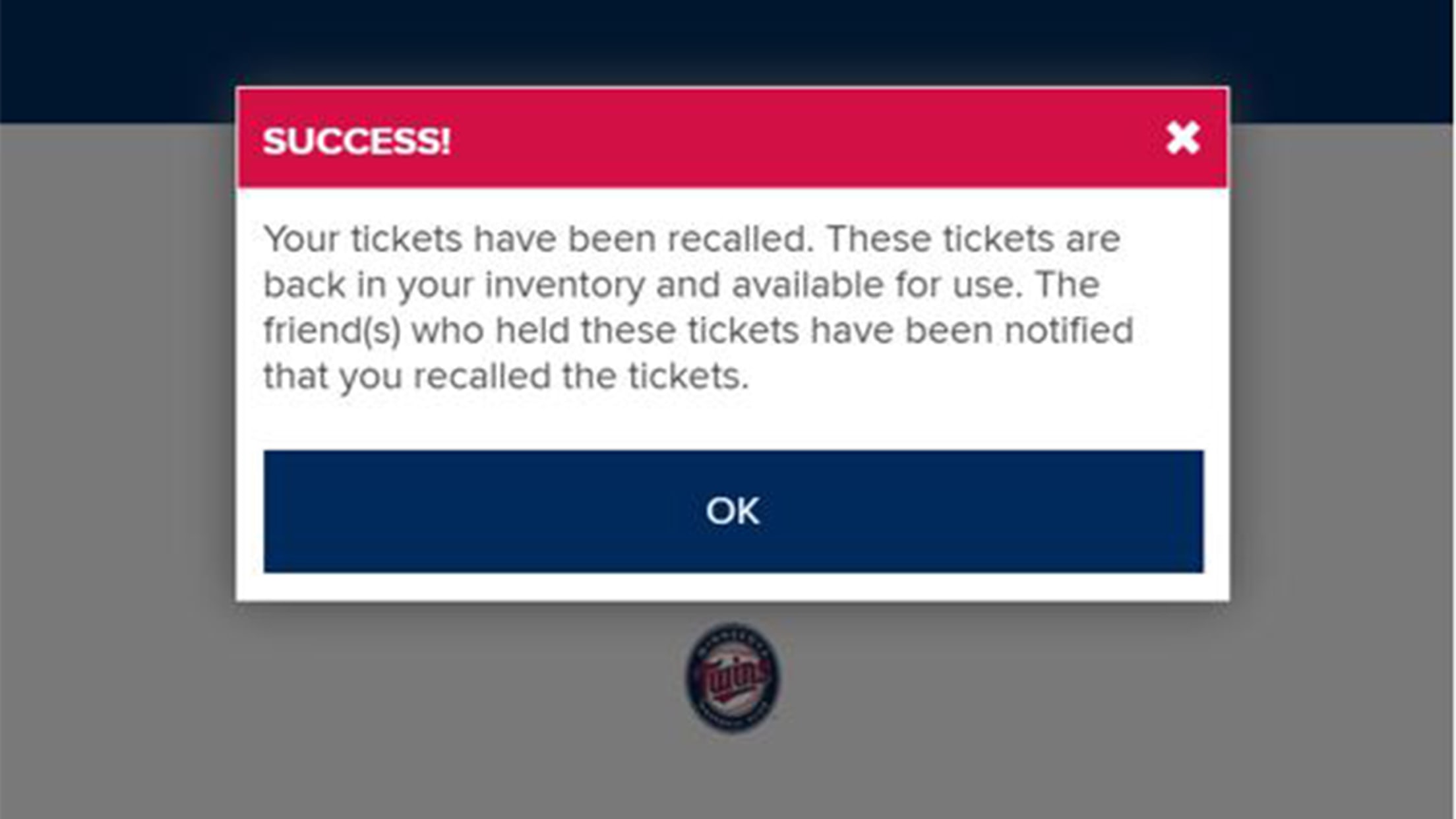
Click Recall Tickets

Step 6

Selling Tickets

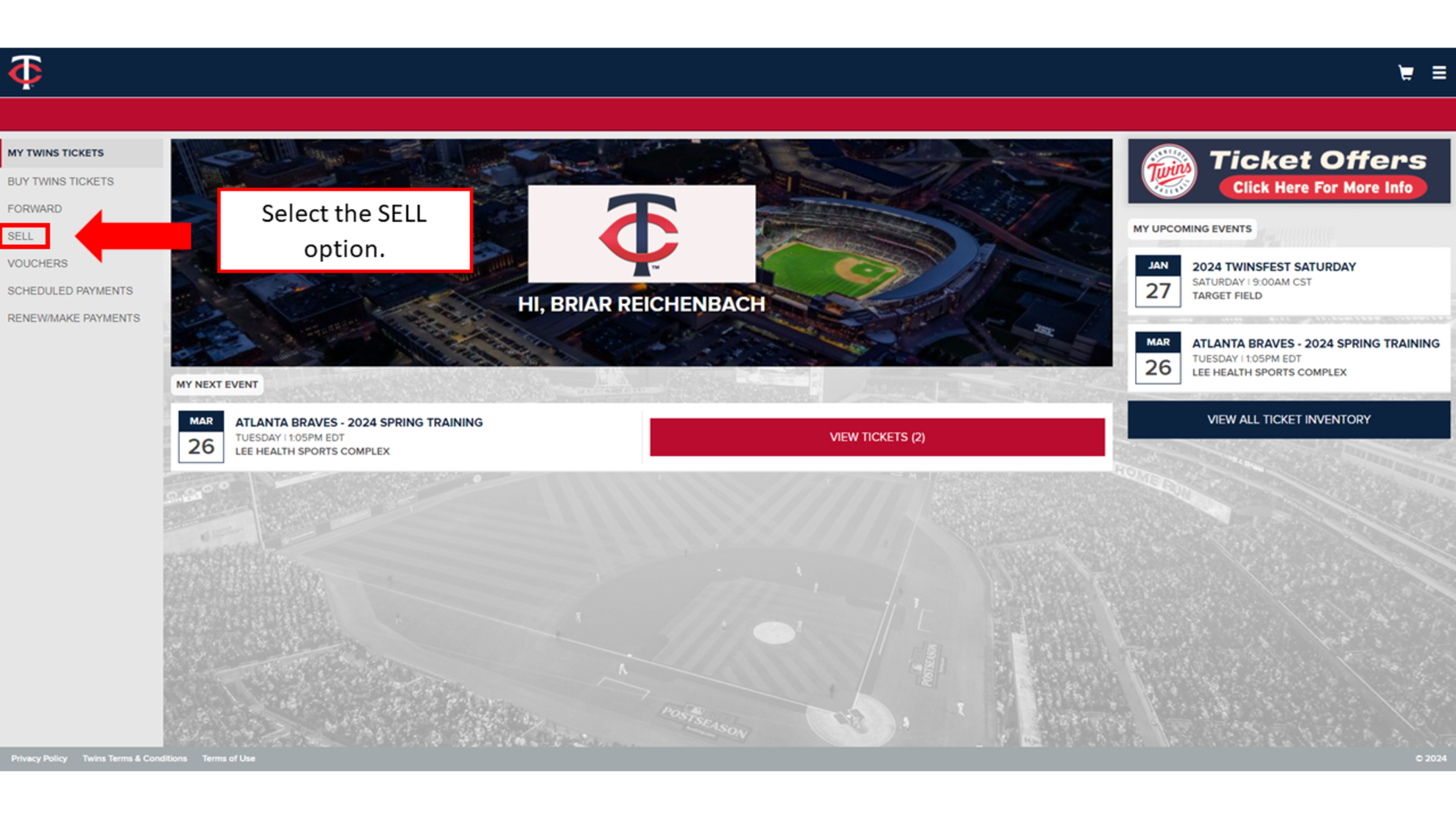
Step 1

Select the SELL option on the left.

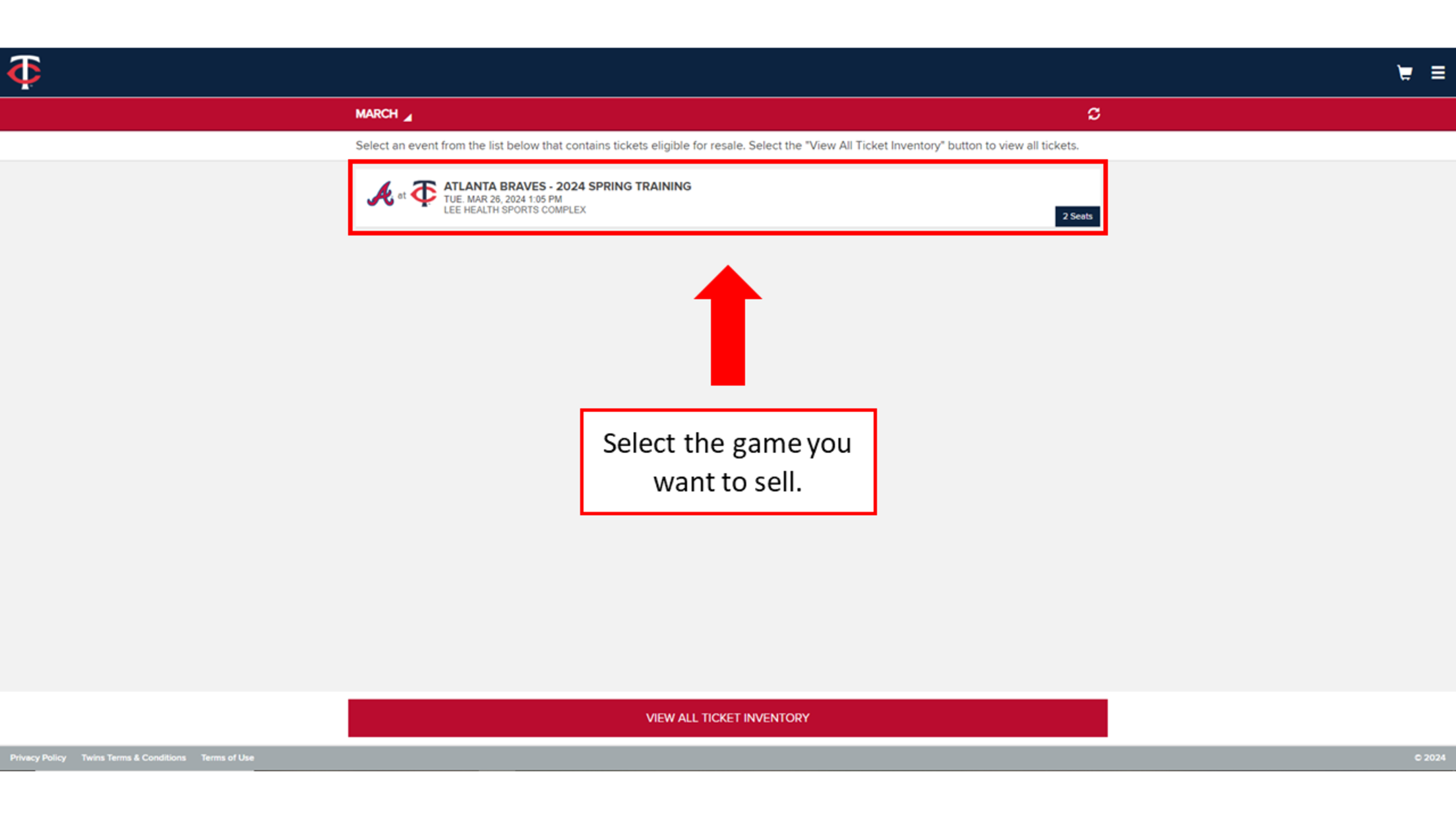
Step 2

Select the game you want to sell.

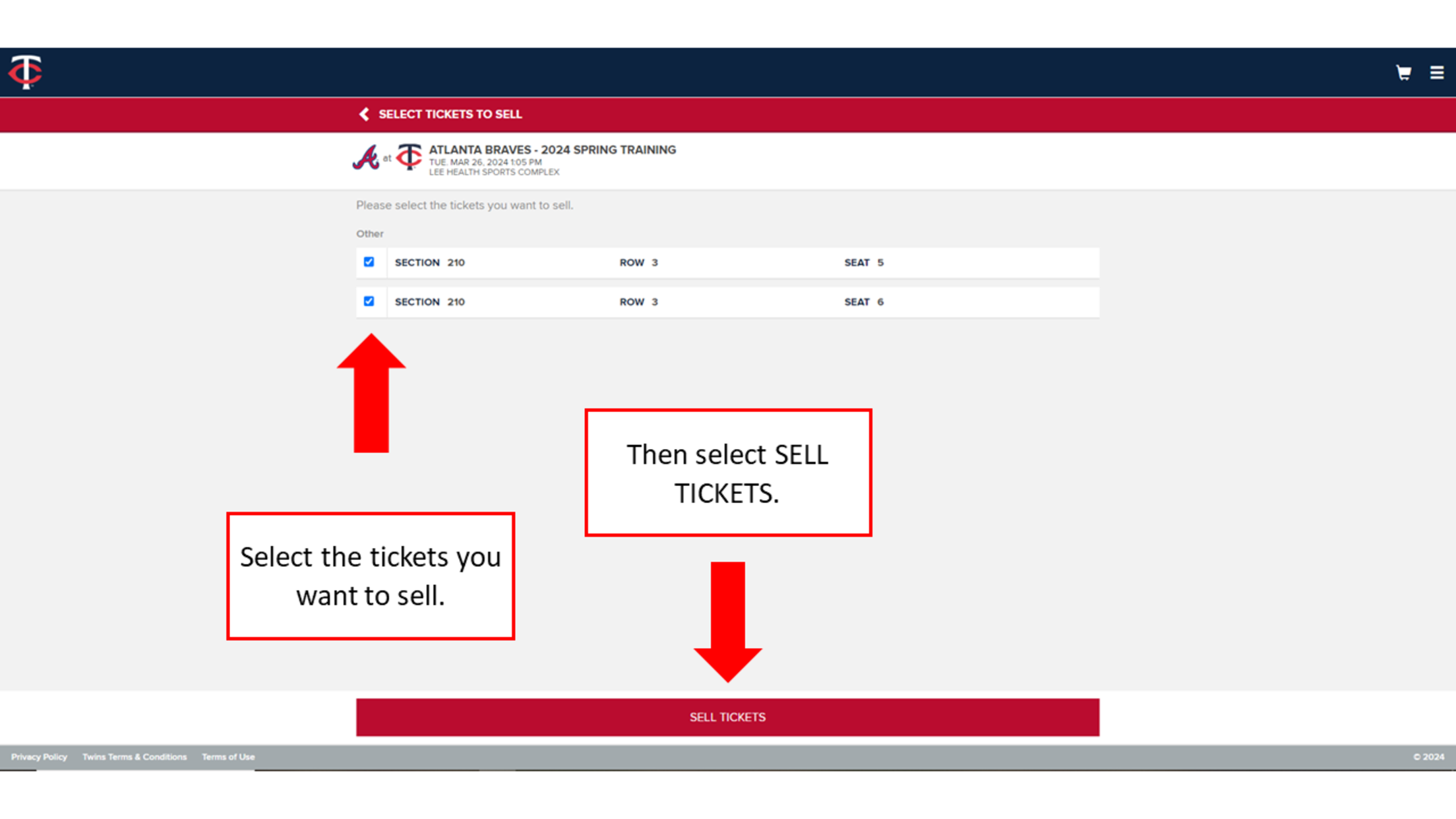
Step 3

Select the tickets you want to sell. Then select SELL TICKETS.

Step 4

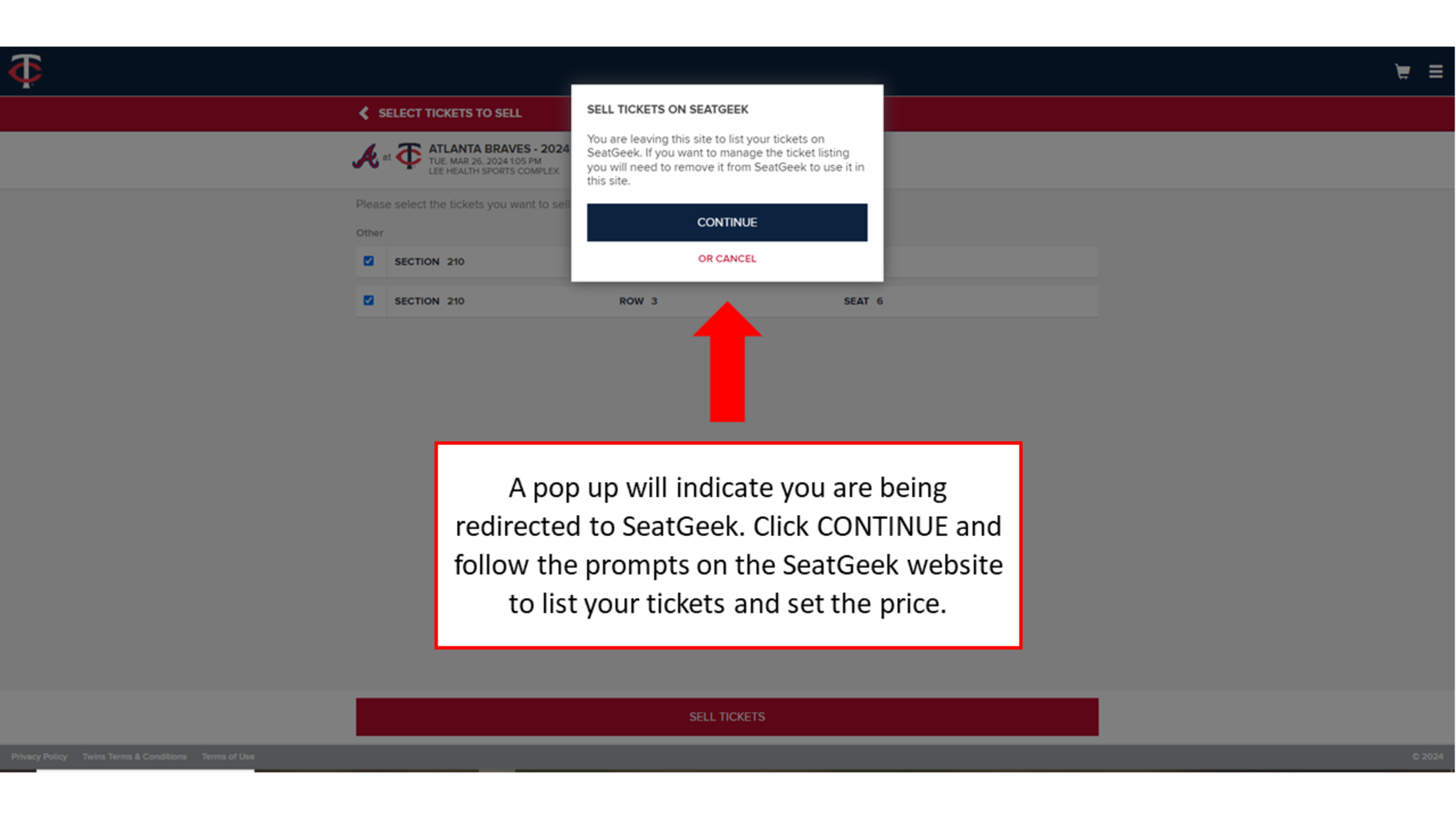
A pop up will indicate you are being redirected to SeatGeek. Click CONTINUE and follow the prompts on the SeatGeek website to list your tickets and set the price.