
Digital Ticketing Guide
Welcome to the Padres ticketing guide. You have your tickets, now what? The steps below will help you to sign into your Padres Account to access and manage your tickets. All tickets are now digital and can be accessed in the MLB Ballpark app for scanning and entry at the gates on event days. Use the guides below for how to access your tickets within the app.
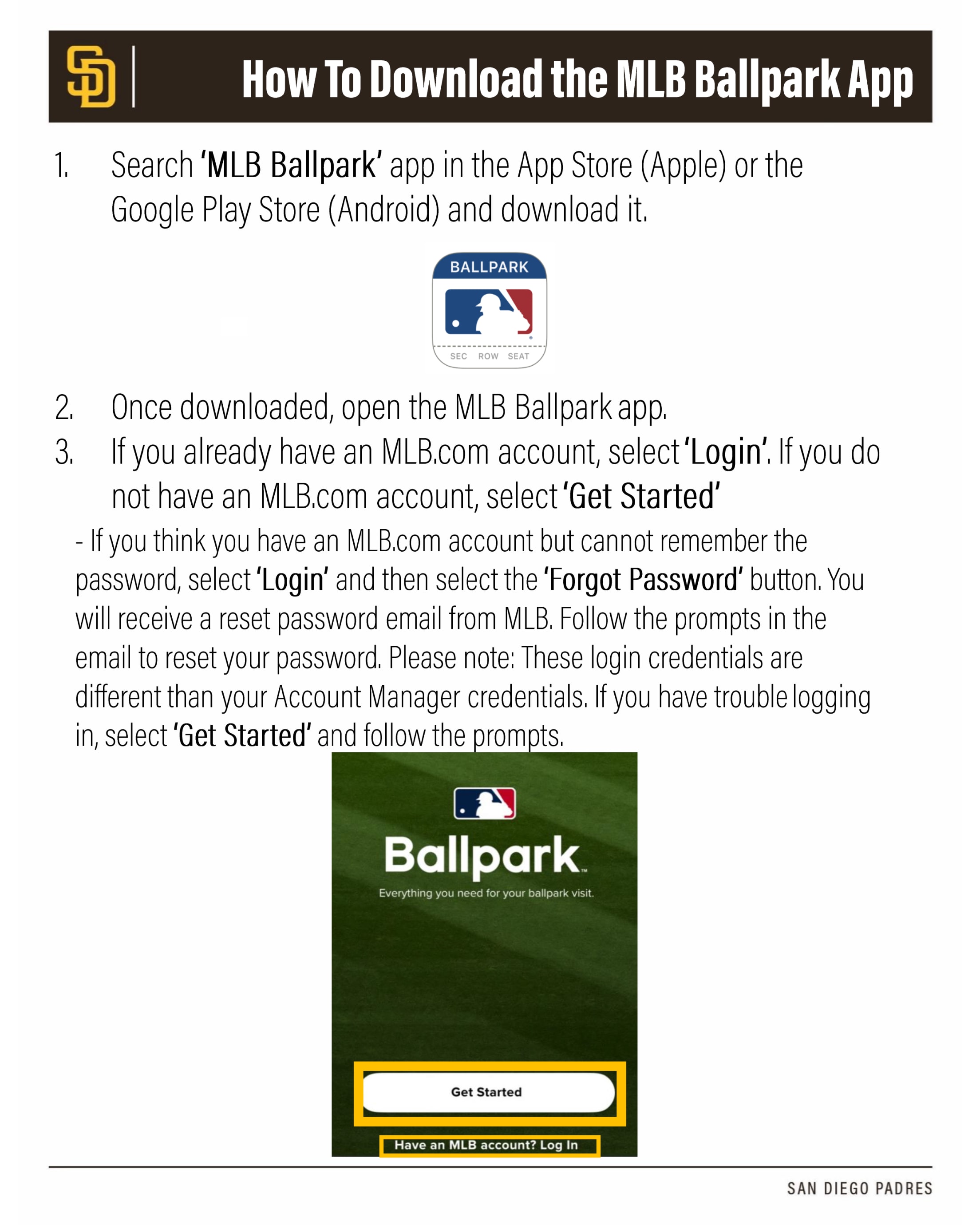
Download the MLB Ballpark app
- Search for MLB Ballpark in the App Store (iPhone) or Google Play Store (Android) and download.
- Once downloaded, open the MLB Ballpark app.
- If you already have an MLB.com account, select Login. If you do not have an MLB.com account, select Get Started.
- If you think you have an MLB.com account but cannot remember the password, select Login and then select the Forgot Password button.
- You will receive a reset password email from MLB. Follow the prompts in the email to reset your password.
- Please Note: These login credentials are different than your Account Manager credentials.
- If you have trouble logging in, select 'Get Started' and follow the prompts.
- Once you have logged in, you will be asked to select your favorite team. Select San Diego Padres.
- The first time you login to the MLB Ballpark App, you will not see tickets loaded. To see your tickets, you will need to link your email address to the account. To do this, press 'View My MLB Account' from the 'Home' tab.
- Make sure the email address listed is the email registered with your Padres ticketing account. If it is not, add your Padres Account email by clicking 'Add Another Email.'
- MLB will send a confirmation email to the email address. If you have not received the email after a few minutes, check your spam folder. Once your email is verified, you will see a blue check mark next to the email address under 'MLB Account Emails.'
- 8. To manage your tickets, you will be prompted to log into your account using the email the tickets were purchased under.
- Your tickets for the day's event will show on the 'Home' tab.
- If sharing your tickets with family or friends, it is recommended to transfer tickets to their own account for them to manage from. Screenshots will not be accepted.
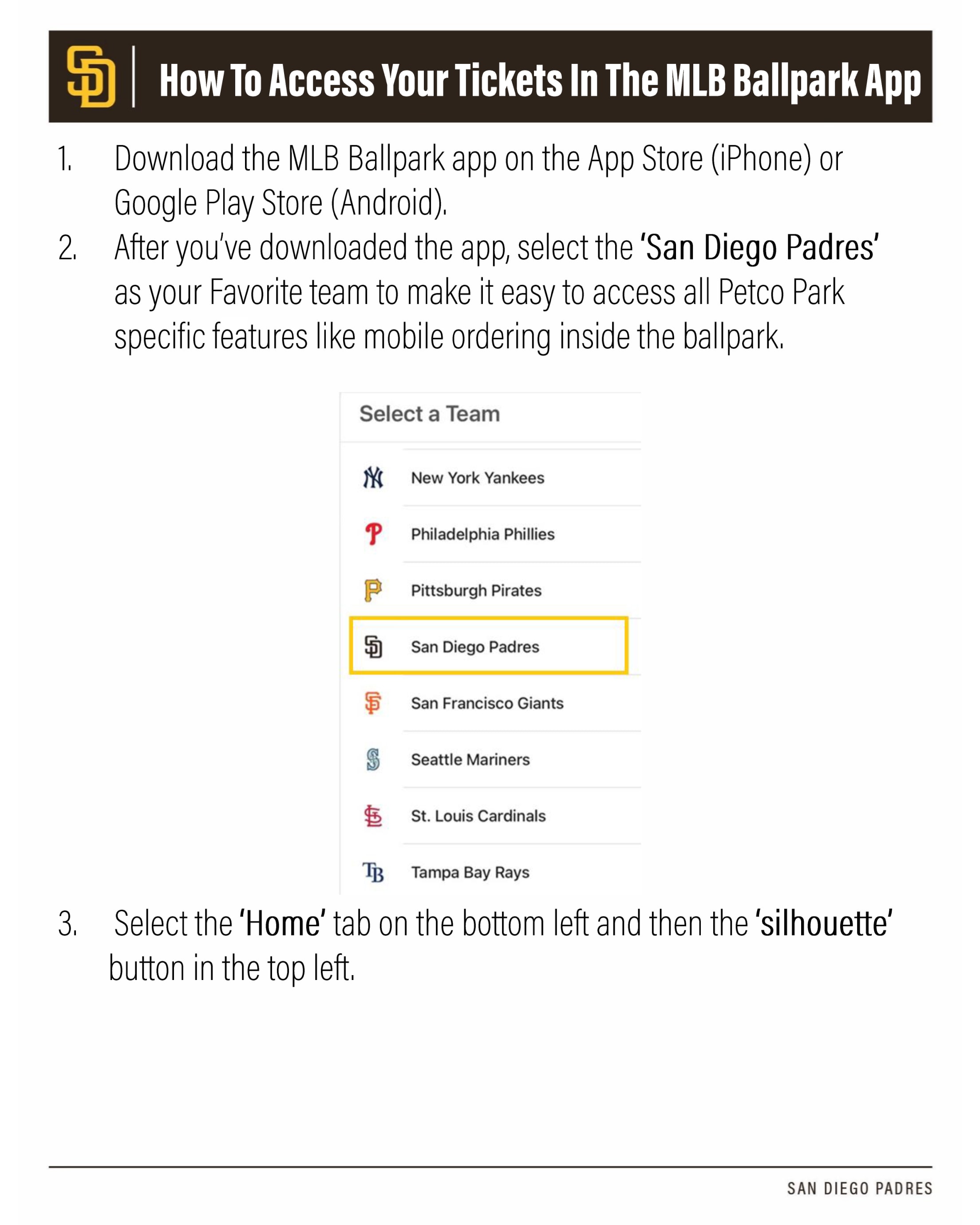
How to access your tickets in the MLB Ballpark app
- Download the MLB Ballpark app on the App Store (iPhone) or Google Play Store (Android).
- After you download the app, select the ‘San Diego Padres’ as your Favorite team to make it easy to access all Petco Park specific features.
- Select the ‘Home’ tab on the bottom left and then the ‘silhouette’ button in the top left.
- Select ‘MLB Account Emails.’
- Make sure the email address listed is the email registered with your Padres ticketing account. If it is not, add your Padres Account email by clicking ‘Add Another Email.’
- MLB will send a confirmation email to the email address added. Once confirmed, you will see the email address populated under ‘MLB Account Emails.’
- Your tickets will be accessible in the ‘Tickets’ tab and ‘Home’ tab for you to view.
- Tap to see your tickets specific to today’s event via the ‘Home’ tab.
- After selecting the tickets you’d like to view, you will be prompted to log in with your Ticketmaster log in (please note that this log in may be different than your MLB Ballpark log in).
- To see a chronological list for your tickets, click the ‘Wallet’ tab within the ‘Tickets’ tab. Select an event and then an individual ticket to see the ‘Scan View’ which is scanned upon entrance to Petco Park.
- If sharing your tickets with family or friends, it is recommended to forward the tickets to their own account for easy access and management. Screenshots will not be accepted.
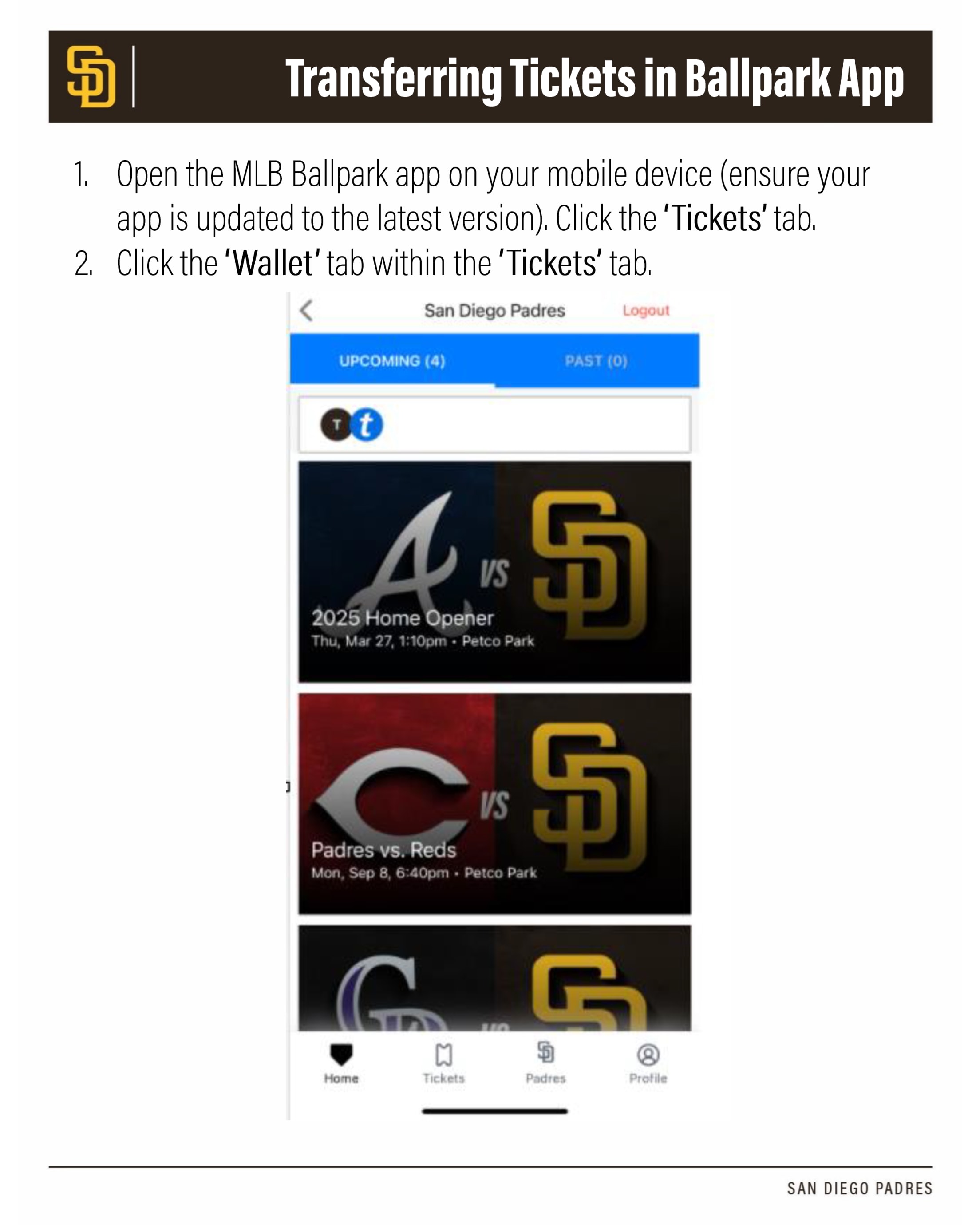
How to transfer tickets via the Ballpark app
- Open the MLB Ballpark app on your mobile device (ensure your app is updated to the latest version). Click the ‘Tickets’ tab.
- Click the ‘Wallet’ tab within the ‘Tickets’ tab.
- Once your event is selected, select the ‘Transfer’ button.
- Select which ticket(s) you would like to transfer.
- Input the information of the recipient of the transfer. You can either text or email the tickets. The recipient will need a Ticketmaster account with their correct email to accept the transfer via email.
- Once you’ve transferred a ticket, you’ll see the transferred icon in the ticket list. You can open the scan view and will see that your ticket is in a pending state hiding behind the barcode. You can cancel the ticket transfer from this screen if you change your mind by tapping the ‘Cancel Transfer’ button. If you cancel a ticket transfer, the recipient will receive an email notification that it has been cancelled. An accepted transfer cannot be cancelled, the recipient will need to transfer it back.
- If you are having trouble cancelling the transfer from the Ballpark App, please proceed to Ticketmaster, log in with your Padres credentials, click the ‘Manage My Tickets’ tab, select the event and you can cancel the transfer from the website.
HELPFUL HINTS
- Your recipient will need to download the MLB Ballpark app in order to receive the tickets.
- If you send the tickets to the wrong e-mail address or send the wrong event, you can cancel the transfer before the recipient accepts the transfer by following the instructions listed at Step #7.
- If the recipient has already accepted the transfer, you will need to contact them to have them transfer the ticket(s) back to you – you cannot cancel a transfer once the tickets have been accepted.
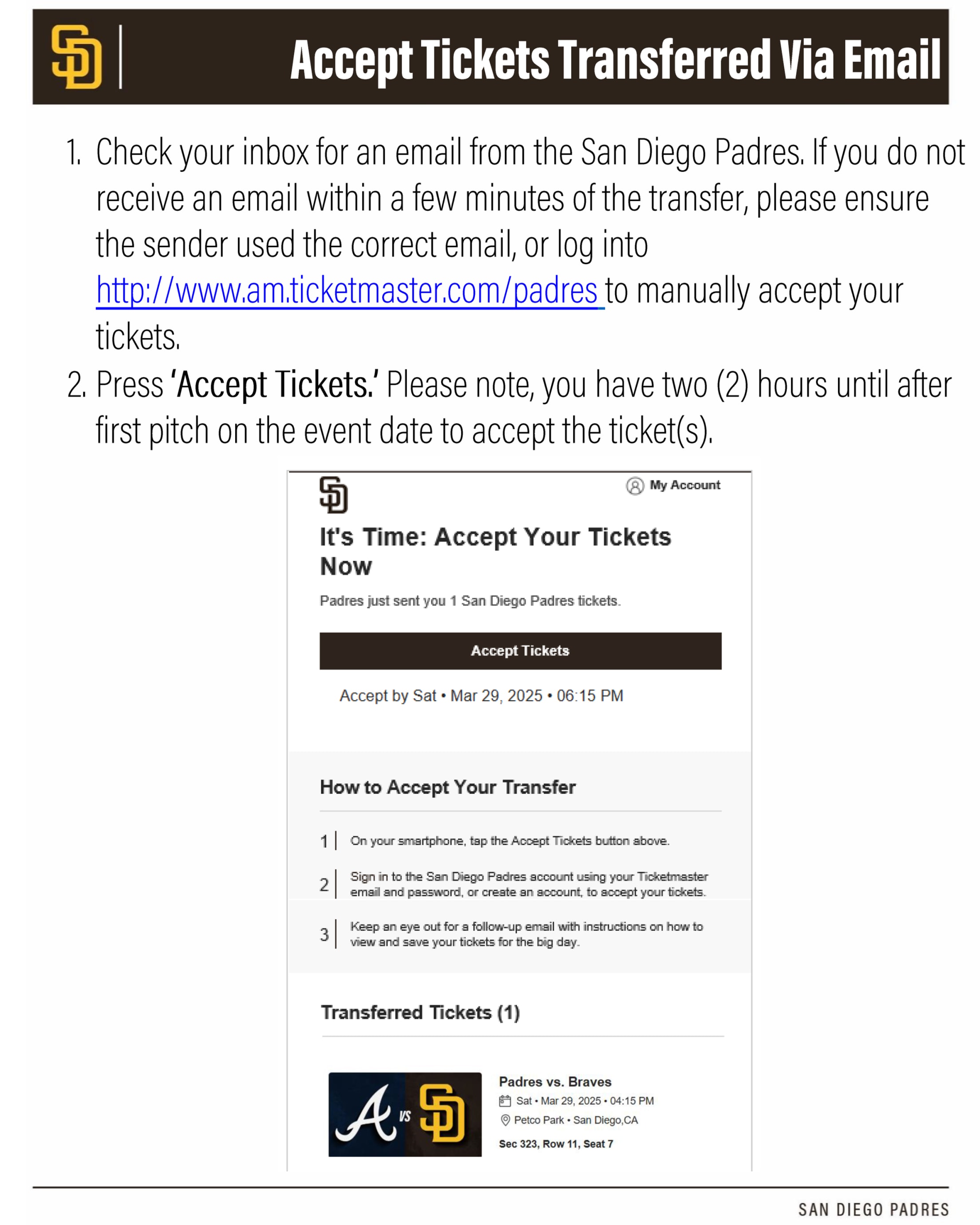
How to accept tickets that were transferred via email
- Check your inbox for an email from San Diego Padres. If you do not receive an email within a few minutes of the transfer, please ensure the sender used the correct email, or log into Ticketmaster to manually accept your tickets.
- Press ‘Accept Tickets.’
- Enter your email address for your Padres account and press ‘Next.’ If you do not have a Padres account, press ‘Sign Up’ and follow the prompts to create one.
- To view your ticket, scroll to the bottom of the page and press on the ticket.
- If the email used for the ticket transfer is linked in the MLB Ballpark App, the ticket will automatically populate in the MLB Ballpark App in the Tickets tab (please note this may take a few minutes). From here, you can add your ticket to your Apple Wallet or Google Wallet for easy access to your tickets!